Product Feature
What are the differences between the Gaomon PD1561 V2 and PD1561?Gaomon PD1561 V2 is the iterative upgraded successor to the PD1561, with significant improvements across multiple core functions, outlined as follows:
Screen Technology
PD1561 V2 adopts a full-laminated screen, which delivers more accurate pen tip positioning and significantly reduced parallax compared to the screen of the original PD1561.
Pen Performance
The included digital pen has been upgraded from the original AP50 model to the G Pen AP51, with an initial activation force (IAF) of 3g, pressure sensitivity levels increased to 16,384, and a newly added tilt correction function. It delivers more refined and precise stroke feedback.
Color Performance
Color depth has been increased from 262K to 16.7 million (16.7M). Every unit undergoes rigorous factory calibration to deliver professional-grade color performance with an average Delta E (△E) of less than 1.5. It supports switching between Native, sRGB, and Rec.709 color gamuts.
Connectivity
PD1561 V2 comes standard with an HDMI cable and a 2-in-1 cable, removing the power adapter bundled with the previous PD1561. Now, simply connect it via the included HDMI and 2-in-1 cables to get started. It also supports connection via a full-featured USB-C port for simplified and more convenient setup and use.
For a full breakdown of additional differences between the two display models, please refer to the form.
PD1561 V2 PD1561 Size 15.6 Inch 15.6 Inch Active Area 344.16×193.59mm 344.16×193.59mm Resolution 1920×1080 FHD 1920×1080 FHD Surface Anti-glare protective film Anti-glare protective film Full Lamination Yes No Color Accuracy ΔE<1.5 / Color Gamut Coverage 99% sRGB, 99% Rec.709 / Display Color 16.7M 262K Pen Model AP51 (G Pen) AP50 Pen Size 163.4xΦ14.5mm 160xΦ12mm Pen Technology Battery-free EMR Battery-free EMR Pressure Level 16384 Levels 8192 Levels Pen Resolution 5080lpi (0.005mm) 5080lpi (0.005mm) Activation Force 3g / Retraction Distance 0.3mm 0.8mm Tilt Support ±60° ±60° Tilt Correction Yes No Weight 14g 12g Connectivity HDMI + 2-in-1 cable, full-featured USB-C cable (additional purchase) 3-in-2 cable OS Compatibility Windows 7 or later, macOS 10.12 or later, Android (USB3.0 DP1.2 or later), Linux Windows 7 or later, macOS 10.12 or later
What color modes does PD1561 V2 support?PD1561 V2 supports three color modes, including Native, sRGB, and Rec.709, all of which can be adjusted through the OSD menu. Native: Native color mode with no color gamut limitation, offering vibrant and saturated colors.
sRGB/Rec.709: 2 color gamut modes, which restrict the color space to the corresponding standard gamuts.
Does Gaomon PD1561 V2 have touch input?No, PD1561 V2 does not support the touch input.
Does PD1561 V2 come with a stand in the package?Yes, PD1561 V2 includes an adjustable stand (10°–90° adjustable range), so you can use it right out of the box.
If you prefer a different setup, the back of the display supports a standard 100×100 VESA mount, making it compatible with a wide range of third-party stands and monitor arms.
Does the PD1561 V2 come with a full-featured USB-C cable in the package?No, you can purchase one or use your own cable, as long as it meets USB 3.1 Gen 1 and DP1.2 standards for connection.
What does a ΔE < 1.5 color accuracy indicate?ΔE is a quantitative metric for color deviation, where lower values correspond to higher color accuracy. A ΔE< 1.5 metric meets professional-grade color accuracy standards: the human eye is effectively unable to distinguish color differences at this level, so it supports the demands of professional use cases, including graphic design, concept art creation, and film/television color grading.
Does the Gaomon PD1561 V2 support tilt correction, and what does the function mean?Gaomon PD1561 V2 supports tilt correction and is pre-configured and debugged for this function at the factory. It is designed to align with real hand-drawing habits, supporting freehand drawing with tilted pen input. The pen enables variable line width gradients and shading effects, simulating the side-edge hatching of real pencils and charcoal sticks, to deliver more natural results for drawing, sketching, and concept art creation.
Is the PD1561 V2 pen display equipped with a built-in fan?PD1561 V2 does not have a fan and is free of operating noise. It has integrated ventilation vents to dissipate heat effectively and prevent overheating.
What is G Pen?G Pen is a battery-free stylus built for writing and drawing. It supports 16,384 levels of pressure sensitivity, 5080 LPI handwriting resolution and ±60° tilt recognition to capture every stroke accurately. Two side buttons sit on the pen barrel, allowing quick actions like brush switching or undo assignment to speed up your workflow. Its silicone grip stays comfortable and non-slip in your hand, and the included standard nibs are wear-resistant for long drawing sessions. The nib starts with just 3g IAF and features a 0.3mm bounce travel, giving you smooth and natural lines as you draw or write.
What benefits does a fully laminated screen bring?A fully laminated screen bonds the display layer and sensor panel together with optical adhesive, removing the air gap to cut light reflection, boost contrast and color clarity so the screen stays easy to view even under bright light. It also eliminates parallax, meaning your pen tip lines up perfectly with the on-screen cursor for precise positioning while drawing or writing. On top of that, this technology blocks dust and moisture from seeping between screen layers, and makes the whole display more durable.
What does the AG coating do?The anti-glare (AG) coating softens harsh, bright light and glare to reduce eye strain during long hours of creation. It adds subtle friction between the stylus and the glass surface to recreate the slight drag of drawing on real paper, so your pen won’t slide around easily. It also delivers basic scratch resistance and anti-smudge performance to keep your screen clean and long-lasting.
Setup & UseDo I need to connect the Gaomon PD1561 V2 to a computer to make it work?Yes, Gaomon PD1561 V2 is a drawing display and requires a connection to a computer, laptop, or Android device to function.
How do I connect PD1561 V2 to my PC/mac?There are two methods to connect PD1561 V2 to your PC/Mac:1. Connect via HDMI cable and 2-in-1 cable.
2. Use the full-featured USB-C to USB-C cable (sold separately).
(Make sure your computer USB-C port and the cable meet USB 3.1 Gen 1 & DP1.2)
How do I connect PD1561 V2 to my phone?You can connect the PD1561 V2 to your phone through the HDMI cable and 2-in-1 cable and a separate docking station. Unlike connecting to a computer, the phone can′t provide enough power, so when you connect it to your phone, please use the docking station and power adapter for extra power.
Can I use the PD1561 V2 as a second monitor?Yes, you can use the PD1561 V2 as a second monitor by setting the Duplicate Mode or Extend Mode. Please refer to the articles below for step-by-step guidance.
Windows Computer: How to Set the Duplicate Mode or Extend Mode on Windows While Using Gaomon Pen Display?
Mac Computer: How to Set the Mirror Mode or Extend Mode on MAC While Using Gaomon Pen Display?
How can I set up a resolution for my PD1561 V2? Please refer to this article to learn the step-by-step guide for adjusting screen resolution.
Do I need to apply a film on my PD1561 V2?No.
How can I change the color space and brightness of the PD1561 V2? Please refer to this article to learn the step-by-step method for adjusting the OSD menu.
How do I adjust the pen pressure?You can adjust the pen pressure sensitivity settings, including the pressure curve, initial activation force, and maximum force in the driver.
Pressure Curve: You can adjust the pressure sensitivity by sliding the two sliders. There are 5 preset options ranging from soft to hard, but you can also fine-tune it according to your preferences. After adjustment, the preview of line thickness, from thin to thick, will be displayed in the drawing area on the right.
Minimum Activation Force: This parameter can be adjusted using the blue slider at the bottom-left corner of the pressure curve.
Maximum Pressure: In the "Advanced Settings" at the bottom-right corner, you can adjust the maximum pressure sensitivity within a range of 200g to 500g, with multiple levels to choose from.
How do I switch my PD1561 V2 to the pen tablet mode?According to how you connect the PD1561 V2 to the PC, there are two methods to switch it to pen tablet mode.1. Connect with 2-in-1 cable: Press the power button to turn off the pen display, then unplug and re-plug the USB-C of the 2-in-1 cable. 2. Connect with full-featured cable: Press the power button to turn off the pen display, then unplug and re-plug the USB-C cable.
How do I align the pen with the cursor?Each pen display is calibrated for the cursor before it leaves the factory. We recommend against manual cursor calibration. However, if necessary, you can find the "Monitor Calibration" button in the driver settings, under the pen display’s work area. Click it and follow the steps to calibrate your screen.
Where can I find the replacement nibs in the package?Unscrew the pen holder, and you can get replacement nibs inside it.
How do I remove the worn nibs from the stylus?You can remove the pen nib using the pen holder: insert the nib into the hole at the bottom, then tilt the pen to gently lever it out. 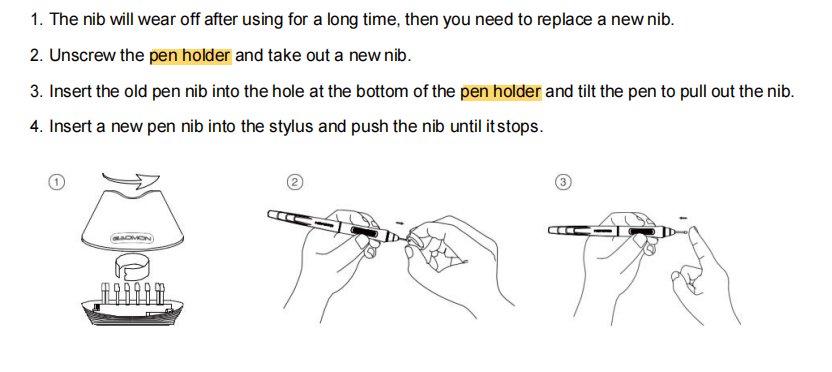 How to install the driver for the PD1561 V2?Please refer to the articles below for step-by-step guidance. How to Install/Re-install the Driver Correctly?
Where can I find the latest driver for the PD1561 V2? You can download the latest driver and check the user manual on our official website. Or, if you have already installed the Gaomon driver, then you can check for updates in the settings.
Screen Technology
PD1561 V2 adopts a full-laminated screen, which delivers more accurate pen tip positioning and significantly reduced parallax compared to the screen of the original PD1561.
Pen Performance
The included digital pen has been upgraded from the original AP50 model to the G Pen AP51, with an initial activation force (IAF) of 3g, pressure sensitivity levels increased to 16,384, and a newly added tilt correction function. It delivers more refined and precise stroke feedback.
Color Performance
Color depth has been increased from 262K to 16.7 million (16.7M). Every unit undergoes rigorous factory calibration to deliver professional-grade color performance with an average Delta E (△E) of less than 1.5. It supports switching between Native, sRGB, and Rec.709 color gamuts.
Connectivity
PD1561 V2 comes standard with an HDMI cable and a 2-in-1 cable, removing the power adapter bundled with the previous PD1561. Now, simply connect it via the included HDMI and 2-in-1 cables to get started. It also supports connection via a full-featured USB-C port for simplified and more convenient setup and use.
For a full breakdown of additional differences between the two display models, please refer to the form.
| PD1561 V2 | PD1561 | |
| Size | 15.6 Inch | 15.6 Inch |
| Active Area | 344.16×193.59mm | 344.16×193.59mm |
| Resolution | 1920×1080 FHD | 1920×1080 FHD |
| Surface | Anti-glare protective film | Anti-glare protective film |
| Full Lamination | Yes | No |
| Color Accuracy | ΔE<1.5 | / |
| Color Gamut Coverage | 99% sRGB, 99% Rec.709 | / |
| Display Color | 16.7M | 262K |
| Pen Model | AP51 (G Pen) | AP50 |
| Pen Size | 163.4xΦ14.5mm | 160xΦ12mm |
| Pen Technology | Battery-free EMR | Battery-free EMR |
| Pressure Level | 16384 Levels | 8192 Levels |
| Pen Resolution | 5080lpi (0.005mm) | 5080lpi (0.005mm) |
| Activation Force | 3g | / |
| Retraction Distance | 0.3mm | 0.8mm |
| Tilt Support | ±60° | ±60° |
| Tilt Correction | Yes | No |
| Weight | 14g | 12g |
| Connectivity | HDMI + 2-in-1 cable, full-featured USB-C cable (additional purchase) | 3-in-2 cable |
| OS Compatibility | Windows 7 or later, macOS 10.12 or later, Android (USB3.0 DP1.2 or later), Linux | Windows 7 or later, macOS 10.12 or later |
sRGB/Rec.709: 2 color gamut modes, which restrict the color space to the corresponding standard gamuts.
If you prefer a different setup, the back of the display supports a standard 100×100 VESA mount, making it compatible with a wide range of third-party stands and monitor arms.
1. Connect via HDMI cable and 2-in-1 cable.
2. Use the full-featured USB-C to USB-C cable (sold separately).
(Make sure your computer USB-C port and the cable meet USB 3.1 Gen 1 & DP1.2)
Windows Computer: How to Set the Duplicate Mode or Extend Mode on Windows While Using Gaomon Pen Display?
Mac Computer: How to Set the Mirror Mode or Extend Mode on MAC While Using Gaomon Pen Display?
Pressure Curve: You can adjust the pressure sensitivity by sliding the two sliders. There are 5 preset options ranging from soft to hard, but you can also fine-tune it according to your preferences. After adjustment, the preview of line thickness, from thin to thick, will be displayed in the drawing area on the right.
Minimum Activation Force: This parameter can be adjusted using the blue slider at the bottom-left corner of the pressure curve.
Maximum Pressure: In the "Advanced Settings" at the bottom-right corner, you can adjust the maximum pressure sensitivity within a range of 200g to 500g, with multiple levels to choose from.
Compatibility
Battery-Free G Pen
Pen Holder
Standard Nibs*8
Adjustable Stand
HDMI Cable
2-in-1 Cable
Drawing Glove
Quick Start Guide
Driver Download Card
Sleeve Case
Screws*4
L-shaped Screwdriver
Was this article helpful?
That’s Great!
Thank you for your feedback
Sorry! We couldn't be helpful
Thank you for your feedback
Feedback sent
We appreciate your effort and will try to fix the article