GAOMON does not currently provide official Linux drivers for the S56K or M106K pen tablets. However, many users have successfully run these tablets on Linux using community‑developed solutions. Below is a guide to the two main approaches.
Option 1: Use DIGImend Drivers (Recommended)
The DIGImend Project maintains open‑source Linux drivers for many graphics tablets, including GAOMON models. Thanks to the work of Nikolai Kondrashov and other contributors, these drivers allow S56K and M106K tablets to function on most Linux distributions.
What DIGImend Provides
- Kernel‑level drivers for numerous tablets
- Active community support
- Documentation and troubleshooting resources
How to Use DIGImend
- Visit the DIGImend project page: https://github.com/DIGImend/digimend-kernel-drivers
- Follow the installation instructions for your Linux distribution.
- If you encounter issues, you can open discussions or issues directly on the DIGImend GitHub page.
DIGImend is the most reliable and widely supported method for running GAOMON tablets on Linux.
Option 2: Run the Windows Driver Using PlayOnLinux (Experimental)
One GAOMON user successfully ran the Windows GAOMON driver on Ubuntu using PlayOnLinux, which creates a Windows‑like environment. This method may work for some users but is not guaranteed.
Before You Begin
- This method is experimental.
- It depends on your Linux distribution and system architecture.
- Use it only if DIGImend does not meet your needs.
Steps
- Install PlayOnLinux from your distribution's software center or package manager.
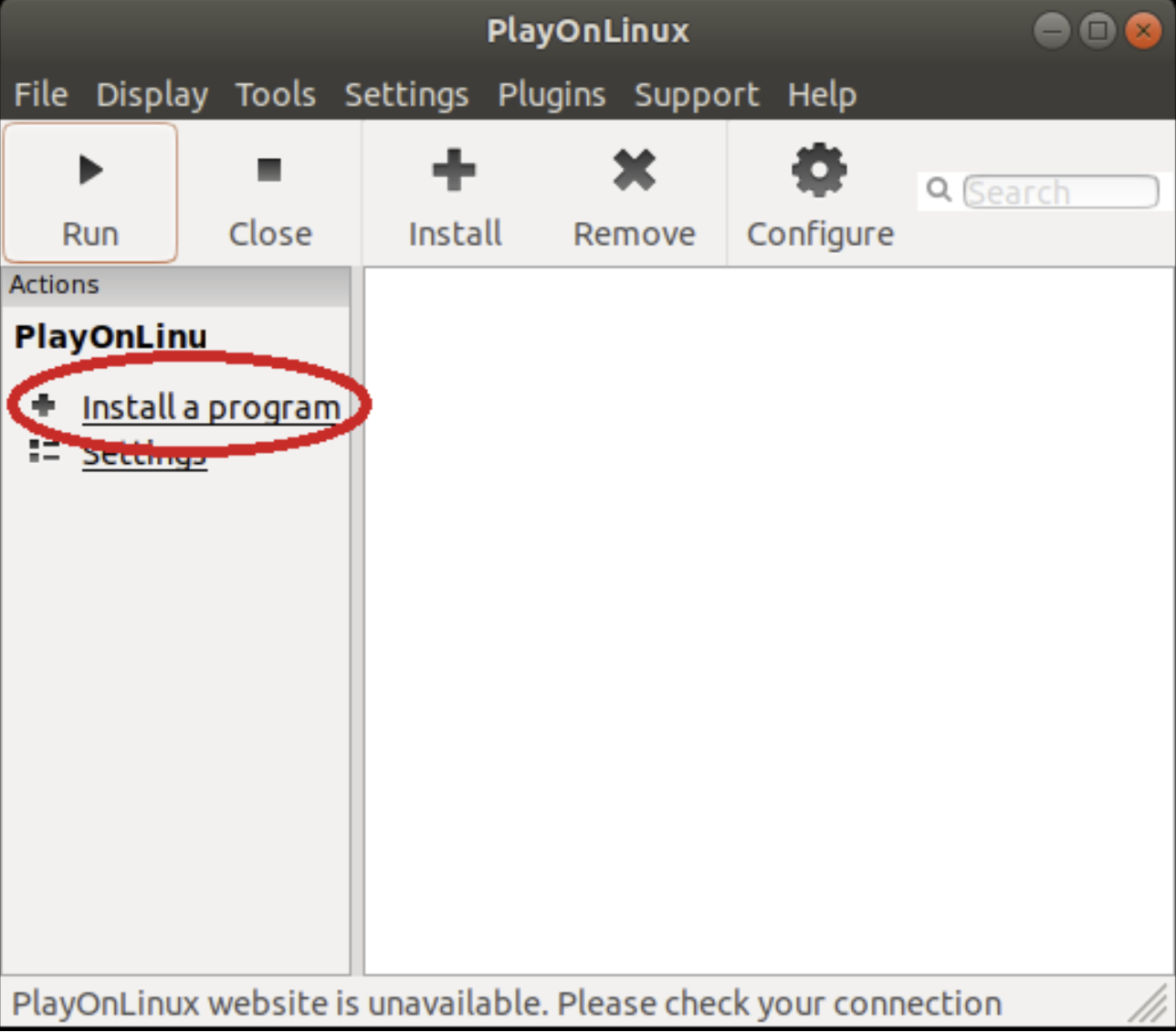
- Open PlayOnLinux and select Run → Install a program.
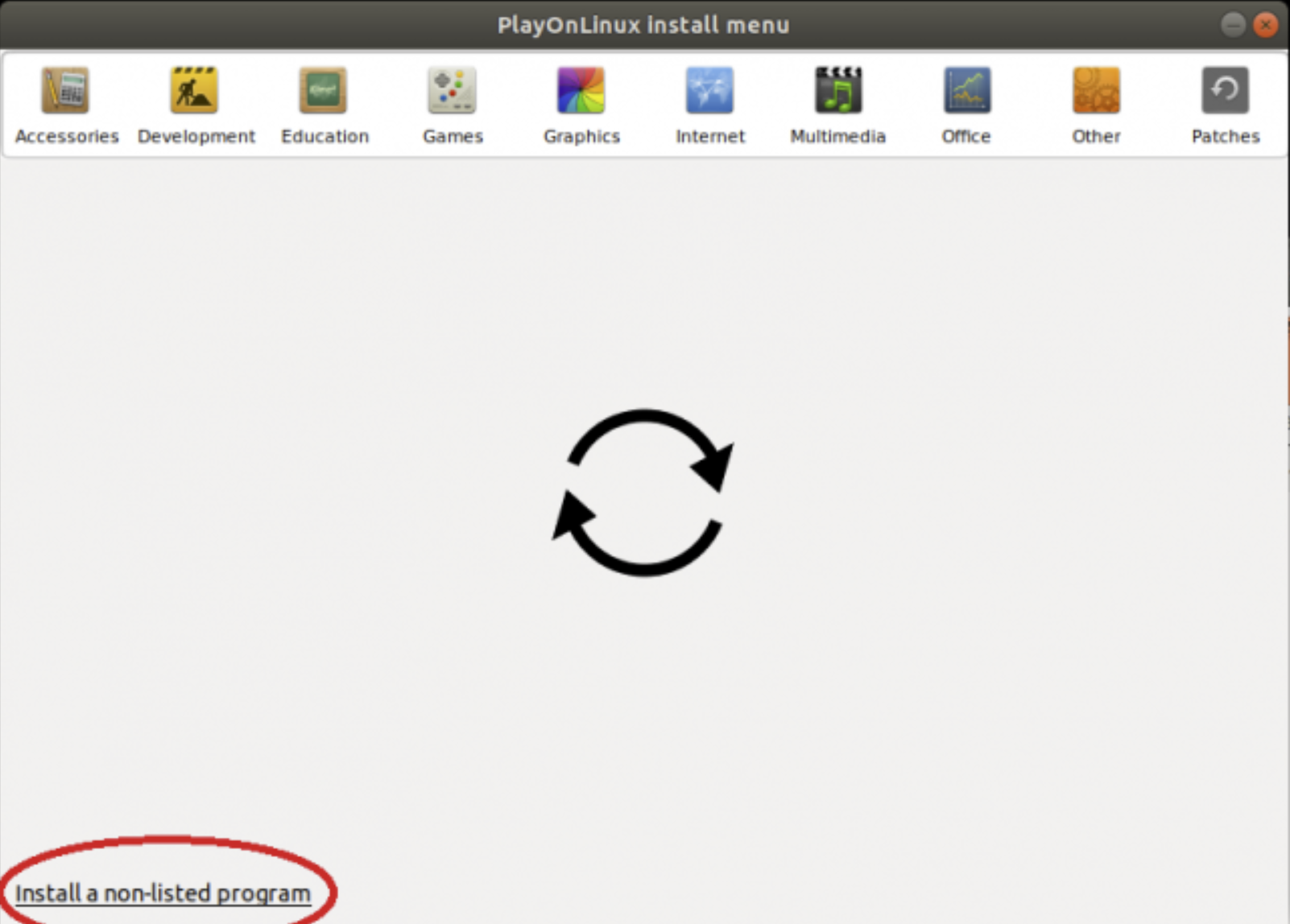
- Choose Install a non‑listed program.
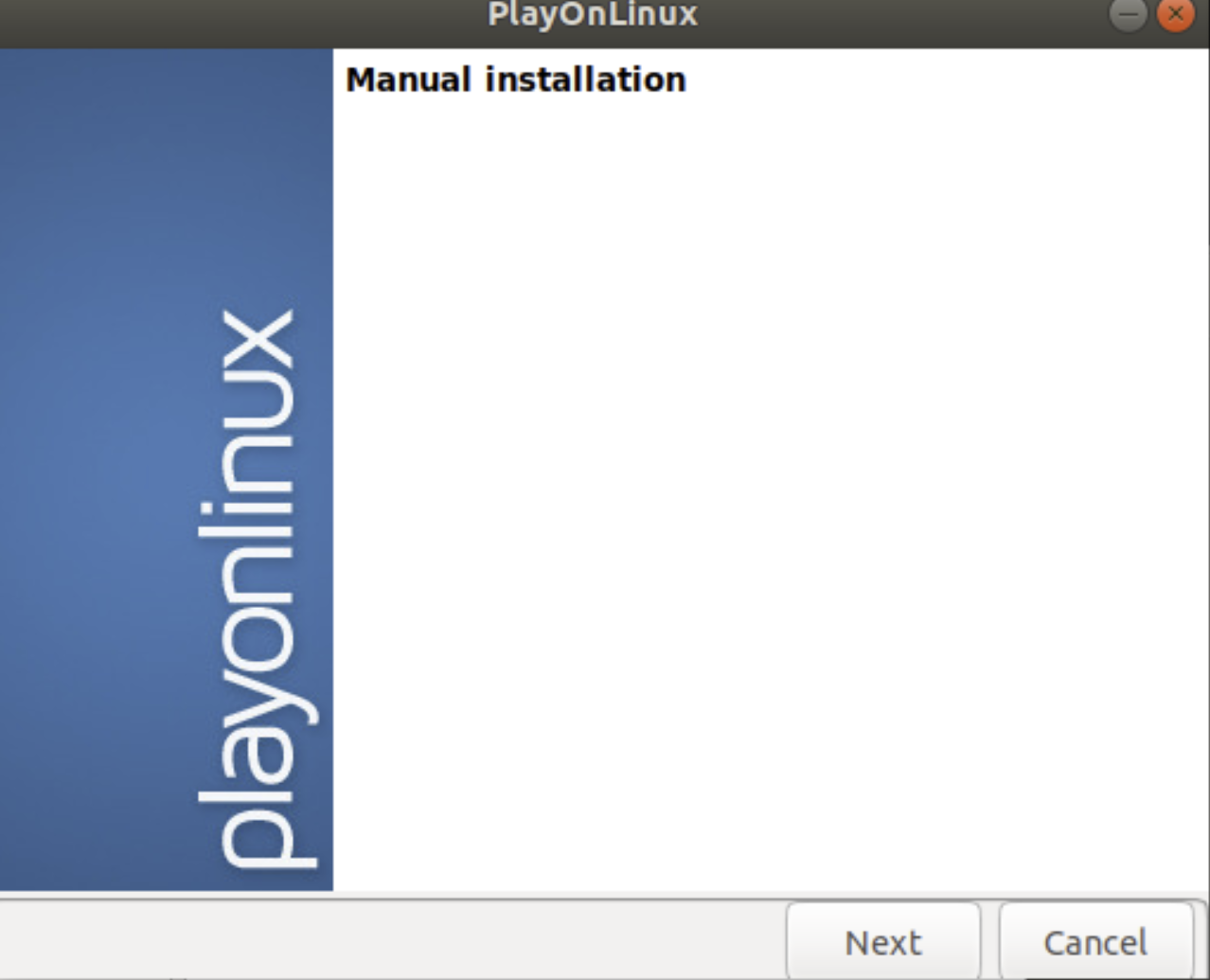
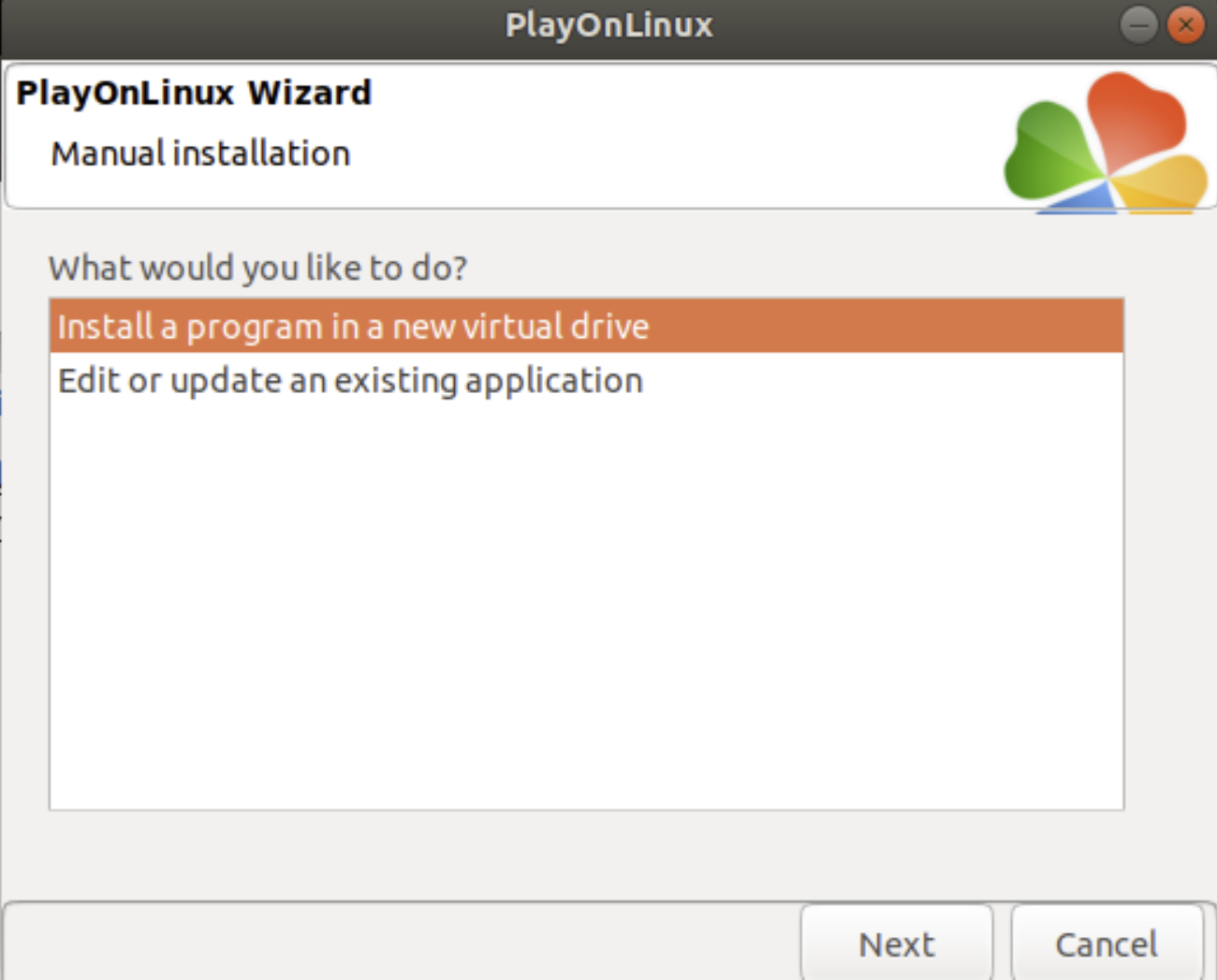
- Select Install a program in a new virtual drive.
- When prompted about additional components, leave all options unchecked and continue.
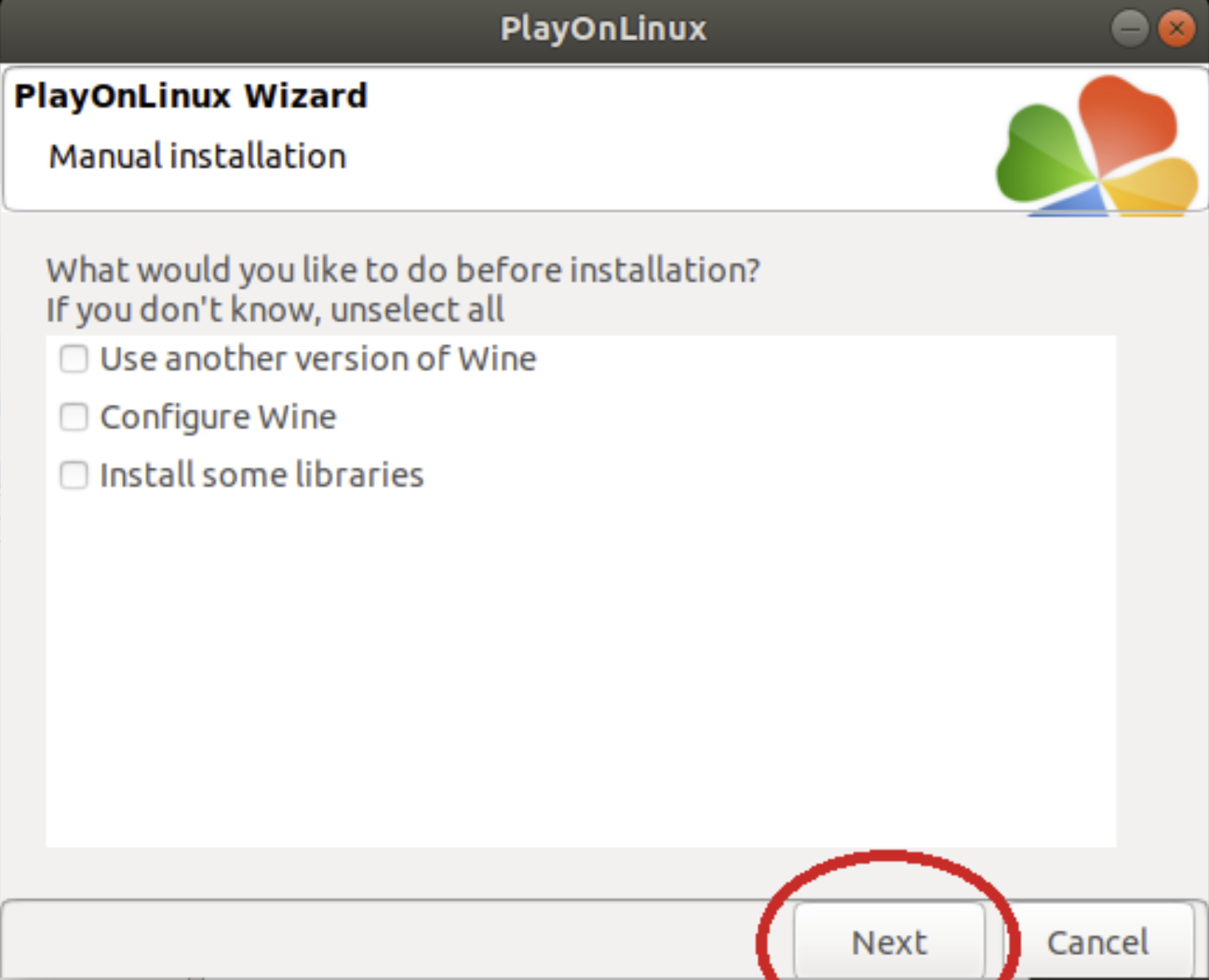
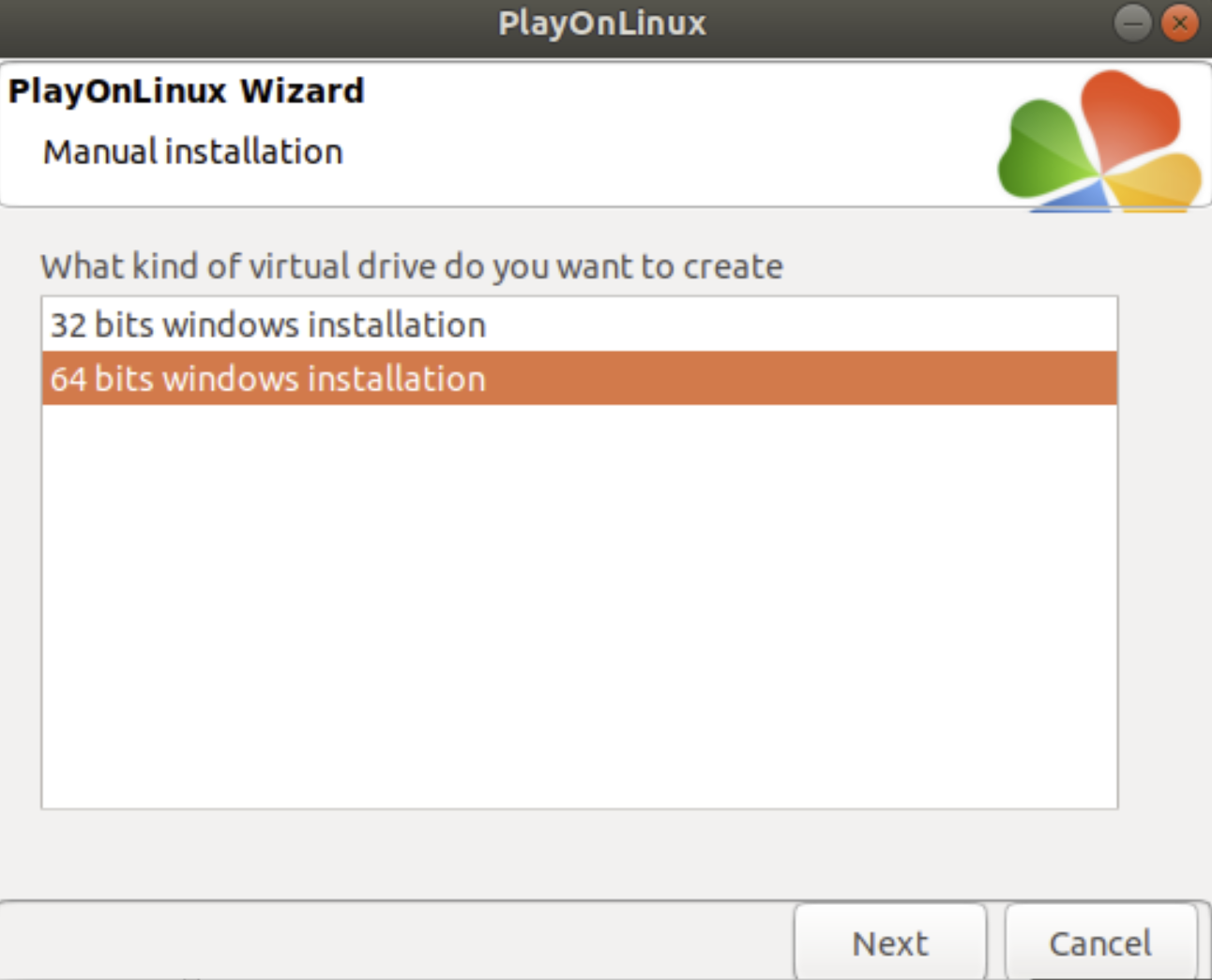
- Choose the correct architecture (32‑bit or 64‑bit) based on your Linux system.
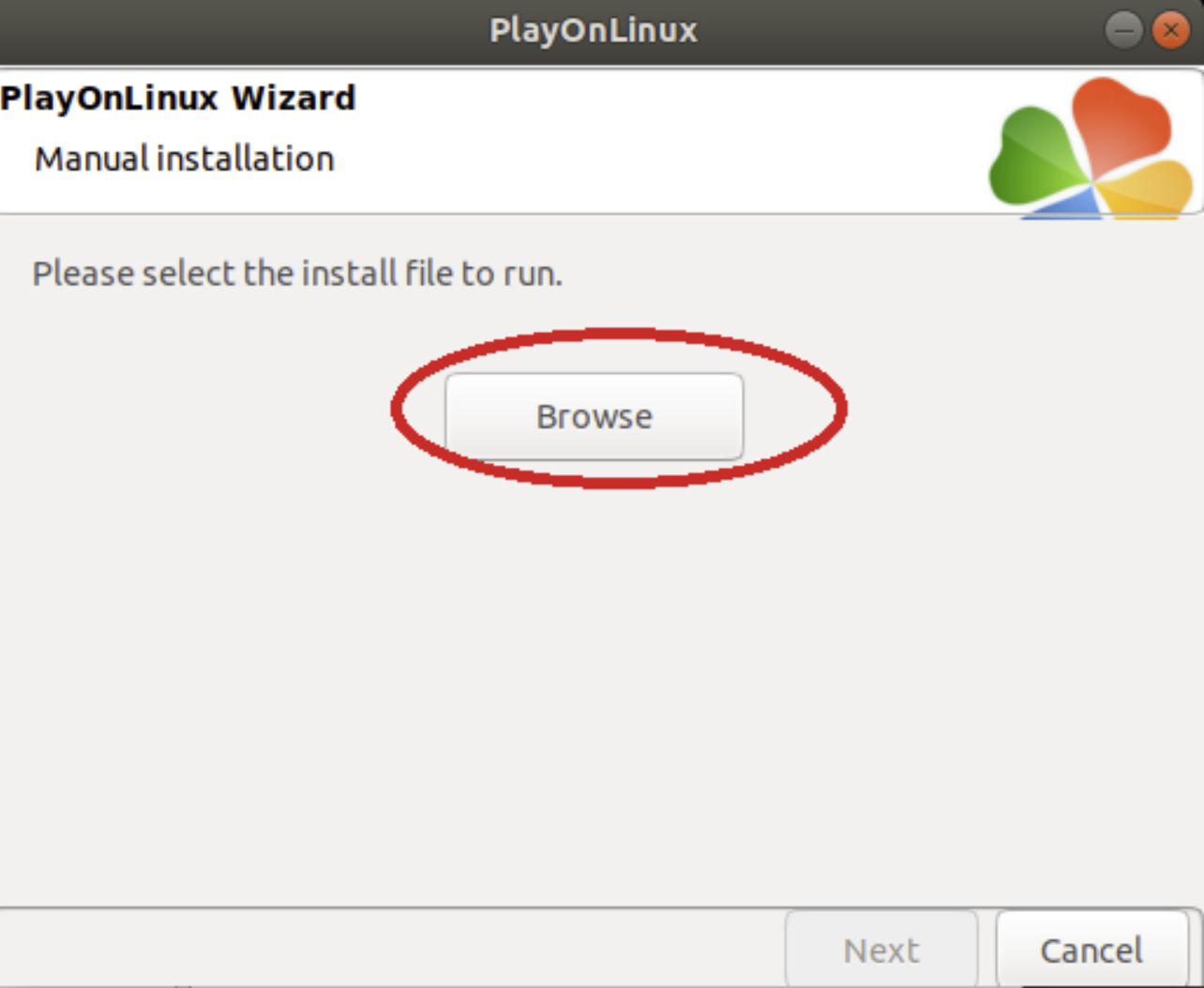
- Click Browse and select the Windows GAOMON driver installer.
- Run the installer inside PlayOnLinux.
If successful, the GAOMON driver will operate inside the virtual Windows environment.
Need Help?
If none of the above solutions work, GAOMON's support team is available: service@gaomon.net.
Was this article helpful?
That’s Great!
Thank you for your feedback
Sorry! We couldn't be helpful
Thank you for your feedback
Feedback sent
We appreciate your effort and will try to fix the article