If your GAOMON pen is not working on macOS and the driver shows "Device Disconnected," follow the steps below to identify and fix the issue.
- Does the pen work without the GAOMON driver installed?
- Before troubleshooting the driver, check whether the pen works when macOS is using its default input system.
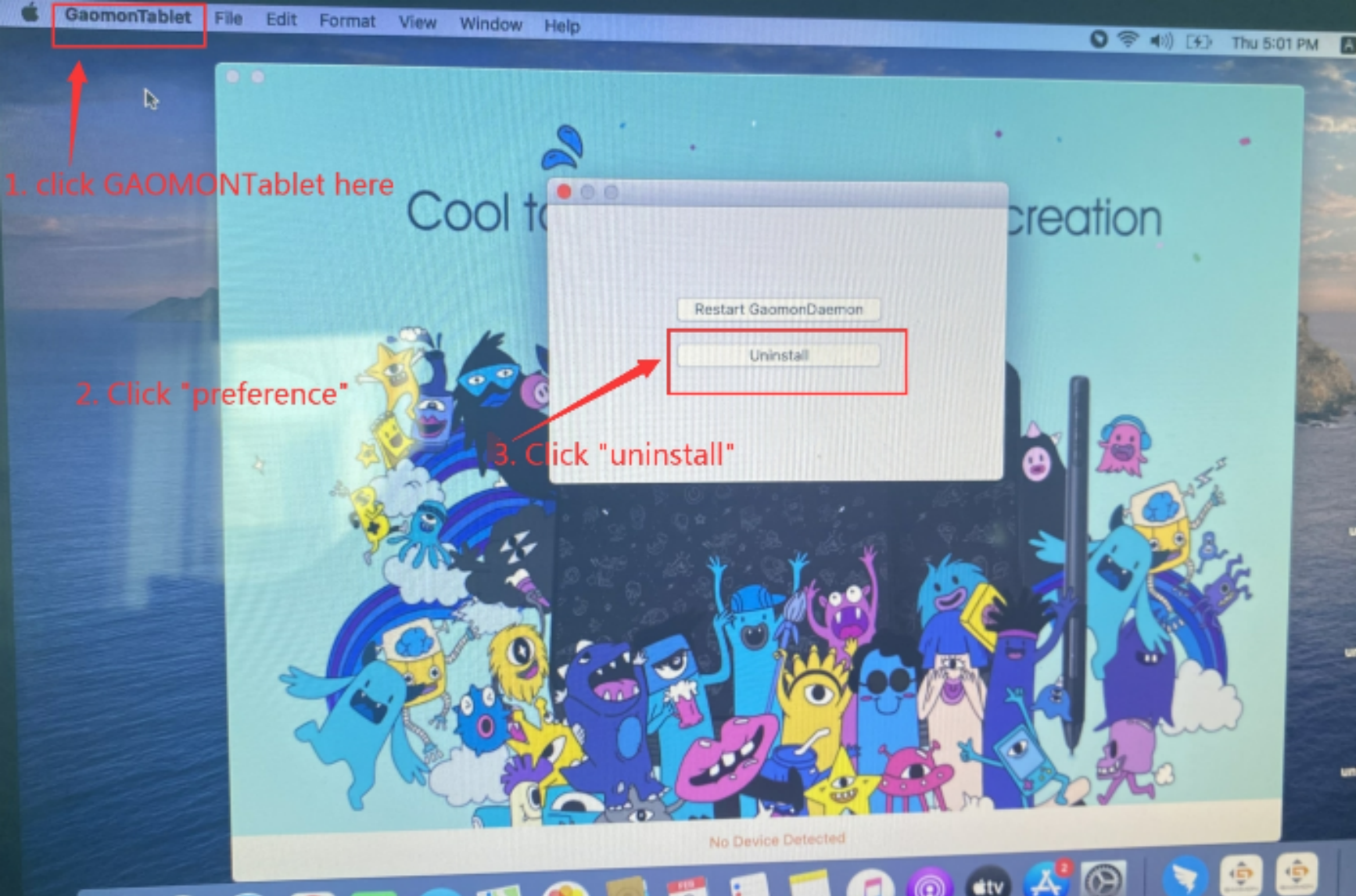
- Uninstall the GAOMON Driver - How To Uninstall The GAOMON Driver (for Mac)
- To open the GAOMON driver, click the GAOMON Tablet in the top‑left menu bar
- Select Preferences
- Click Uninstall
- Reconnect the Tablet
- Unplug and replug the USB cable after uninstalling the driver.
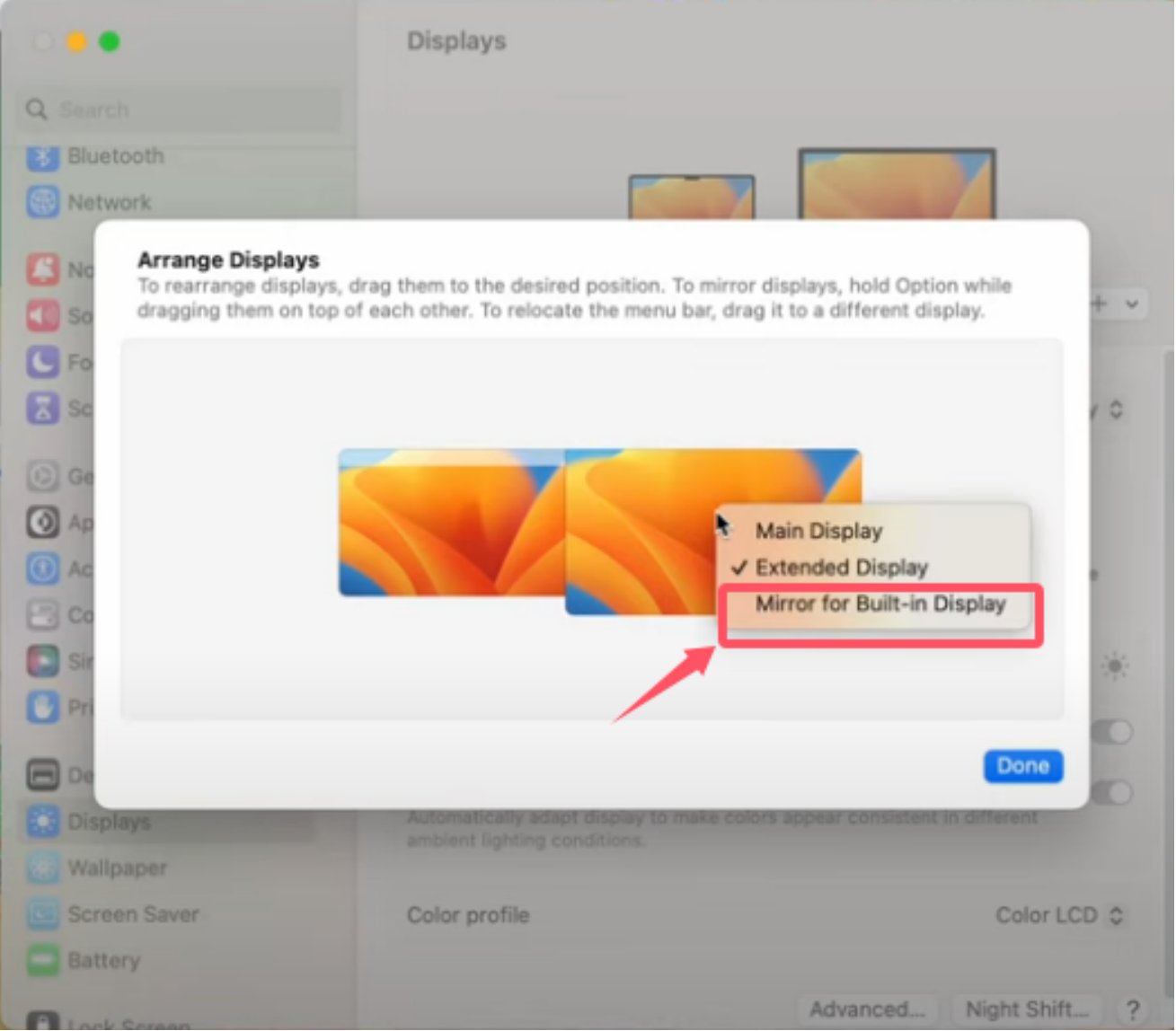
- Set Display to Mirror Mode (Pen Displays Only)
- If you are using a screen tablet(e.g., PD series):
- Go to: Apple Menu → System Preferences → Displays → Arrangement
- Select the GAOMON display → Right‑click → Mirror for Built‑in Display
- If you are using a non‑screen tablet, skip this step.
- If you are using a screen tablet(e.g., PD series):
- Test the Pen
- Try moving the pen on the tablet surface.
- If you use PD1560 or M106K, plug the pen in to charge while testing.
- Uninstall the GAOMON Driver - How To Uninstall The GAOMON Driver (for Mac)
- Before troubleshooting the driver, check whether the pen works when macOS is using its default input system.
- The pen works without the driver — what now?
- If the pen moves the cursor when the driver is uninstalled, the issue is driver‑related.
- Solution:
- Reinstall the GAOMON Driver - How To Install The GAOMON Driver (for Mac)
- After reinstalling, restart your Mac and test again.
- The pen still doesn't work even without the driver — what should I try next?
- If the pen does not respond at all when the driver is uninstalled, the issue is likely hardware‑related. Try the following steps:
- Change the USB Port
- Connect the tablet to a different USB port on your Mac.
- Try a Different USB‑A Adapter
- If you are using a USB-C-to-USB-A adapter, switch to another adapter and test again.
- Test on Another Computer
- Connect the tablet to a different Mac or Windows computer.
- Try a Different Micro USB Cable
- If your tablet uses a detachable micro USB cable, replace it with another one and test again.
- Change the USB Port
- If the pen does not respond at all when the driver is uninstalled, the issue is likely hardware‑related. Try the following steps:
- Still not working?
- If none of the steps above solve the issue, please get in touch with GAOMON Support at service@gaomon.net and include the following:
- Your tablet model or serial number (S/N - back of the unit)
- macOS version
- Driver version (if installed)
- A description of the issue
- What troubleshooting steps have you already tried
- If none of the steps above solve the issue, please get in touch with GAOMON Support at service@gaomon.net and include the following:
We'll help you get your device working again.
Was this article helpful?
That’s Great!
Thank you for your feedback
Sorry! We couldn't be helpful
Thank you for your feedback
Feedback sent
We appreciate your effort and will try to fix the article