If your GAOMON pen is unresponsive on Windows and the driver shows "Device Disconnected" or "No Device Detected," follow the steps below to identify the cause and resolve the issue.
- First Check: Does the Pen Work Without the GAOMON Driver Installed?
- Before troubleshooting the driver, test whether the pen works using Windows' default input system.
- You can uninstall the GAOMON driver using either method below (How To Uninstall The GAOMON Driver (for Windows)):
- Method 1 — Uninstall from the Driver Folder
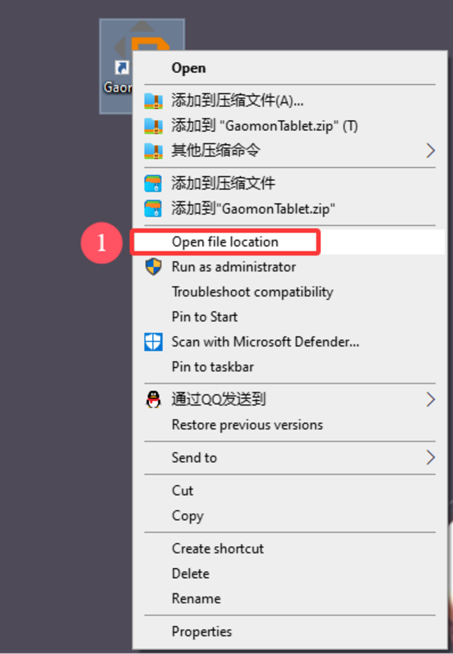
- Right‑click the GAOMON icon on your desktop.
- Select Open file location.
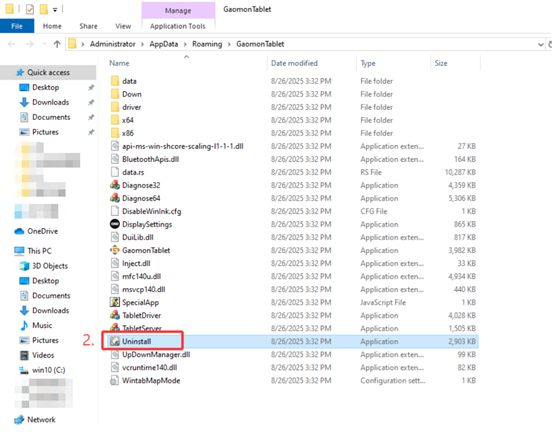
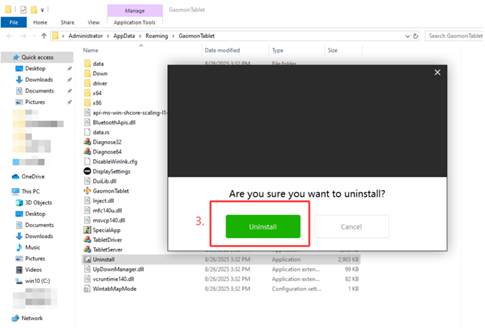
- Double‑click Uninstall to remove the GAOMON driver.
- Method 2 — Uninstall from Control Panel
- Open Control Panel.
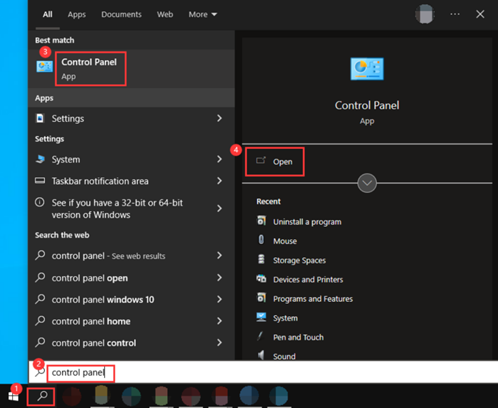
- Go to Programs → Programs and Features.
- Find the GAOMON Tablet on the list.
- Right‑click → Uninstall.
- Open Control Panel.
- Method 1 — Uninstall from the Driver Folder
- Important Note
- Make sure no other tablet drivers are installed (including any other Gaomon driver versions or drivers from other brands). These drivers conflict with GAOMON and can cause the pen to stop working.
- Now Test the Pen
- After uninstalling the driver:
- Reconnect the tablet's USB cable
- Try moving the pen on the tablet surface
- If the pen works without the driver, the issue is driver‑related.
- Solution: Reinstall the GAOMON driver - How To Install The GAOMON Driver (for Windows)
- After uninstalling the driver:
- If the Pen Still Doesn't Work Without the Driver
- If the pen does not respond at all, even after uninstalling the driver, the issue is likely hardware‑related. Try the following steps:
- Change the USB Port
- Connect the tablet to a different USB port on your computer.
- Prefer USB ports directly on the computer
- Avoid USB hubs or front‑panel ports if possible
- Connect the tablet to a different USB port on your computer.
- Try a Different USB Cable
- Replace your GAOMON tablet USB cable with another one and test again.
- Test on Another Computer
- Connect the tablet to a different Windows or macOS computer and repeat Step 1.
- This step helps determine whether the issue is with:
- The tablet
- The cable
- The USB port
- Or your computer's configuration
- Change the USB Port
- If the pen does not respond at all, even after uninstalling the driver, the issue is likely hardware‑related. Try the following steps:
- Still Not Working?
- If none of the steps above resolve the issue, please contact GAOMON Support at service@gaomon.net. Include:
- Your tablet model or serial number (S/N - back of the unit)
- Windows version
- Driver version (if installed)
- A description of the issue
- What troubleshooting steps have you already tried
- If none of the steps above resolve the issue, please contact GAOMON Support at service@gaomon.net. Include:
We'll help you diagnose the issue further or arrange additional support if needed.
Was this article helpful?
That’s Great!
Thank you for your feedback
Sorry! We couldn't be helpful
Thank you for your feedback
Feedback sent
We appreciate your effort and will try to fix the article