Overview
This FAQ addresses situations where a GAOMON pen draws lines or registers clicks even when hovering above the tablet surface (without touching it). The issue may be caused by nib problems, interference, driver conflicts, or physical damage.
Frequently Asked Questions
- Why is my pen drawing lines or clicking while hovering?
Unintended strokes during hover typically occur due to:- A worn or loose pen nib
- Dust buildup on the nib
- Electromagnetic interference
- Driver malfunction
- Physical damage to the pen
- How do I check if the pen nib is causing the issue?
A damaged or improperly inserted nib can trigger hover strokes.
Recommended Actions:- Replace the nib with a new one.
- Ensure the nib is inserted firmly.
- Clean off any dust or debris from the nib.
- Can nearby electronic devices affect pen performance?
Yes. Devices such as mobile phones can cause electromagnetic interference.
Recommended Actions:- Remove or turn off nearby unnecessary electronic devices.
- Test the pen again to see if the issue improves.
- Could the driver be responsible for the hover problem?
A corrupted or incompatible driver may cause hover clicks or strokes.
Recommended Actions:- Uninstall your current GAOMON driver.
- Unplug the tablet.
- Plug the tablet back in without installing any driver.
- Test the pen to determine whether the issue persists.
- What if I dropped the pen?
Dropping the pen can damage internal sensors, leading to hover issues.
Recommended Actions:- Test the pen after completing the troubleshooting steps above.
- If the issue continues, the pen may need replacement.
Driver Reinstallation & Pressure Calibration
- How do I fix the issue on Windows?
If the problem persists, install the alternative Windows driver and recalibrate pressure.
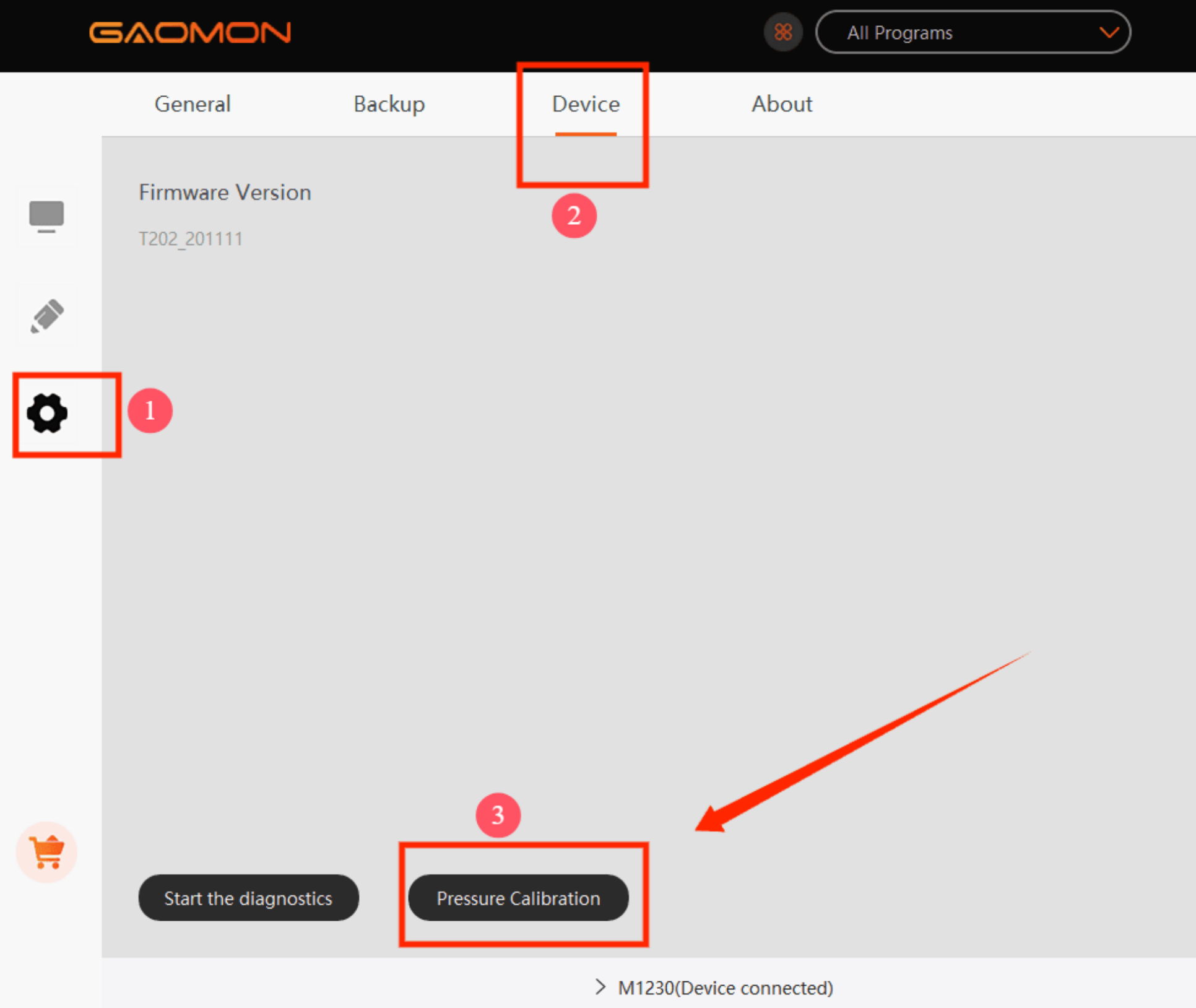
Steps for Windows:- Uninstall your current GAOMON driver.
- Install the alternative driver: Windows Driver Download.
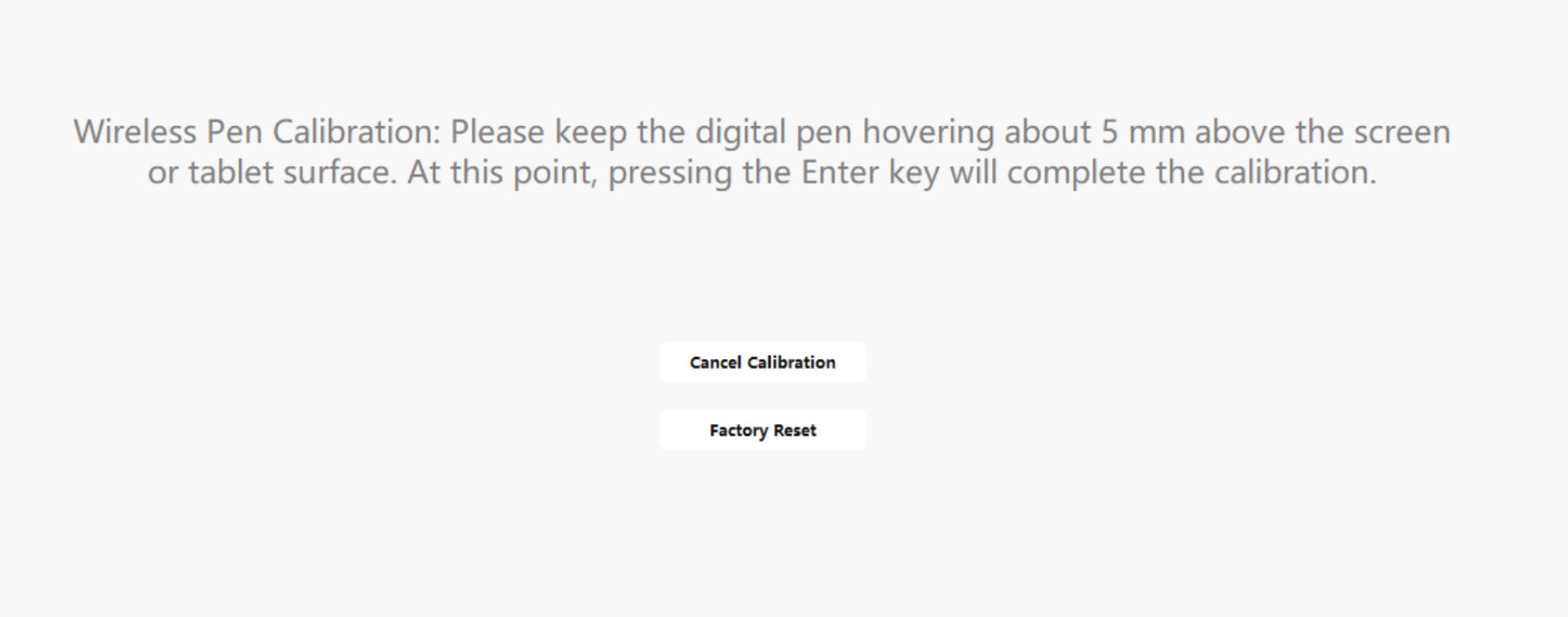
- Open Pressure Calibration.
- Hold the pen within 5mm of the tablet surface.
- Press Enter to calibrate.
- After calibration, the issue should be resolved.
- How do I fix the issue on macOS?
Follow similar steps using the macOS driver.
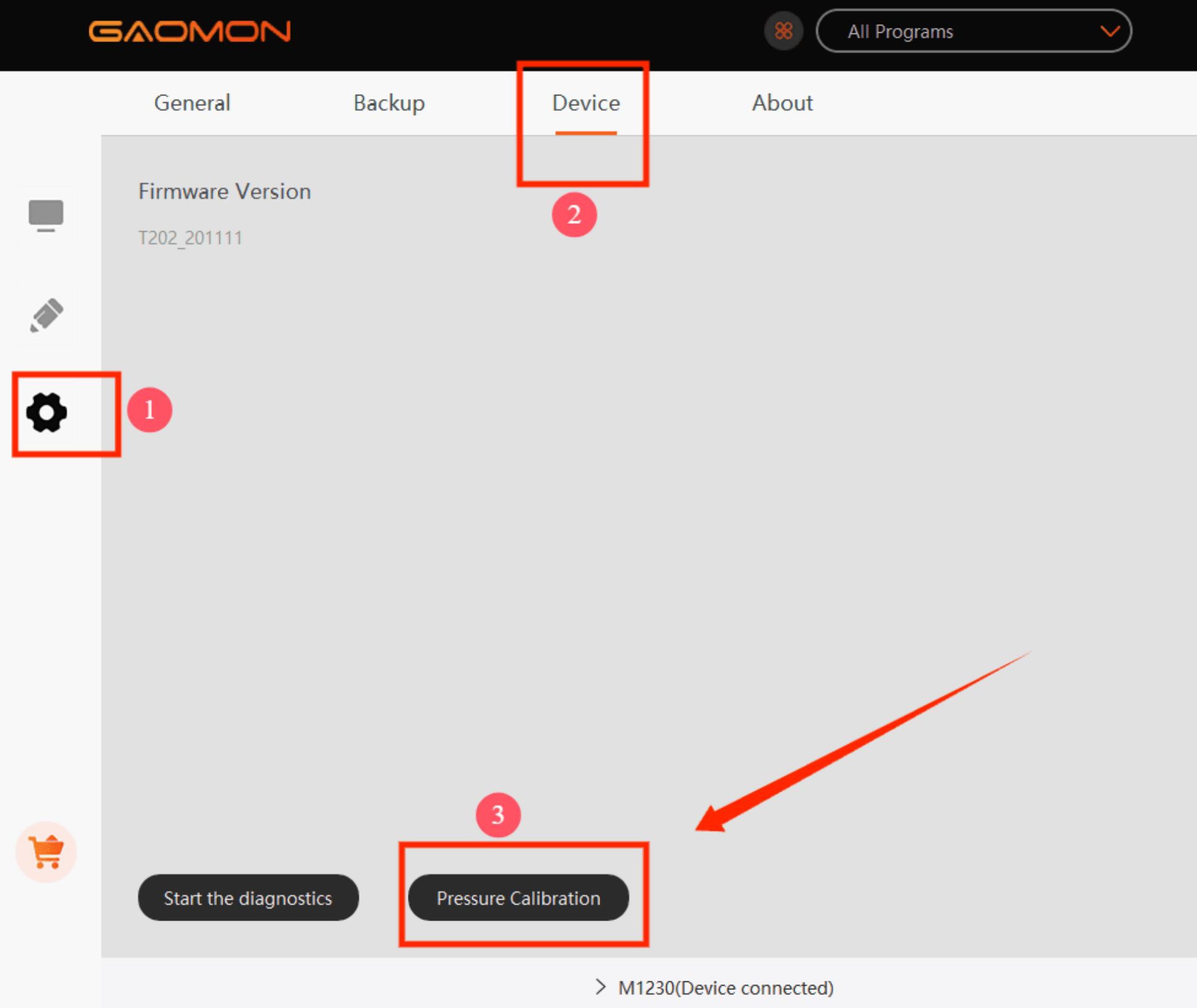
Steps for macOS:- Uninstall your current GAOMON driver.
- Install the alternative driver: macOS Driver Download.
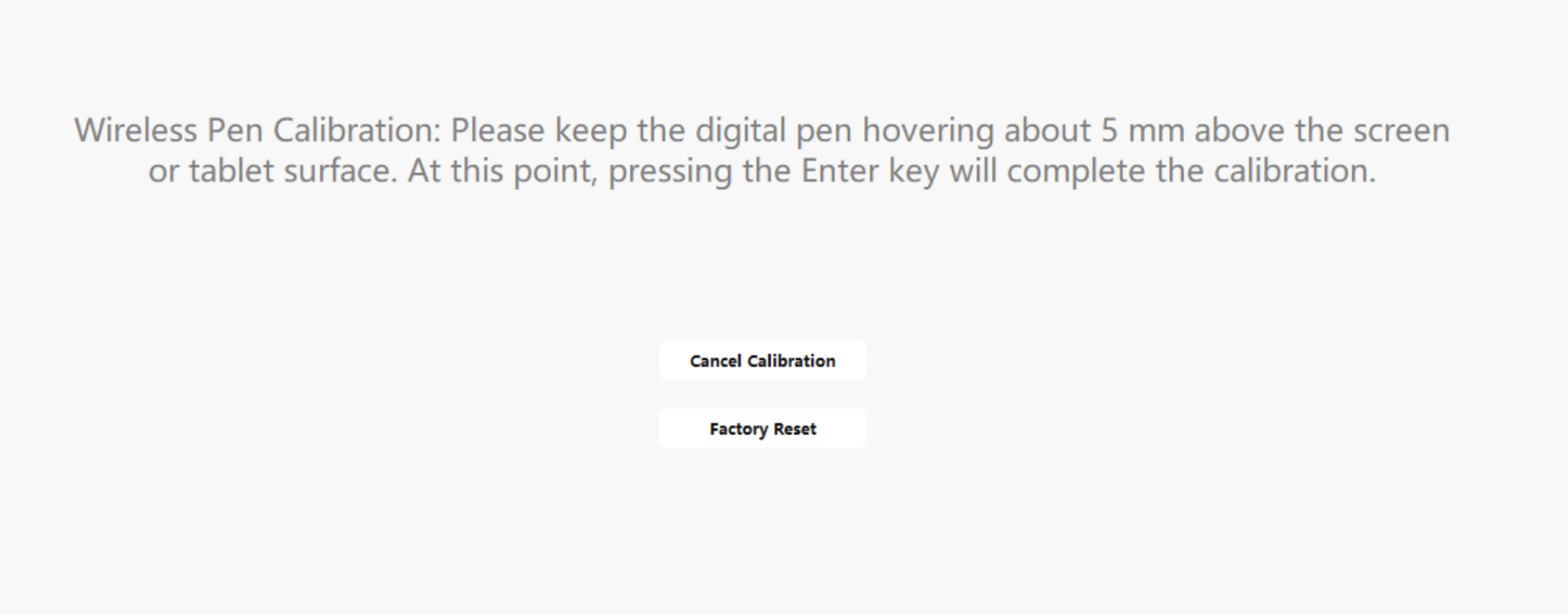
- Open Pressure Calibration.
- Hold the pen within 5mm of the tablet surface.
- Press Enter to calibrate.
- What if none of these steps solve the problem?
If the issue continues after replacing the nib, removing nearby electronics, yesting without a driver, reinstalling and calibrating, then the pen or tablet may require professional support or replacement.
Was this article helpful?
That’s Great!
Thank you for your feedback
Sorry! We couldn't be helpful
Thank you for your feedback
Feedback sent
We appreciate your effort and will try to fix the article