If your cursor doesn't follow the pen nib closely or appears offset, don't worry! This is an issue that is usually easy to fix. Below are the most frequently asked questions and their solutions.
- Why is my cursor not lining up with the pen tip?
- This misalignment can occur due to several reasons:
- Display Mode Settings: If your display settings are not configured correctly, it can cause the cursor to appear offset.
- Calibration Issues: The pen may not be properly calibrated, causing discrepancies between the cursor and the pen tip.
- Conflicts with Other Tablet Drivers: Having multiple tablet drivers installed can cause conflicts that affect performance.
- Incorrect Pen Angle During Calibration: Tilting the pen while calibrating can result in inaccurate cursor positioning.
- The good news is that all of these issues can be resolved with a few simple steps.
- This misalignment can occur due to several reasons:
- What should I try first?
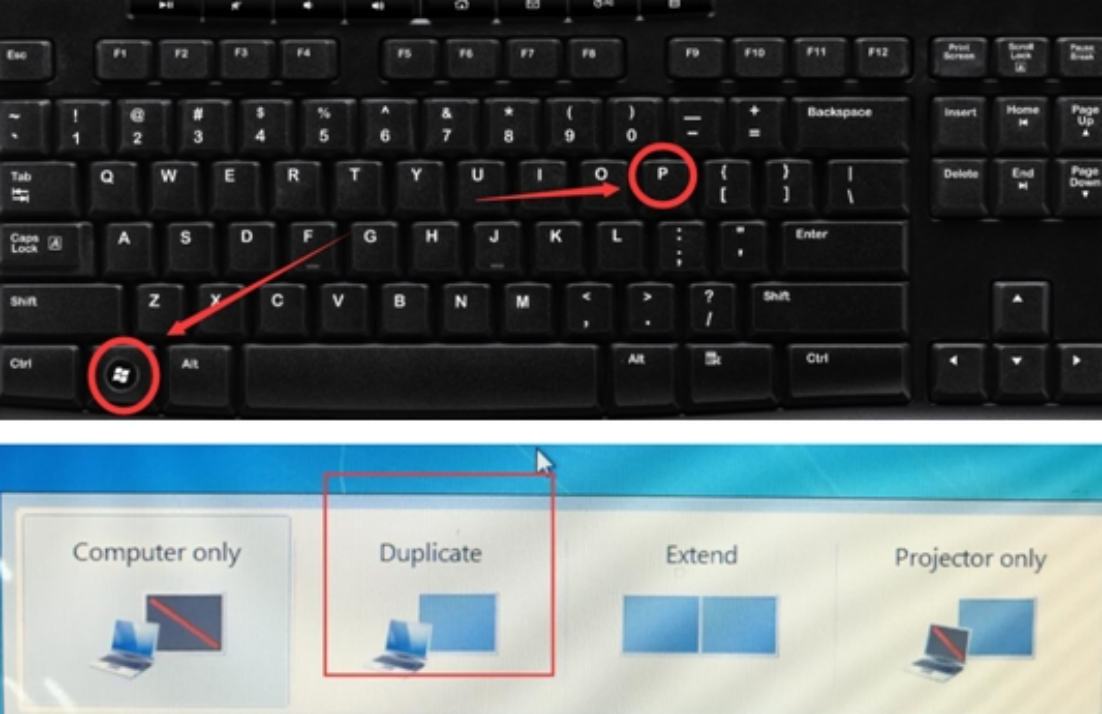
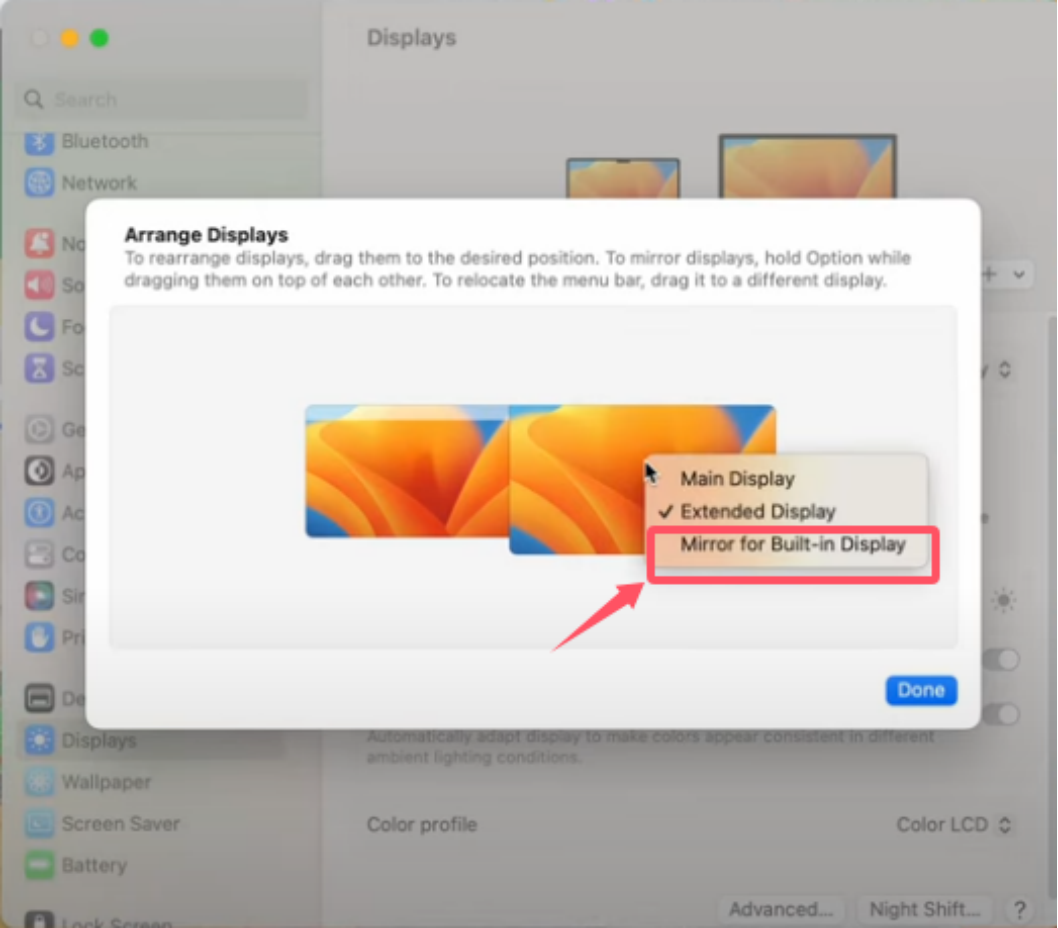
- Begin by switching your computer to "Duplicate/Mirror Mode".
- For Windows: Press "Windows + P" and select "Duplicate".
- For macOS: Go to the Apple Menu → "System Preferences" → "Displays" → "Arrangement" → Right-click your GAOMON display and select "Mirror for Built-in Display".
- For Windows: Press "Windows + P" and select "Duplicate".
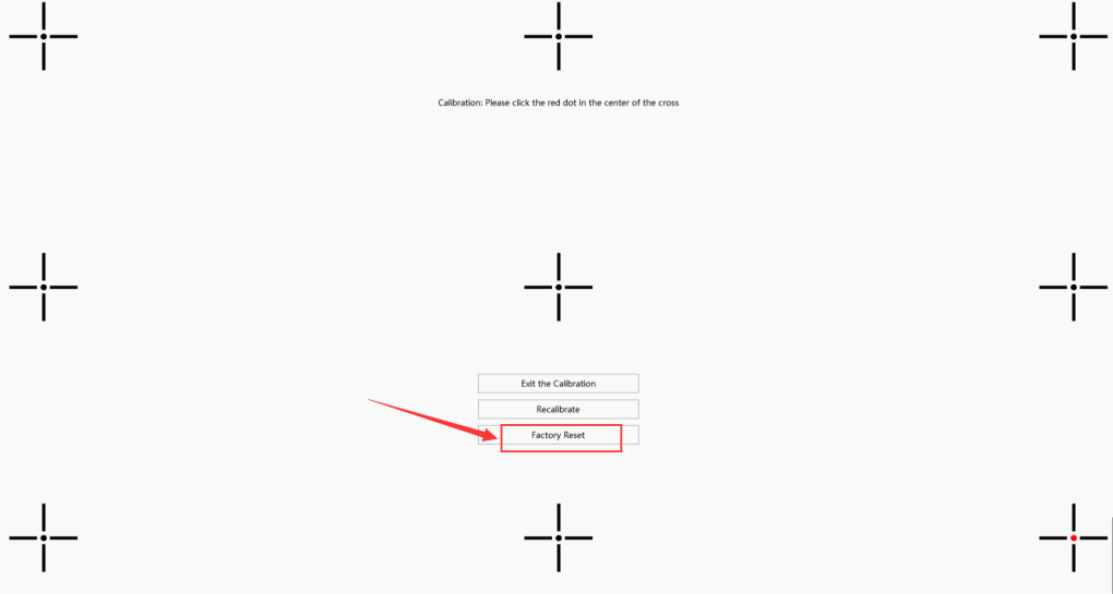
- If the cursor remains offset, calibrate the pen using the GAOMON driver.
- Open the GAOMON driver and calibrate the pen.
- Hold the pen normally and avoid tilting it too much.
- Tap each calibration point carefully for the best results.
- If calibration doesn't resolve the issue, click "Restore Default". You won't need to tap the calibration points afterward.
- Begin by switching your computer to "Duplicate/Mirror Mode".
- What if calibration still doesn't fix it?
- If the problem persists, it may be time for a "clean driver reinstall".
- Step A — Uninstall the GAOMON Driver: Make sure to uninstall the GAOMON driver and any other tablet drivers from other brands. It's crucial to ensure that no other tablet drivers are installed.
- Step B — Reconnect Your Tablet
- After uninstalling, unplug and replug the USB cable.
- Step C — Test WITHOUT the Driver
- Set your display to Duplicate/Mirror mode again and test the pen. If the cursor aligns correctly, reinstall the GAOMON driver from the official support page.
- If the problem persists, it may be time for a "clean driver reinstall".
- What if the calibration issue doesn't happen without the driver, and where can I find the driver reinstall guide?
- If the calibration issue doesn't happen without the driver, you can follow GAOMON's official driver installation instructions here:
- What if the cursor is still offset even after reinstalling?
- If none of the steps work, consider the following:
- Note your serial number, computer OS version, and driver version.
- Record a short video of the issue, upload it, remove the restrictions, and share the link without restrictions.
- Contact GAOMON Support at service@gaomon.net for further assistance with troubleshooting the issue or checking for potential hardware problems.
- If none of the steps work, consider the following:
Was this article helpful?
That’s Great!
Thank you for your feedback
Sorry! We couldn't be helpful
Thank you for your feedback
Feedback sent
We appreciate your effort and will try to fix the article