If your GAOMON tablet only shows your computer’s wallpaper without any applications, it means the computer is currently set to Extend Mode.
Understanding Display Modes
- Extend Mode: The tablet acts as a second monitor. It shows only the wallpaper until you move or drag applications onto it using your mouse.
- Duplicate/Mirror Mode: The tablet mirrors your computer screen and shows the same content.
Solution 1: Switch to Duplicate/Mirror Mode
This is the simplest option if you want the tablet to mirror your computer screen.
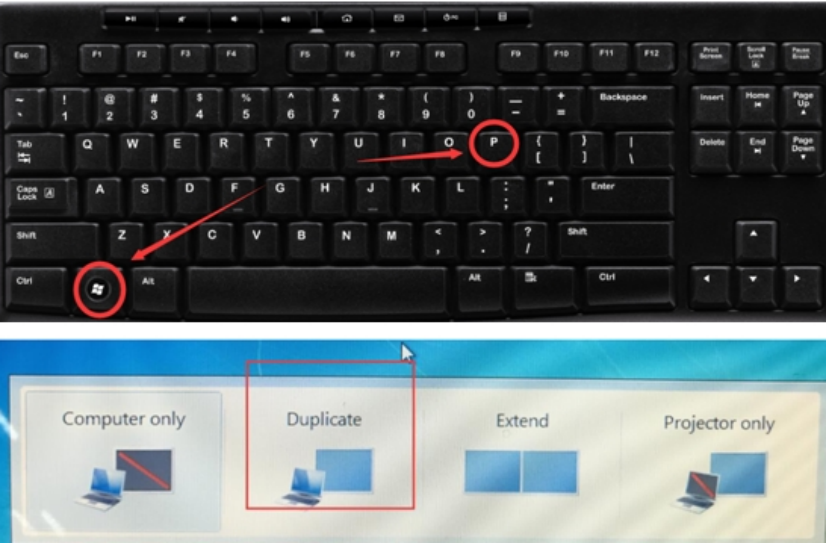
- Windows OS
- Press Windows + P on your keyboard.
- Select Duplicate.
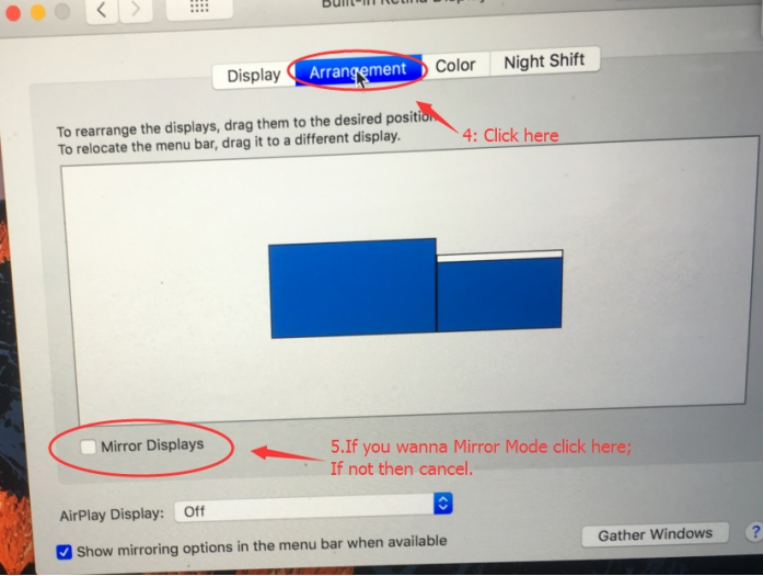
- Mac OS
- Click the Apple icon (top left).
- Go to System Preferences → Displays → Arrangement.
- Check Mirror Displays.
Solution 2: Use Extend Mode Properly
If you prefer to use the tablet as a separate screen, follow these steps:
- Step 1: Enable Extend Mode
- Windows OS: Press Windows + P → choose Extend.
- Mac OS: Apple icon → System Preferences → Displays → Arrangement → uncheck Mirror Displays.
- Step 2: Set Tablet as Work Area
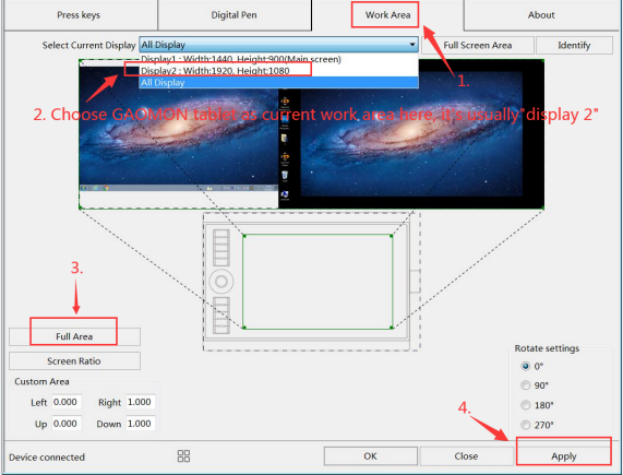
- Open the GAOMON Driver Panel.
- Go to Work Area.
- Select the GAOMON tablet as the active work area.
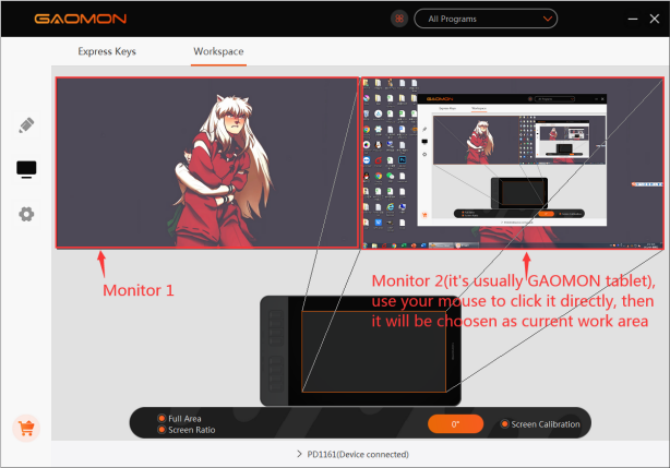
- On Mac, this is usually listed as Display 2.
- Step 3: Move Applications to Tablet Screen
- Use your mouse to drag art programs (e.g., Photoshop, Illustrator) from your computer monitor onto the tablet screen.
- Once placed on the tablet, you can draw directly on it while your computer monitor displays separately.
Quick Checklist
- Decide whether you want Duplicate or Extend Mode
- If Extend Mode: set the GAOMON tablet as the work area in driver settings
- Drag applications onto the tablet screen using your mouse
Still Having Issues?
If the tablet continues to show only the wallpaper after following these steps, please contact GAOMON Support at service@gaomon.net with details of your operating system and setup. Please include a video of your cable connections.
Was this article helpful?
That’s Great!
Thank you for your feedback
Sorry! We couldn't be helpful
Thank you for your feedback
Feedback sent
We appreciate your effort and will try to fix the article