Introduction
Setting up your GAOMON Pro 19 (PD1900) for the first time should feel smooth and straightforward, whether you're a beginner or an experienced digital artist. This guide walks you through everything you need to get your pen display connected, powered on, and ready for drawing—from unboxing and cable setup to driver installation and workspace configuration. By following the steps below, you'll ensure your device is properly installed and performing at its best, so you can focus on creating with confidence.
Before You Begin
A quick checklist to make sure your setup goes smoothly:
- Your computer meets the system requirements (Windows 7+, macOS 10.12+, Linux Ubuntu 20.04 LTS, or Android with USB‑C DP Alt Mode).
- You have access to a stable power outlet.
- You've cleared enough desk space for the GAOMON Pro 19 (PD1900) and its stand.
- You have an available HDMI port or a compatible one‑to‑one video adapter (DP→HDMI, USB‑C→HDMI, etc.).
- You've uninstalled any other tablet drivers (older GAOMON drivers or drivers from different brands) to avoid conflicts.
- You have internet access to download the latest GAOMON driver.
Once everything above is ready, you're good to begin.
TABLE OF CONTENTS
- Unboxing & Checking the Package
- Preparing Your Workspace
- Connecting the Cables
- Powering On the Display
- Installing the GAOMON Driver
- Adjusting Display Settings
- Pen Setup
- Using the Shortcut Keys
- Cleaning & Maintenance
- You're Ready to Draw!
1. Unboxing & Checking the Package
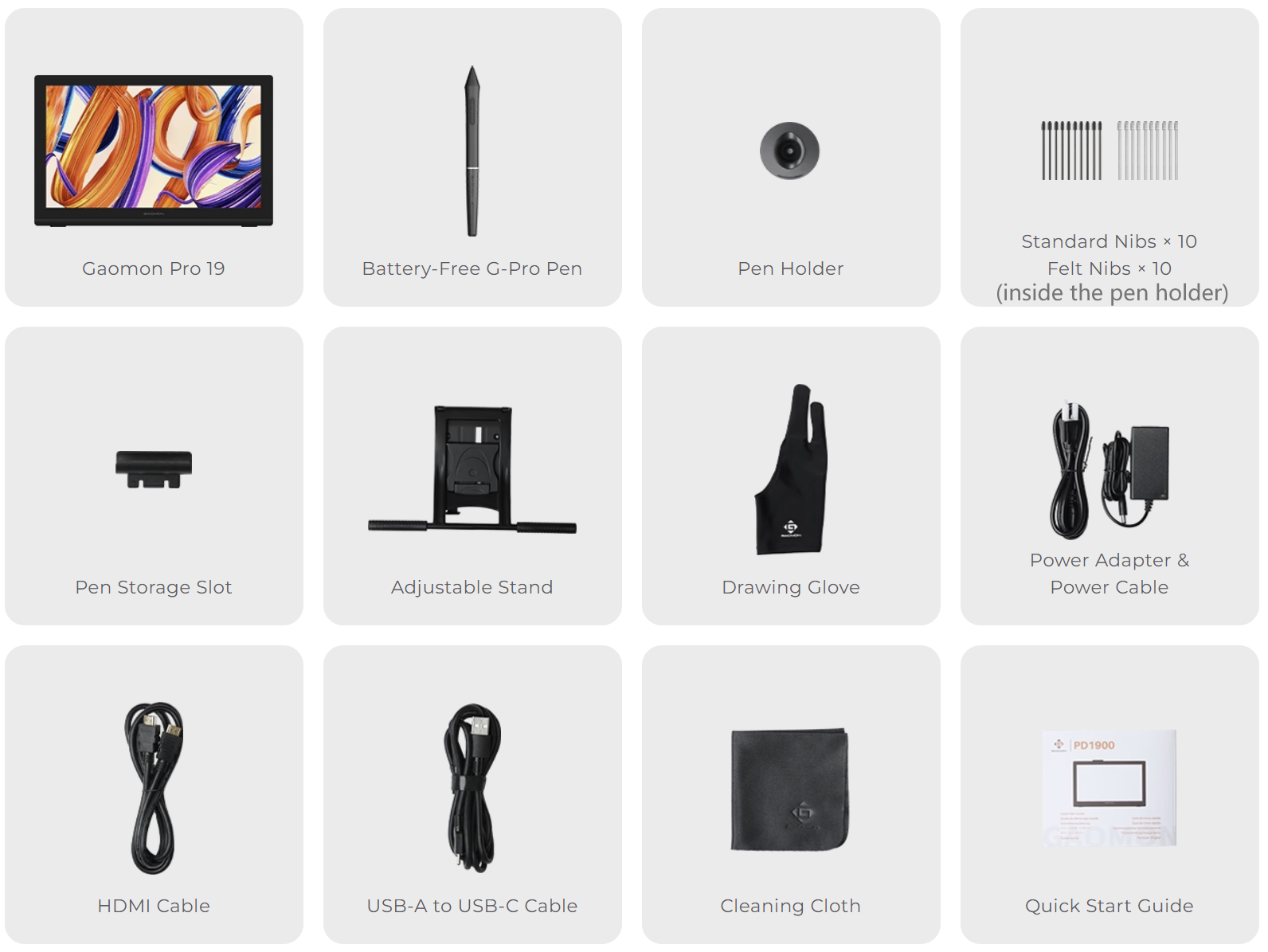
Your GAOMON Pro 19 (PD1900) package should include:
- Pro 19 (PD1900) Pen Display
- Digital Pen
- Pen Holder (with nibs inside)
- Power Adapter + Power Cable
- 3‑in‑1 Cable (HDMI + USB + Power) or separate HDMI/USB cables (varies by region)
- Cleaning Cloth
- Quick Start Guide
- Stand (if included in your bundle)
If anything is missing or damaged, contact GAOMON support before proceeding.
2. Preparing Your Workspace
- Place the GAOMON Pro 19 (PD1900) on a stable, flat surface.
- Keep it away from liquids, extreme heat, and magnetic fields.
- Ensure the stand is locked securely before placing the display on it.
3. Connecting the Cables
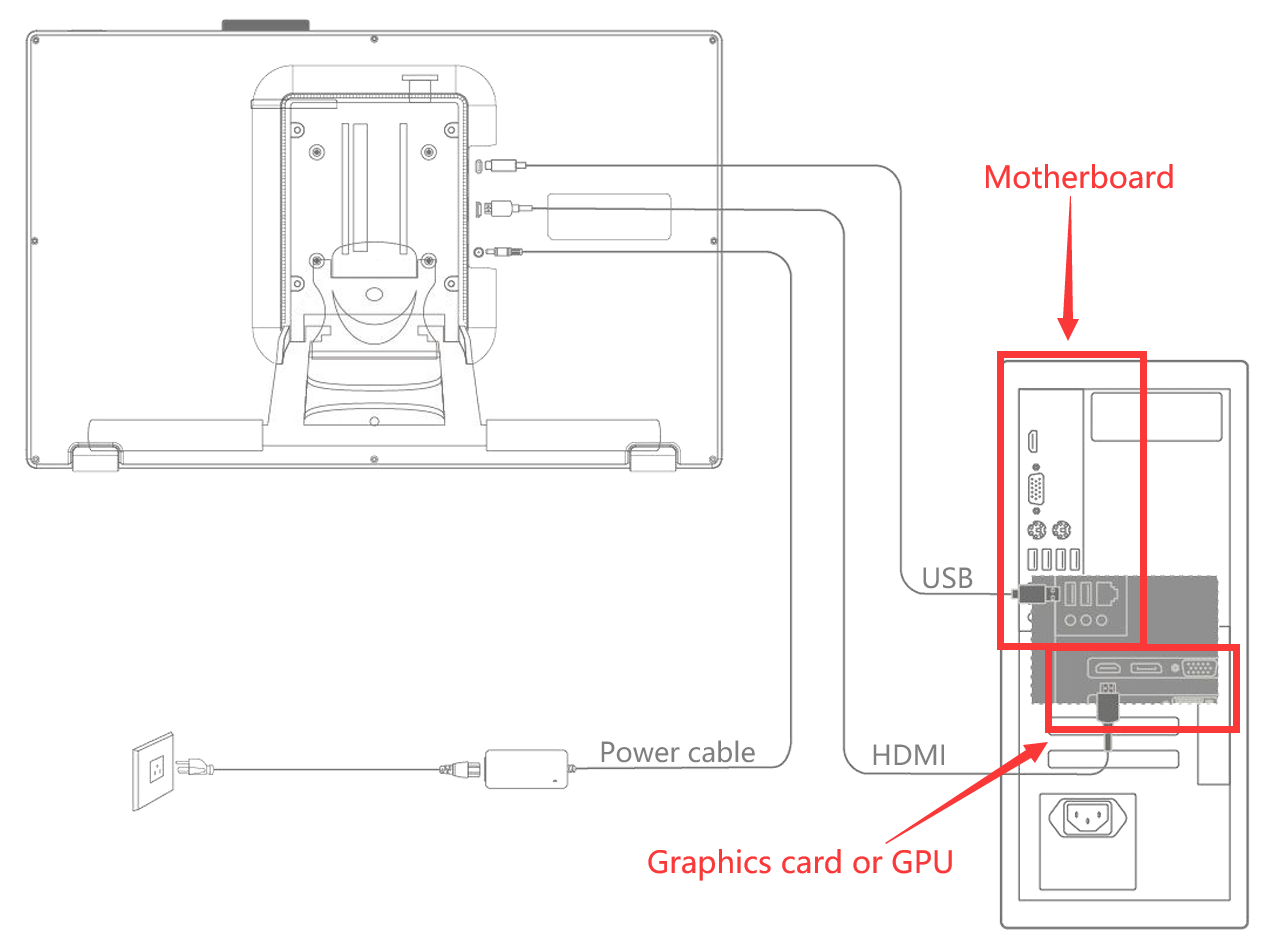
- Connect the Power
- Plug the power adapter into a wall outlet.
- Connect the round power connector to the GAOMON Pro 19 (PD1900)'s power port.
- Connect the HDMI Cable
- Plug the HDMI into the GAOMON Pro 19 (PD1900)'s HDMI port.
- Connect the other end to your computer's HDMI port on the graphics card (desktop users).
- If your computer lacks HDMI, use a one‑to‑one video adapter such as:
- DP → HDMI
- Mini DP → HDMI
- USB‑C (with DP Alt Mode) → HDMI
- DVI → HDMI
- VGA → HDMI
- Do NOT use HDMI-to-USB‑A adapters, as USB‑A ports cannot output video.
- Connect the USB Cable
- When using the USB-A to USB-B cable:
- Plug the USB‑A end into your computer.
- This enables pen and touch input for the GAOMON Pro 19 (PD1900).
- When using the full-featured USB-C to USB-C cable:
- Plug the USB-C into a full-featured USB-C port on your computer or Android device.
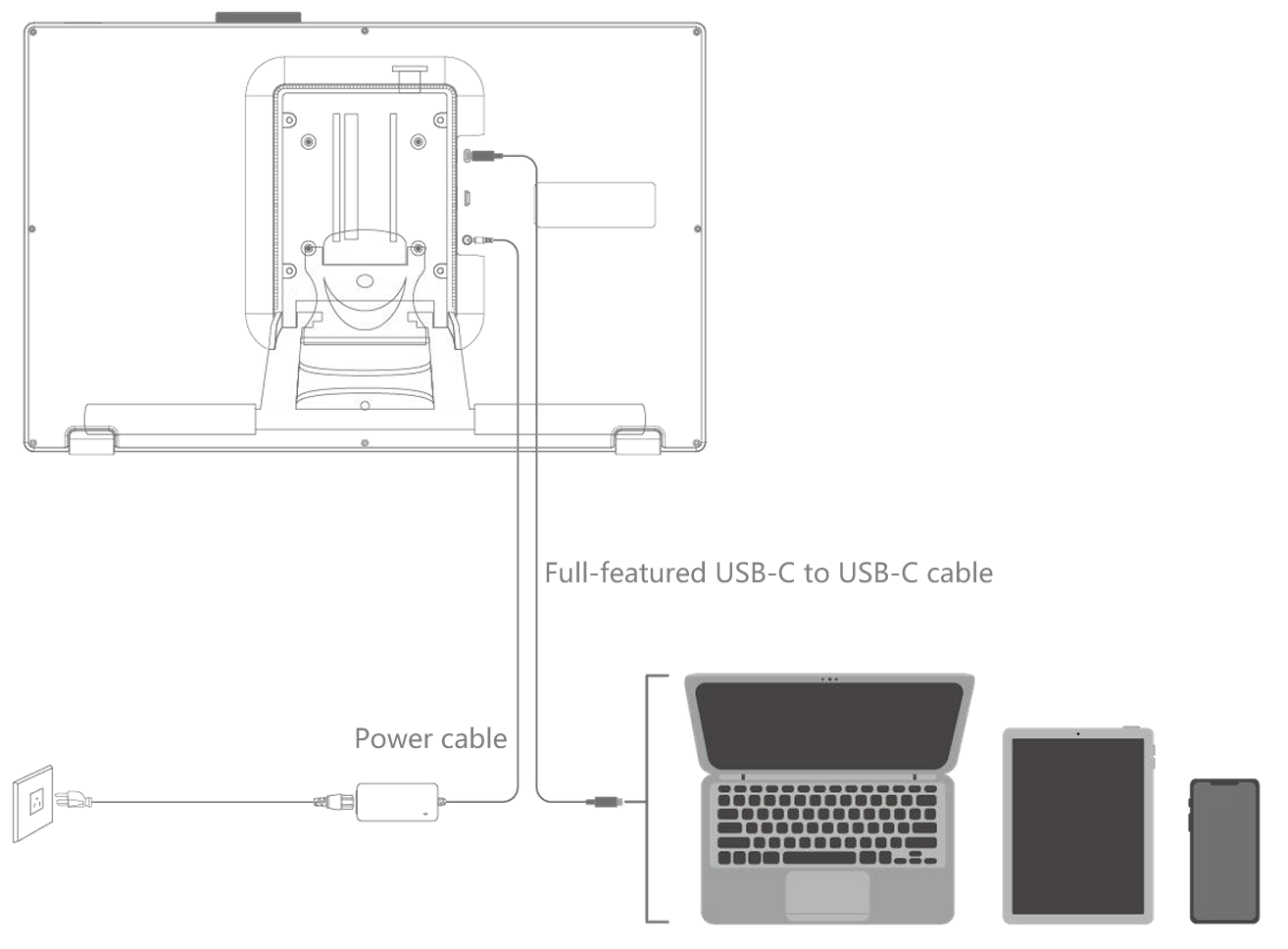
- Plug the USB-C into a full-featured USB-C port on your computer or Android device.
- When using the USB-A to USB-B cable:
4. Powering On the Display
- Press the power button on the GAOMON Pro 19 (PD1900).
- The indicator light should turn on.
- If the screen stays black, refer to the "No Power" troubleshooting article.
5. Installing the GAOMON Driver
- Visit the official GAOMON driver page.
- Download the driver for your operating system.
- Uninstall other tablet drivers (such as older GAOMON drivers or those from other brands) to avoid conflicts.
- Install the GAOMON driver and restart your computer. (NOTE: No driver for Android)
- Open the GAOMON Tablet software and confirm it shows Device Connected for the Pro 19 (PD1900).
6. Adjusting Display Settings
- Windows
- Right‑click desktop → Display Settings
- Select Extend Display
- Set the resolution to the recommended value for the GAOMON Pro 19 (PD1900)
- macOS
- Apple Menu → System Settings → Displays
- Adjust arrangement and resolution as needed.
7. Pen Setup
- Remove the pen from the holder.
- Ensure the nib is securely inserted or installed.
- Open the GAOMON Tablet software to:
- Adjust pressure sensitivity
- Customize shortcut keys
- Calibrate the pen for the Pro 19 (PD1900)
8. Using the Shortcut Keys
- The GAOMON Pro 19 (PD1900) includes customizable shortcut keys (varies by region).
- Configure them in the GAOMON driver software.
- Access the user manual here: GAOMON Pro 19 (PD1900) User Manual.
9. Cleaning & Maintenance
- Unplug the GAOMON Pro 19 (PD1900) before cleaning.
- Use a soft, slightly damp cloth.
- Avoid detergents, alcohol, or abrasive materials.
- Keep away from liquids and magnetic fields.
10. You're Ready to Draw!
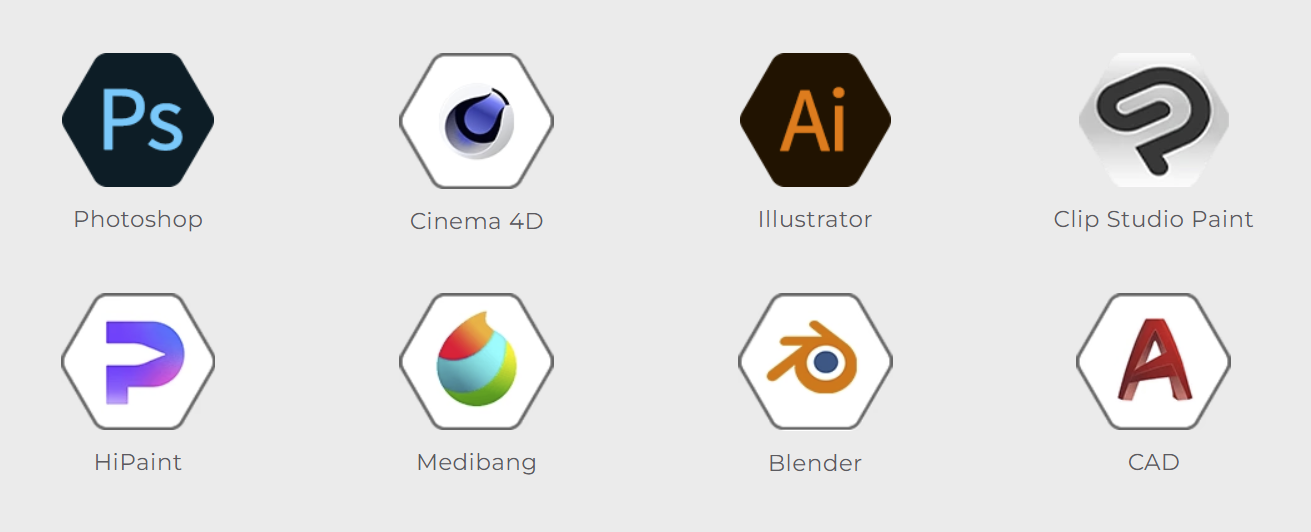
- Install your preferred drawing software (Photoshop, CSP, Krita, etc.) and start creating on your GAOMON Pro 19 (PD1900).
Was this article helpful?
That’s Great!
Thank you for your feedback
Sorry! We couldn't be helpful
Thank you for your feedback
Feedback sent
We appreciate your effort and will try to fix the article