If your GAOMON PD2200 shows the yellow GAOMON logo → “No Signal” → “Power Saving” → black screen with the indicator light turning yellow or red, follow these steps:
- Step 1: Check Cable Connections
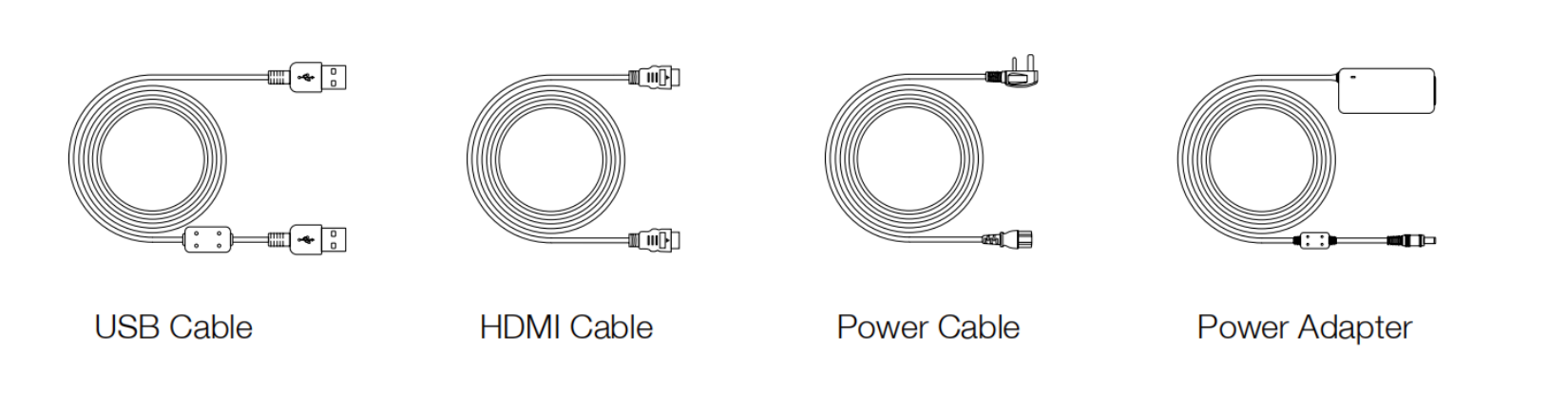
- Make sure the USB, HDMI, and Power cords are all securely connected.
- Use the included power adapter, HDMI cable, and USB cable to connect the PD2200 to your computer.
- Double‑check that the cables are firmly inserted on both ends.
- Step 2: Verify HDMI Setup
- If your computer does not have an HDMI port but you want to connect two monitors, you’ll need an HDMI adapter.
- See the guide: Precautions for Using HDMI Adapter.
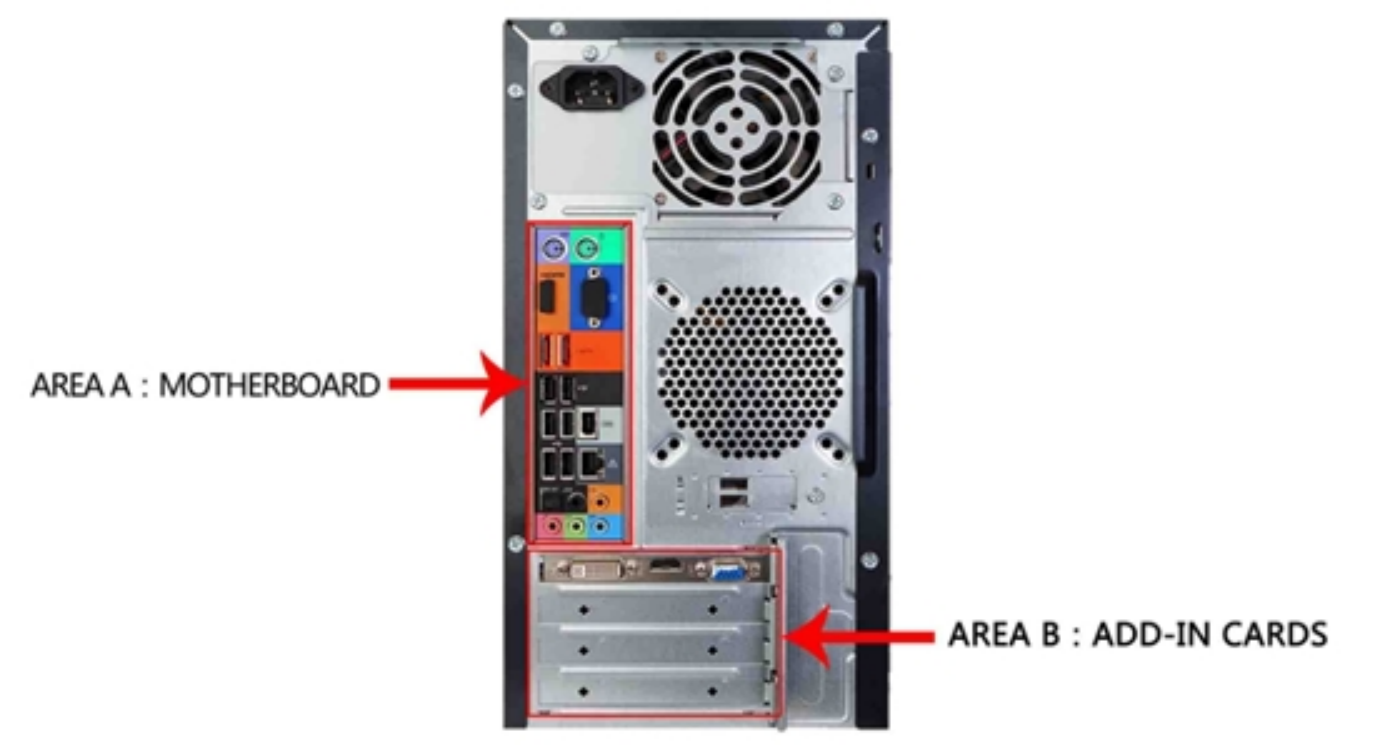
- On a desktop PC, plug the HDMI cable into the graphics card, not the motherboard.
- Step 3: Adjust Display Settings (Windows Only)
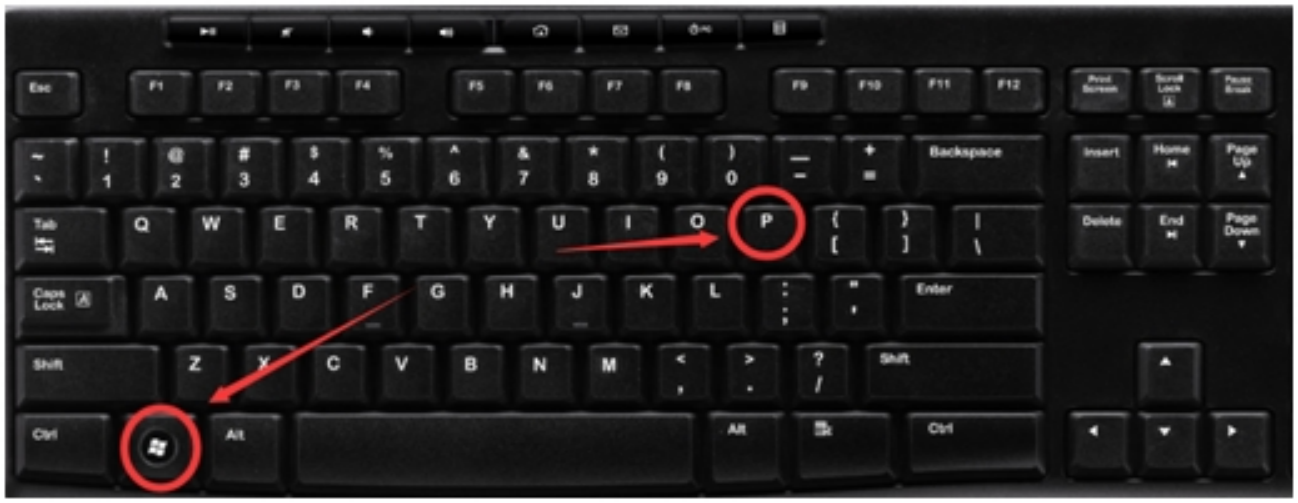
- Press Windows + P on your keyboard.
- Select Duplicate or Extend mode.
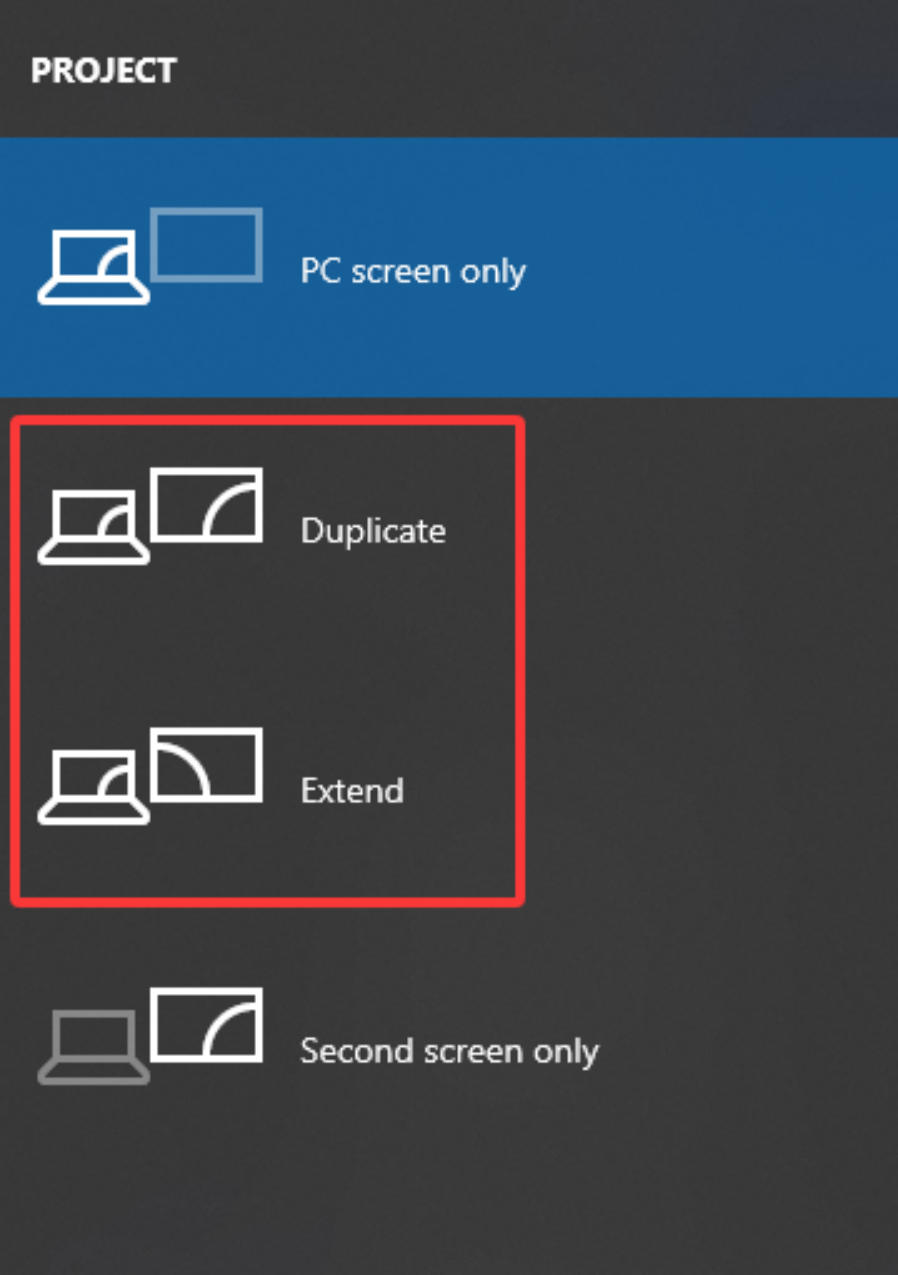
- Do not choose “PC screen only” or “Second screen only,” as these will cause a no signal error.
- Press Windows + P on your keyboard.
- Step 4: Test with Another Computer
- If the issue persists, connect your PD2200 to another computer that has a native HDMI port.
- This helps confirm whether the problem is with the tablet or your computer setup.
Quick Checklist
- USB, HDMI, and Power cords are firmly connected
- The HDMI cable is plugged into the graphics card (desktop)
- Display mode set to Duplicate/Extend (Windows)
- Tested with another HDMI‑enabled computer
Still Having Issues?
If none of the above resolves the problem, please contact GAOMON Support at service@gaomon.net with details of your setup (computer type, operating system, cables/adapters used).
Was this article helpful?
That’s Great!
Thank you for your feedback
Sorry! We couldn't be helpful
Thank you for your feedback
Feedback sent
We appreciate your effort and will try to fix the article