If your PD2200 pen display isn't powering on, follow these steps to troubleshoot the issue:
- Check All Cable Connections
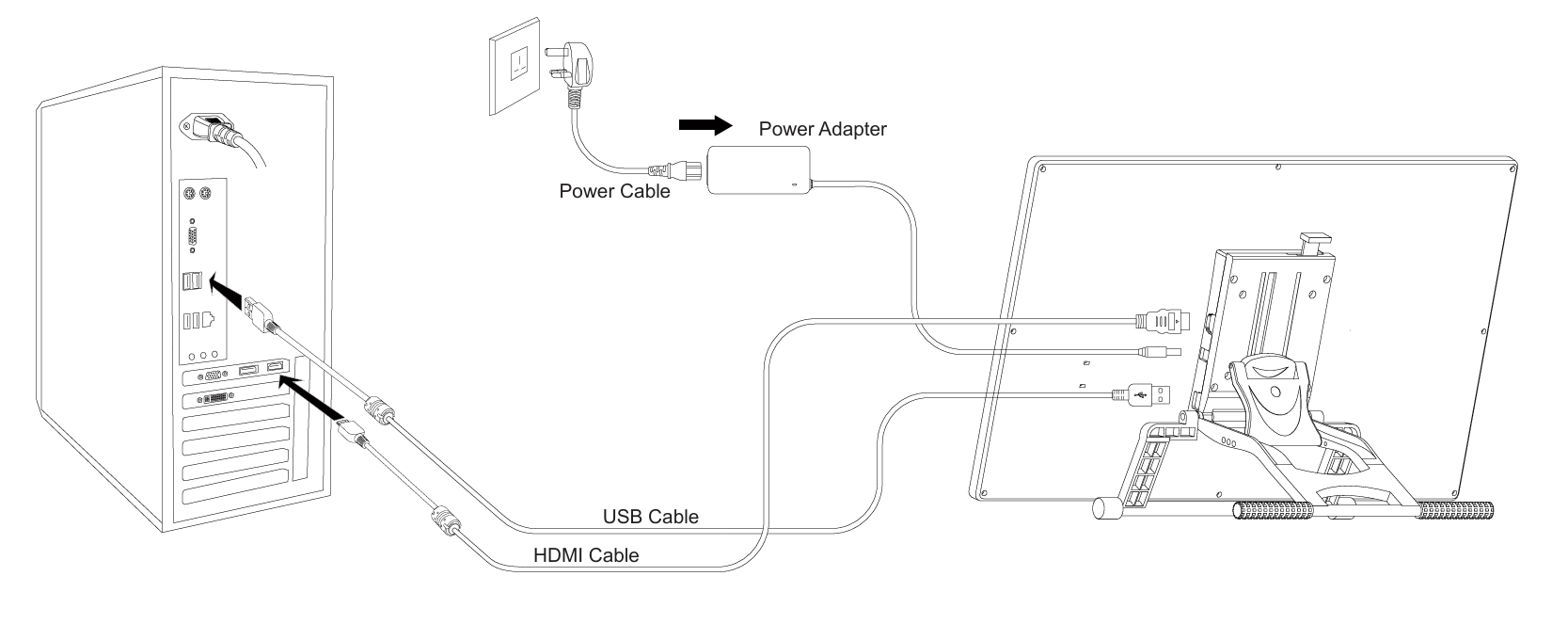
Make sure the following cables are securely connected:
Power cable and adapter (for electricity)
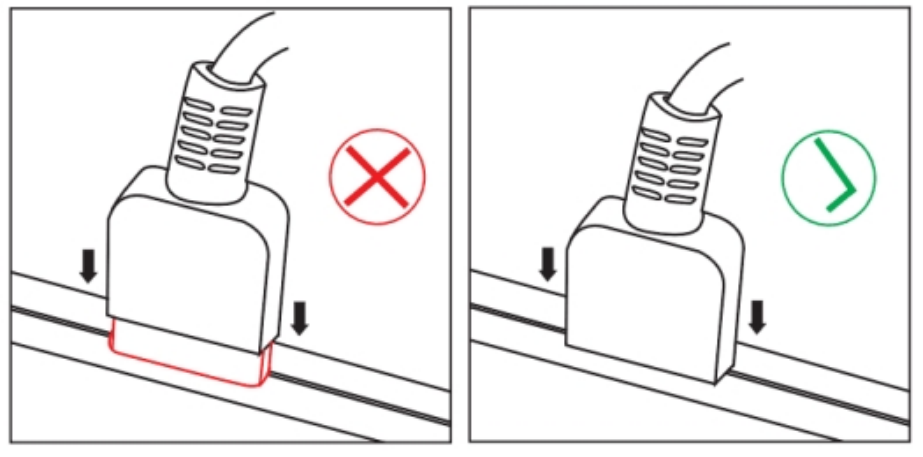
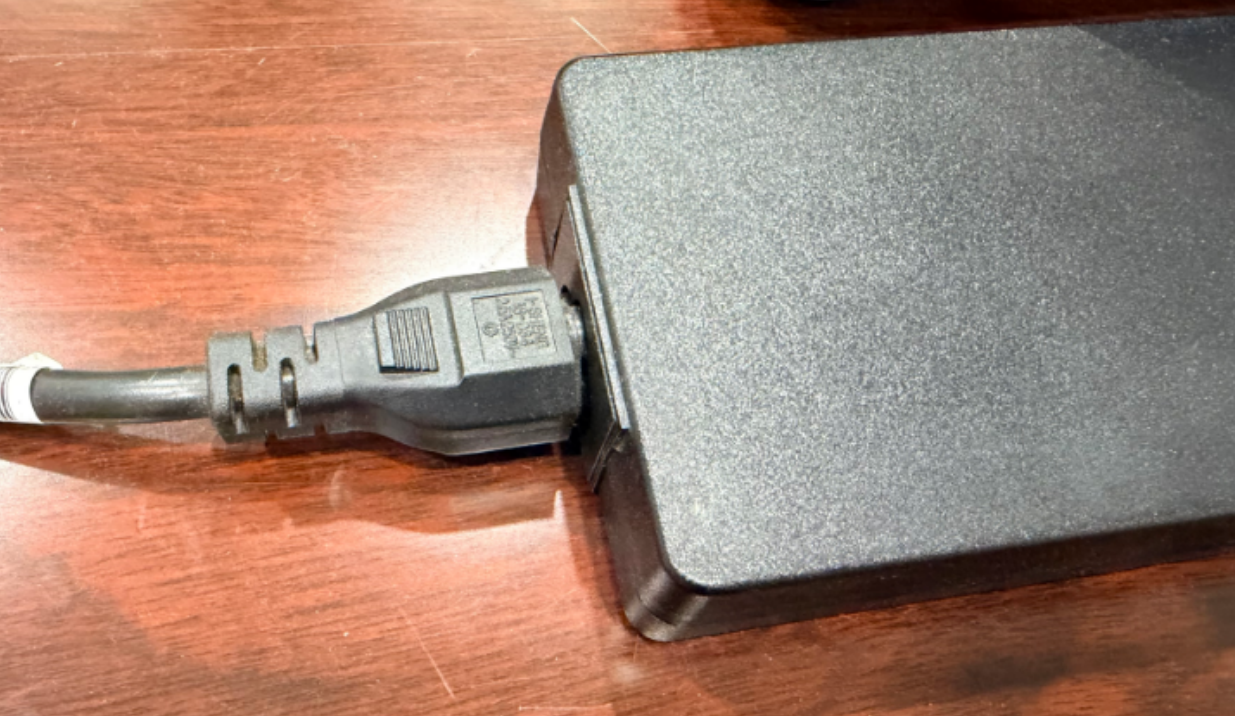
HDMI cable (for video signal) - for a desktop with a separate graphics card (GPU), please connect this cable to the GPU, not to the motherboard.
USB cable (for pen and touch input)
Confirm the Power Source
Plug the power adapter directly into a working wall outlet (avoid power strips or extension cables).
Check whether the power indicator light on the PD2200 turns on.
If the light does not turn on:
Try a different wall outlet
If possible, test the power adapter with another compatible device
Ensure the adapter brick is not loose at either end
Inspect the Power Adapter and Cables
Make sure the power adapter is the original one that came with the PD2200.
Check for:
Bent pins
Frayed or damaged cables
Loose connections at the adapter brick
If the adapter feels unusually hot or makes noise, unplug it immediately.
Restart and Reconnect
Turn off your computer.
Disconnect all PD2200 cables from both the display and the computer.
Wait at least 10 seconds.
Reconnect the cables firmly.
Turn your computer and the PD2200 back on and check whether the PD2200 powers up.
Test With Another Device (If Possible)
If you have access to another laptop or desktop:
Connect the PD2200 to the second device
If it powers on there, the issue may be with your original computer's USB or power delivery
Check for Indicator Light Behavior
No light at all: Power issue
Light turns on, but the screen stays black: Likely a signal issue. Please refer to this article: "No Signal" Troubleshooting (for PD2200).
Light flickers: Possible loose cable or failing adapter.
Still Not Turning On? We're Here to Help
If none of the steps above resolve the issue, your PD2200 may need further diagnosis. You can reach out to our Customer Support Team for personalized assistance through email at service@gaomon.net. Please include the following to speed up the process:
- A description of the issue
- The troubleshooting steps you've already tried
- Photos of your cable setup (optional but helpful)
- Your device's serial number
- Your order number
We'll help you get everything up and running again.
Was this article helpful?
That’s Great!
Thank you for your feedback
Sorry! We couldn't be helpful
Thank you for your feedback
Feedback sent
We appreciate your effort and will try to fix the article