If the colors on your GAOMON PD156 Pro don't look quite right or appear different from your other monitor, don't worry — this can usually be corrected with a few adjustments.
Why Does Color Difference Happen?
All monitors display color slightly differently. Even two screens from the same brand and same model can show small variations due to panel differences, brightness levels, and factory calibration.
However, if the color difference is too noticeable, you can manually adjust the PD156 Pro using its built‑in OSD (On‑Screen Display) panel.
Step 1: Open and Unlock the OSD Panel
- The OSD panel is located on the left side of the PD156 Pro:
- Red highlight → currently selected option
- Menu → Enter
- Auto → Exit
- + / – → Move or adjust values
- How to unlock the OSD
- Long‑press the last key for 3 seconds. This unlocks the OSD Menu, allowing you to make changes.
Step 2: Adjust the Color Settings
- Once the OSD is unlocked:
- Use the "+" / "–" buttons to select Color Setup
- Press Menu to enter
- Choose Color Temp.
- Select User
- Press Menu again to enter the RGB adjustment menu
- Manually adjust: Red, Green, Blue
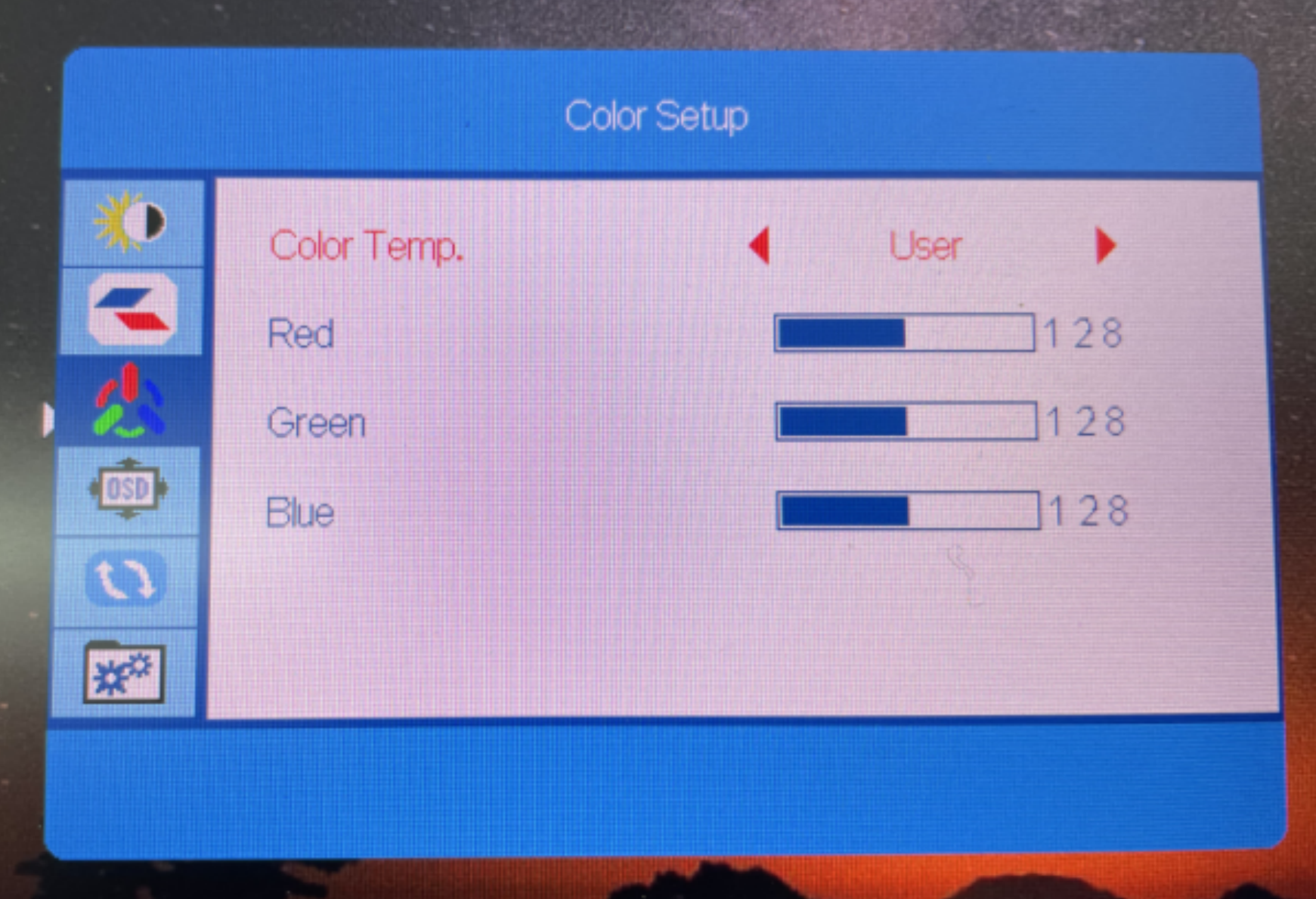
Increasing or decreasing these values will help you match the PD156 Pro's color output to your other monitor.
Tips for Better Color Matching
- Compare both screens under the same lighting conditions
- Avoid setting brightness too high — it can distort color perception
- If you use multiple monitors, try setting all of them to the same color temperature (e.g., 6500K)
- For professional color work, consider using a hardware calibrator
Still Seeing a Big Color Difference?
If adjusting the RGB doesn't help or the colors still look incorrect, feel free to contact GAOMON Support. Include:
- Your device model (PD156 Pro) and serial number
- Photos or a short video of the issue
- The adjustments you've already tried
Our support team will guide you to get your display looking just right.
Was this article helpful?
That’s Great!
Thank you for your feedback
Sorry! We couldn't be helpful
Thank you for your feedback
Feedback sent
We appreciate your effort and will try to fix the article