First, you need to connect your pen display to the computer and refer to the following display modes to set up an additional monitor on Windows.
Duplicate mode: What is shown on your computer will be duplicated to the pen display, called Mirror display on macOS.
To set Windows as a Duplicate display:
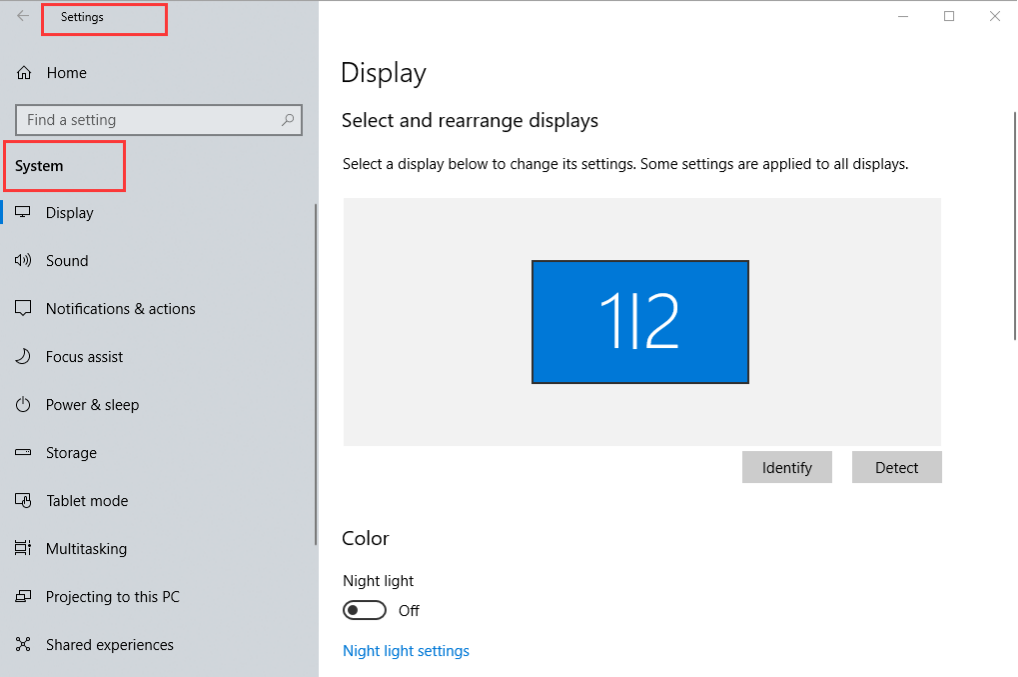
Step 1. Click the Start menu at the bottom-left corner of your desktop and launch the Control Panel by clicking Settings > System > Display.
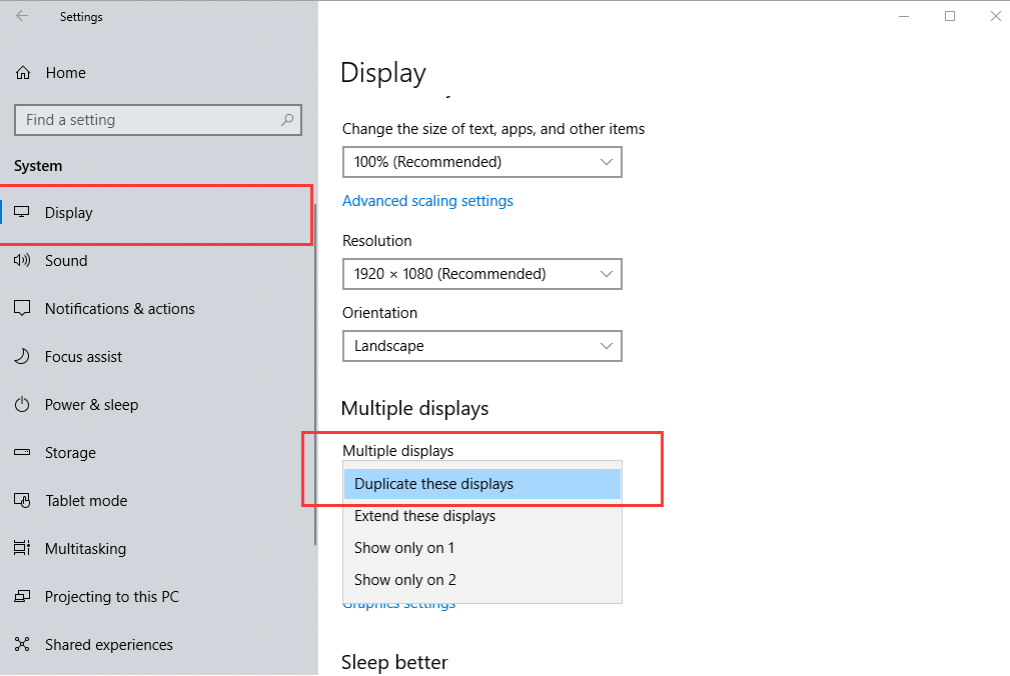
Step 2. Find Multiple displays down the page, select Duplicate these displays, and then apply.
Extend mode: Your desktop will be extended and displayed on two separate monitors, with each one showing different parts of the interface.
To set Windows as an Extended display:
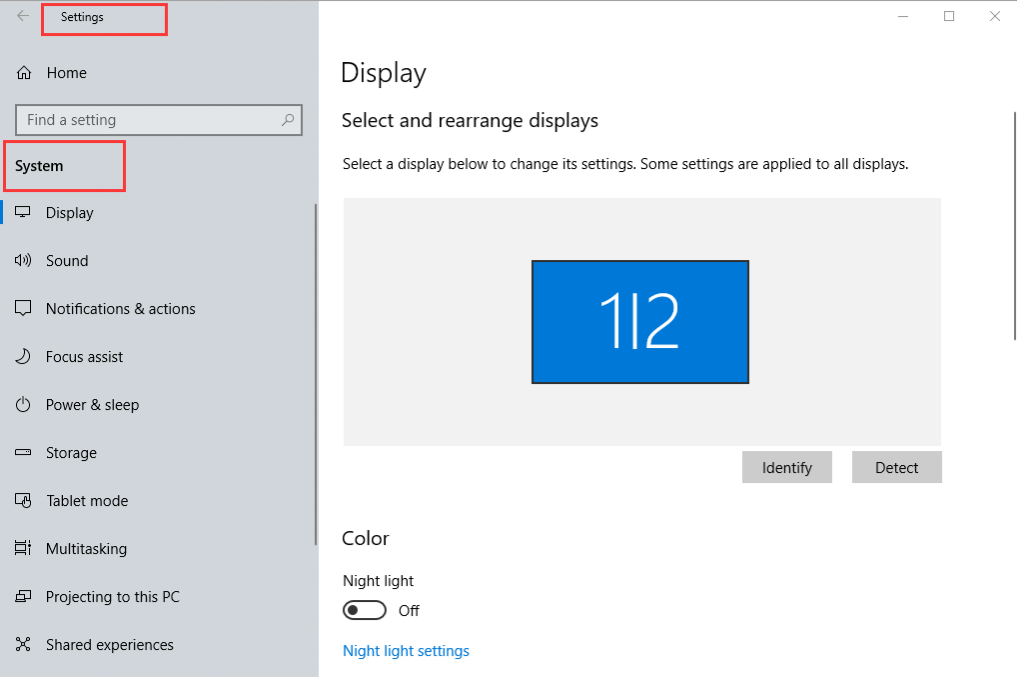
Step 1. Similar to the settings of the Duplicate mode, launch the Control Pane by clicking Settings > System > Display.
Step 2. You may select the checkbox to Make this my main display to set your pen display as the main display.
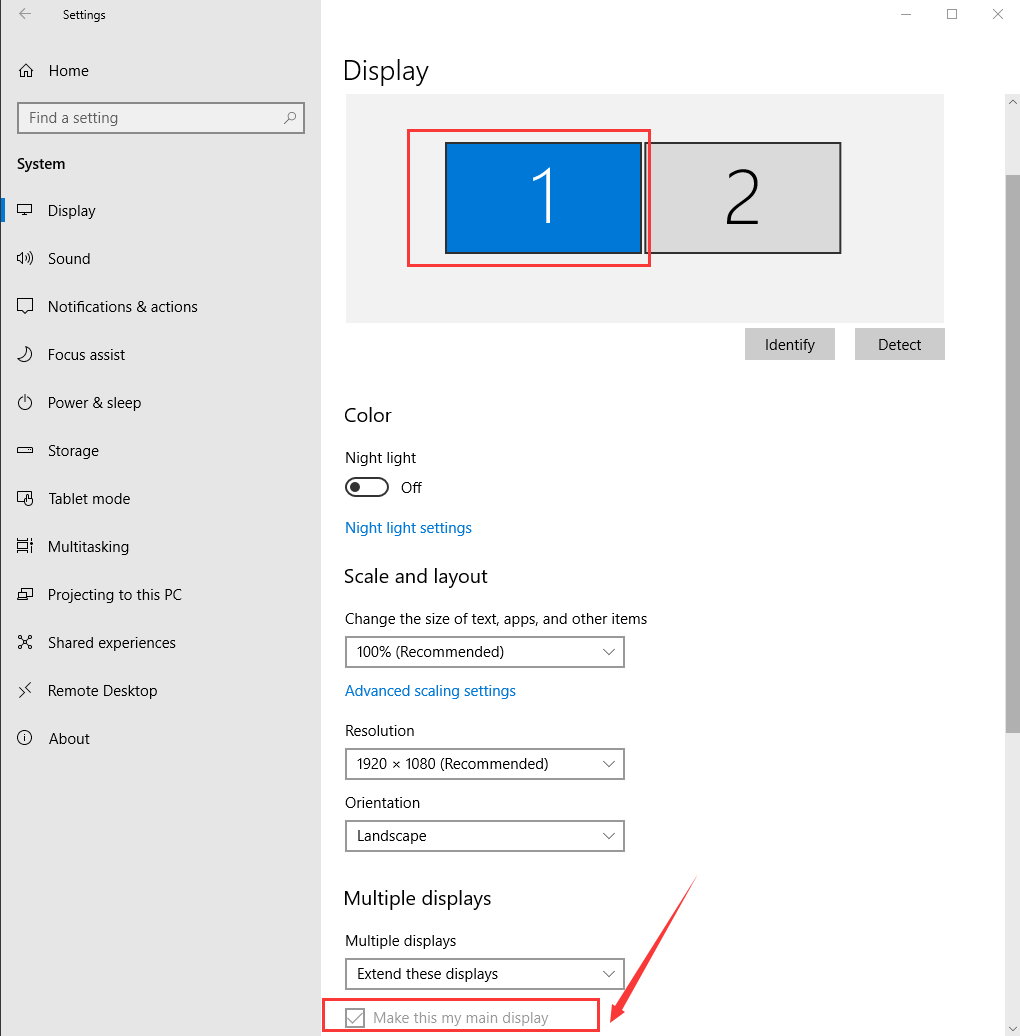
Step 3. Find Multiple displays down the page, select Extend these displays, and then apply.
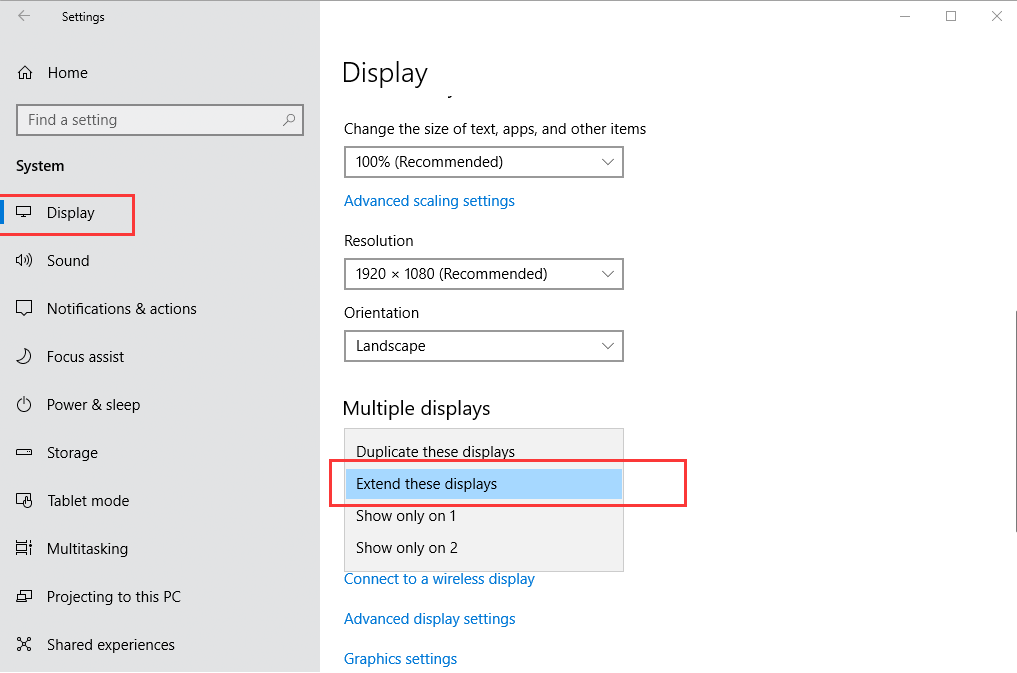
Step 4. You can also rearrange the displays to your desired position.
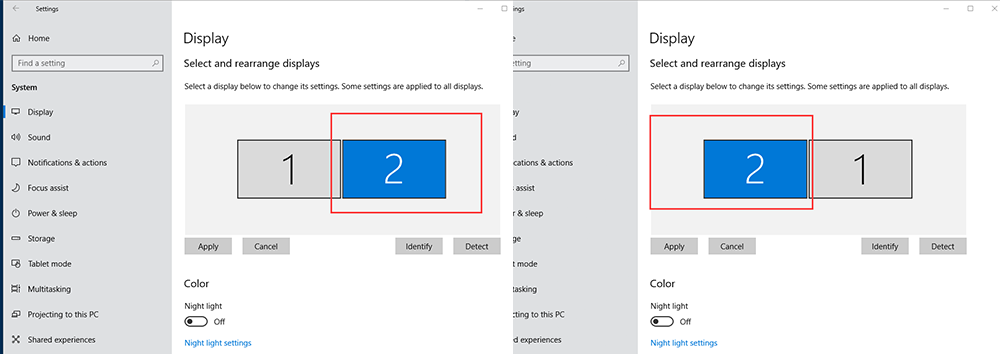
Step 5. If your mouse cursor only works on your computer screen after extending your display (and not on your tablet), change your tablet driver's work area settings by following the steps in this article: How to Set Your Tablet Display Work Area.
Was this article helpful?
That’s Great!
Thank you for your feedback
Sorry! We couldn't be helpful
Thank you for your feedback
Feedback sent
We appreciate your effort and will try to fix the article