Why This Happens
When you connect the GAOMON PD1560 to your computer, the system may mistakenly treat the tablet as an audio output device. However, the PD1560 does not have built‑in speakers or an audio amplifier, so selecting it as the output device results in no sound.
To restore audio, you simply need to switch your sound output back to your computer's speakers or headphones.
For Windows Users (Windows 7, 10, and 11)
Windows 7
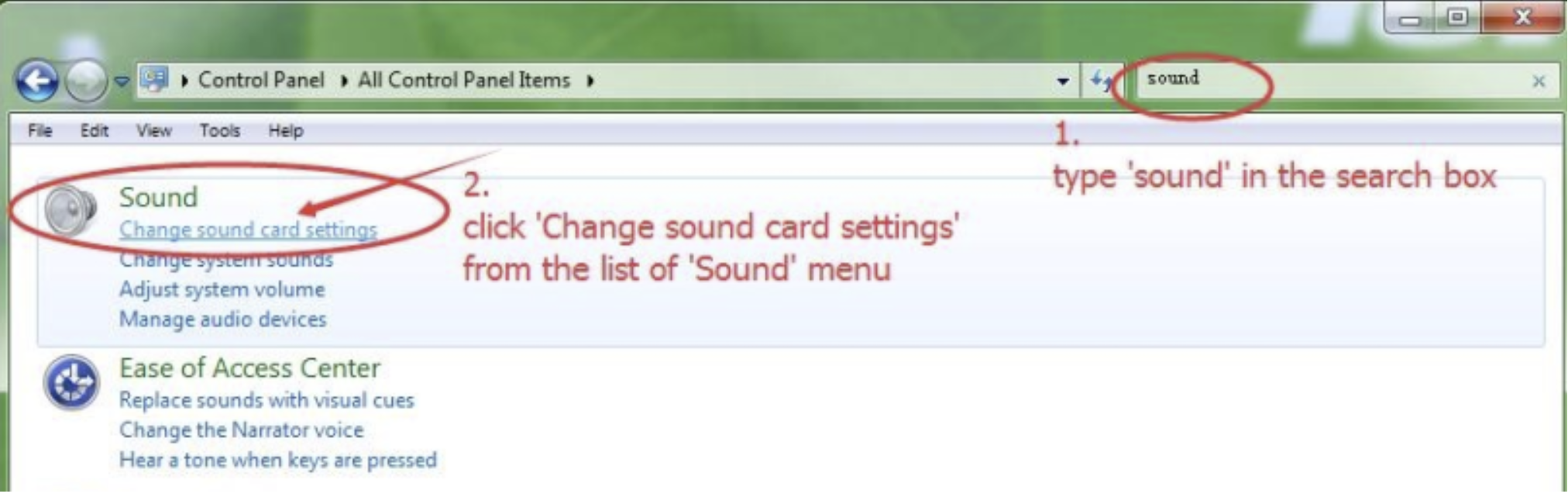
- Open Start → Control Panel.
- Search for Sound and select Change sound card settings.
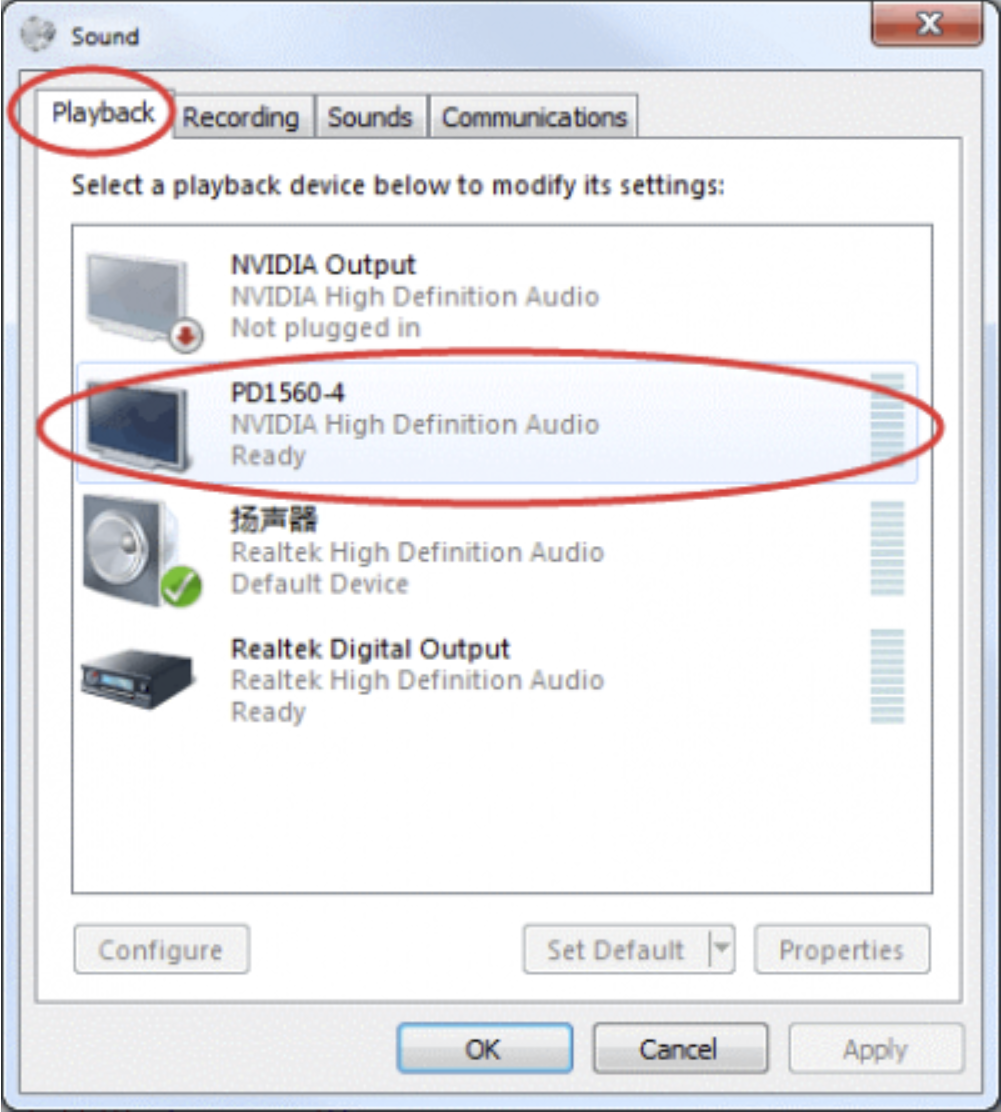
- Under the Playback tab, locate PD1560.
- Right‑click it and choose Disable.
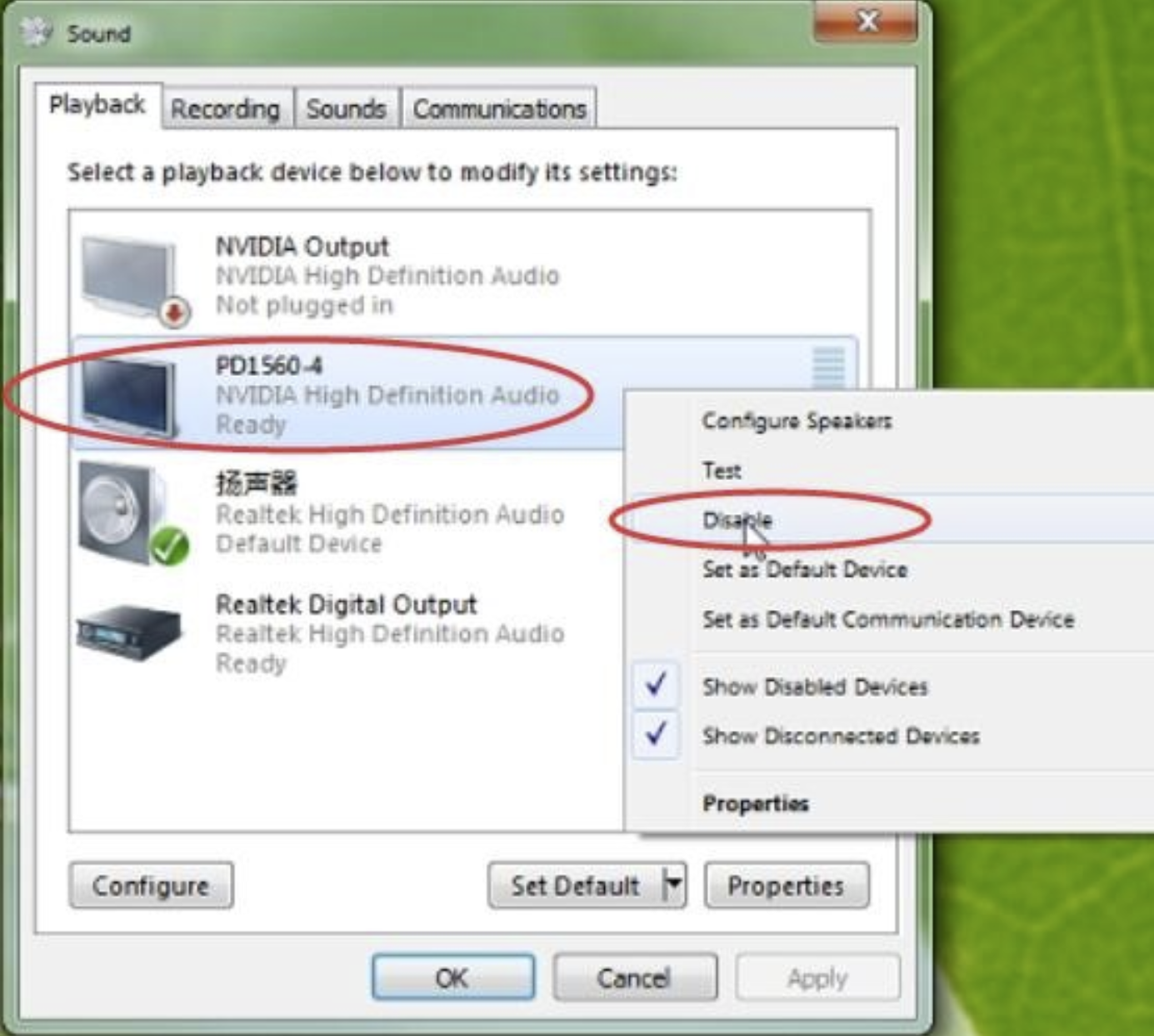
- Your computer will switch back to its normal speakers.
Windows 10 & Windows 11
The interface is more modern, but the fix is the same: change your audio output device.
- Method 1: Quick Settings Panel
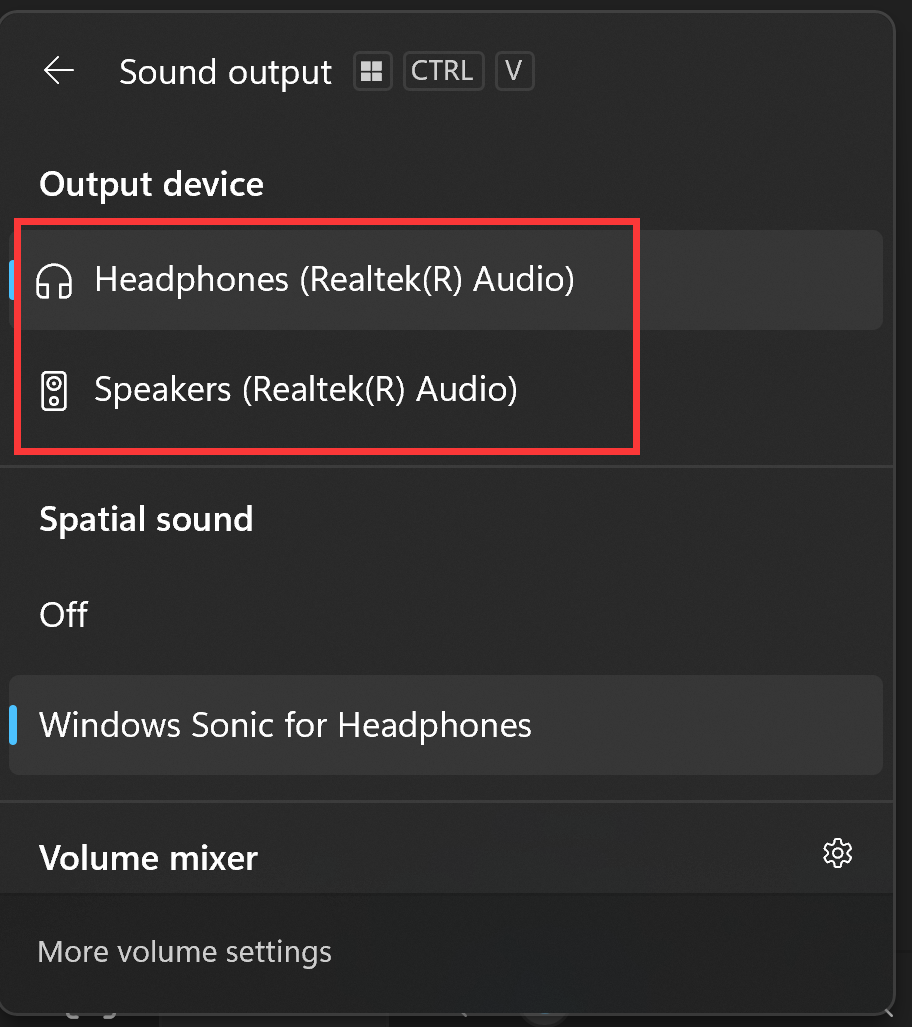
- Click the Volume icon on the taskbar.
- Click the arrow (>) next to the volume slider to open the Output device list.
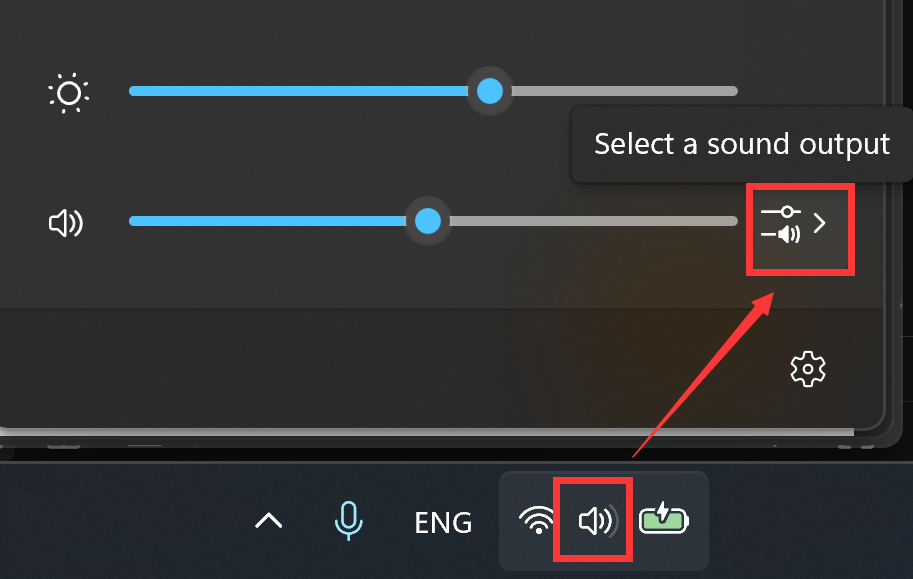
- Select Speakers (Realtek / Internal) or Headphones instead of PD1560.
- Method 2: Sound Settings
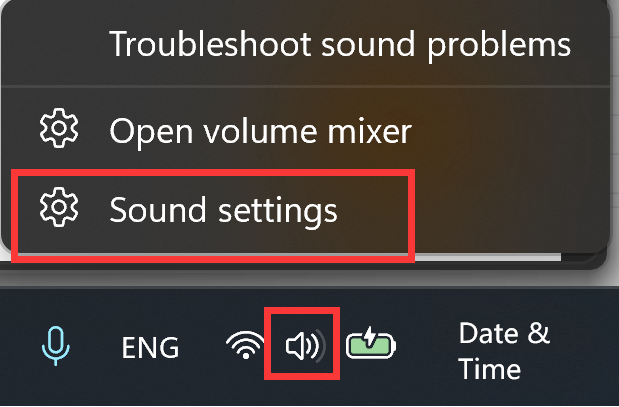
- Right‑click the Volume icon → choose Sound settings.
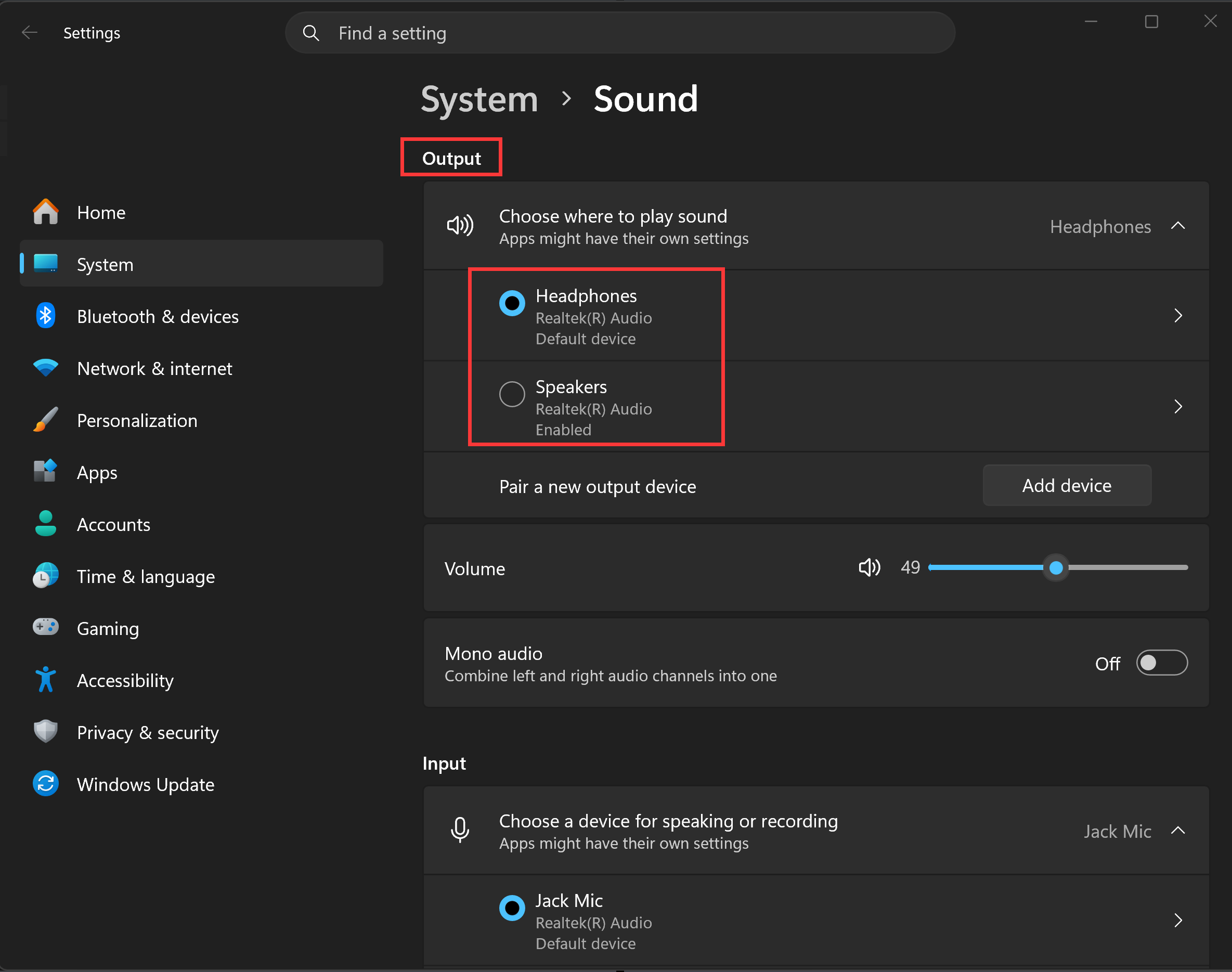
- Under Output, open the drop-down list.
- Select Speakers, Headphones, or your preferred audio device.
- Scroll down to More sound settings (Windows 11) or Sound Control Panel (Windows 10).
- In the Playback tab, right‑click PD1560 → choose Disable or Set as Disabled Device.
- Right‑click the Volume icon → choose Sound settings.
- Method 3: Advanced Troubleshooting
If PD1560 keeps taking over audio output:- Open Device Manager
- Expand Audio inputs and outputs
- Right‑click PD1560 Audio → Disable device
This prevents Windows from auto‑selecting it again.
For macOS Users (MacBook Air, MacBook Pro, iMac)
macOS (older versions)
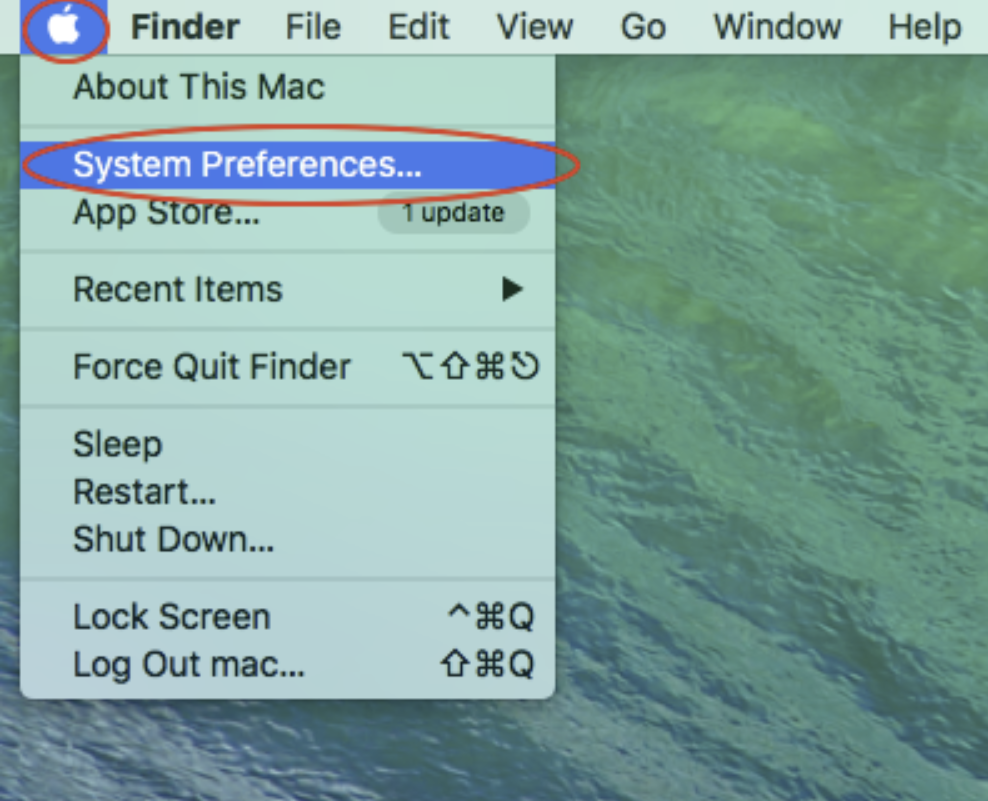
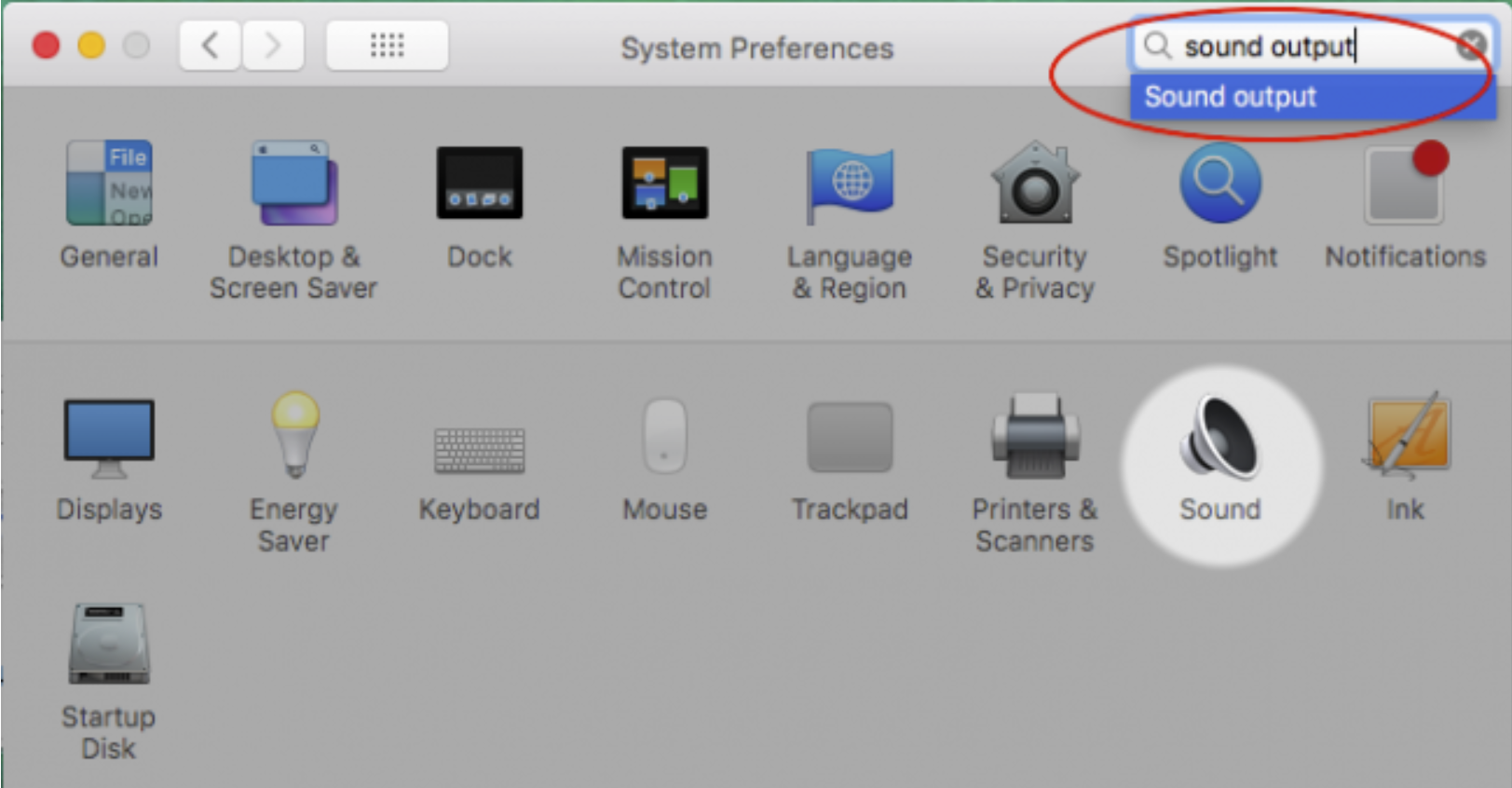
- Open System Preferences.
- Search for Sound output.
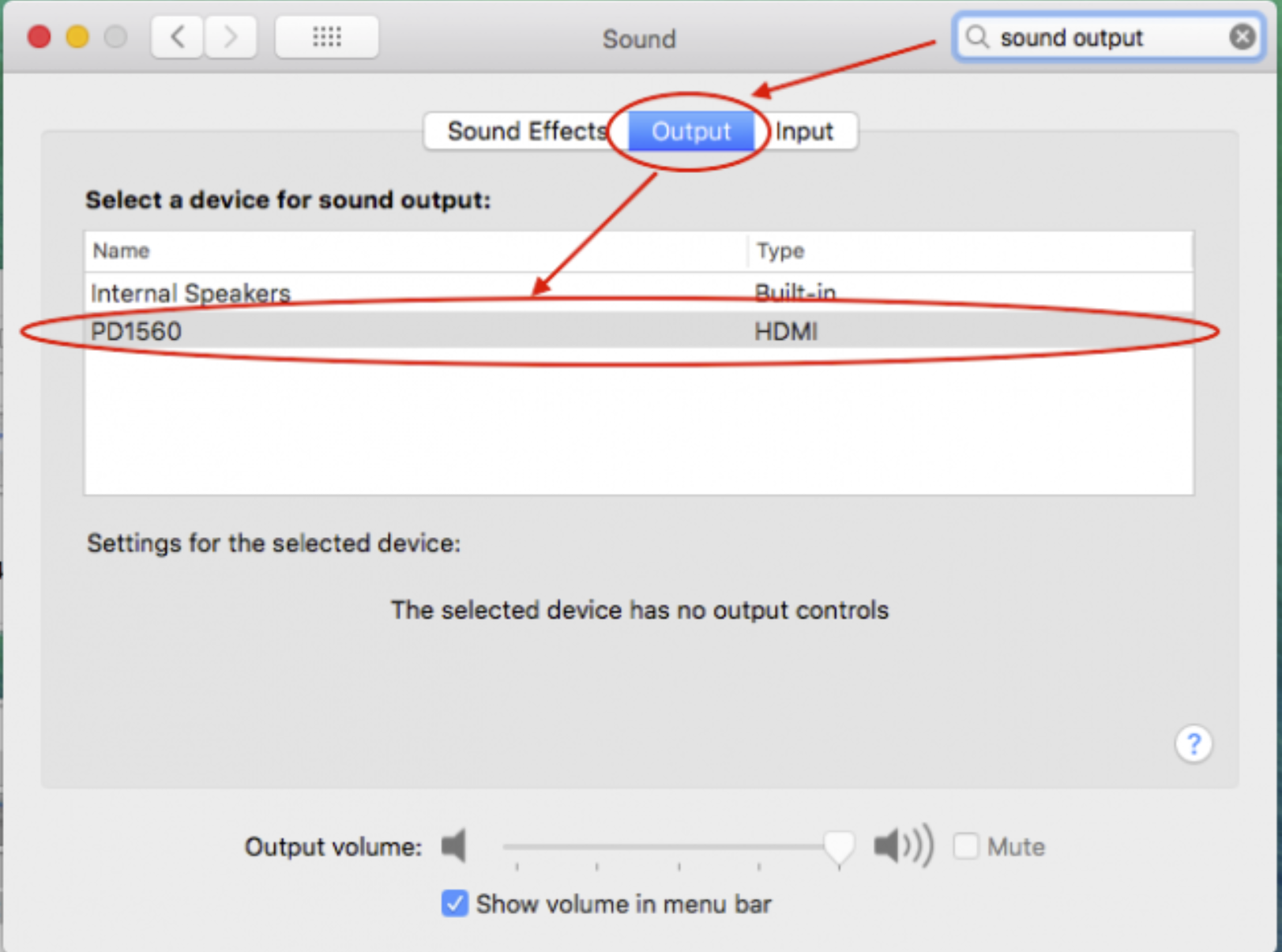
- In the Output tab, PD1560 may be selected.
- Switch to Internal Speakers or Headphones.
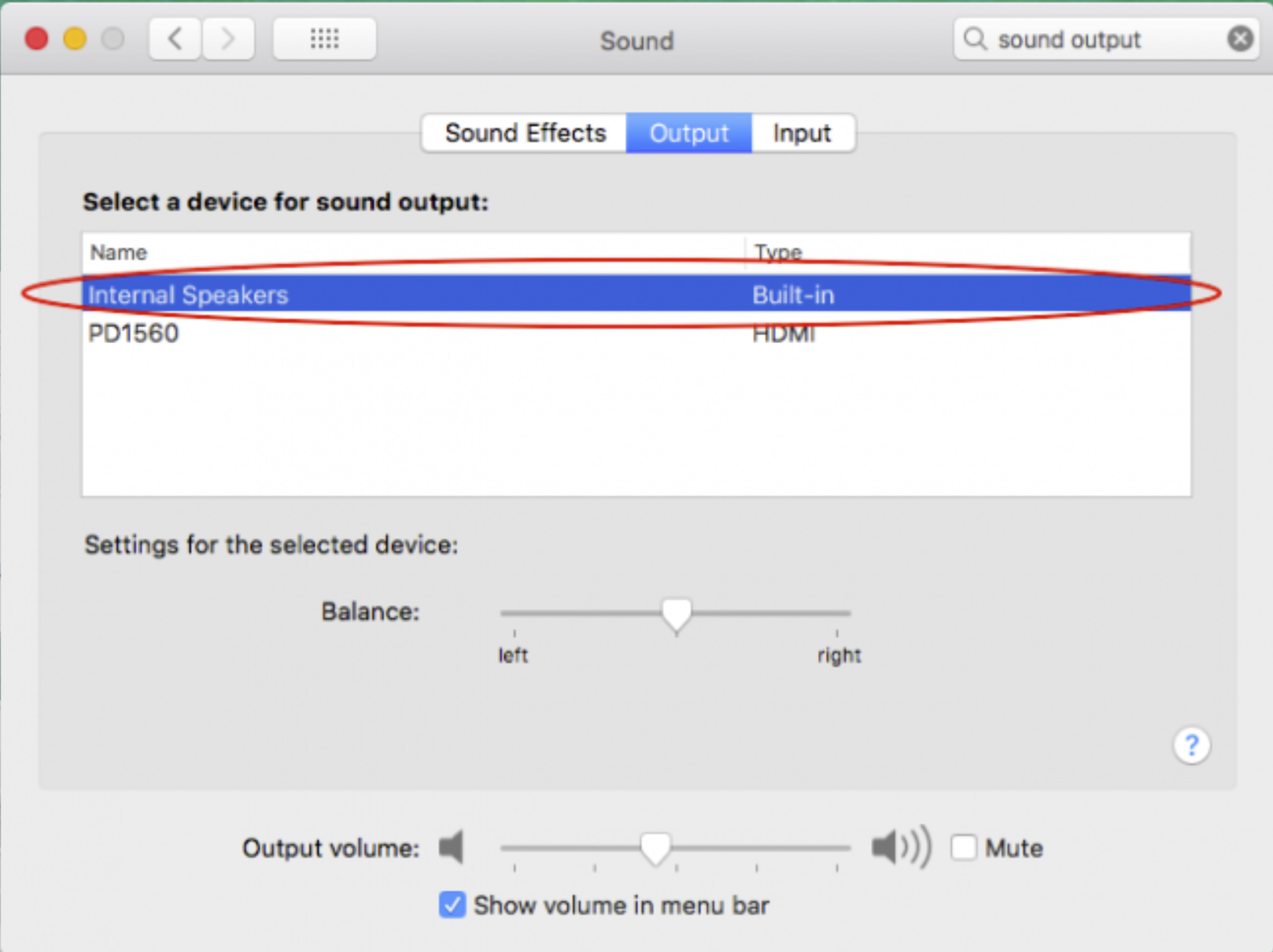
- Sound will return immediately.
macOS Ventura, Sonoma, and newer OS versions
Apple redesigned System Settings, so the steps are slightly different.
- Method 1: System Settings
- Open System Settings from the Apple menu.
- Go to Sound.
- Under Output, select MacBook Speakers, Internal Speakers, or Headphones.
- Make sure PD1560 is not selected.
- Method 2: Control Center
- Click the Control Center icon in the menu bar.
- Select Sound.
- Choose your preferred audio device (e.g., MacBook Speakers).
- Method 3: When Using Headphones
- Plugging in headphones automatically changes the output to Headphones.
- If PD1560 is still selected, manually switch to Headphones in the Sound menu.
Additional Tips
- If you frequently connect and disconnect PD1560, Windows may occasionally re‑select it. Disabling PD1560 in the Sound Settings prevents this.
- On macOS, PD1560 may appear as a USB audio device. Simply avoid selecting it.
- PD1560 does not support audio output on any operating system.
Still No Sound?
If none of these solutions work, GAOMON Support can help you directly. You can submit your issue here: service@gaomon.net.
Was this article helpful?
That’s Great!
Thank you for your feedback
Sorry! We couldn't be helpful
Thank you for your feedback
Feedback sent
We appreciate your effort and will try to fix the article