If your PD1320 or PD1220 driver shows "No Device Detected", follow the steps below to resolve the issue.
- Check the Cable Connection (Most Common Cause)
- Make sure you are using the original GAOMON cable included with your device.
- Connect the USB‑C end to your PD1320/PD1220.
- Connect the black USB‑A plug to your computer.
- Connect the red USB‑A plug to a power adapter, not to your computer.
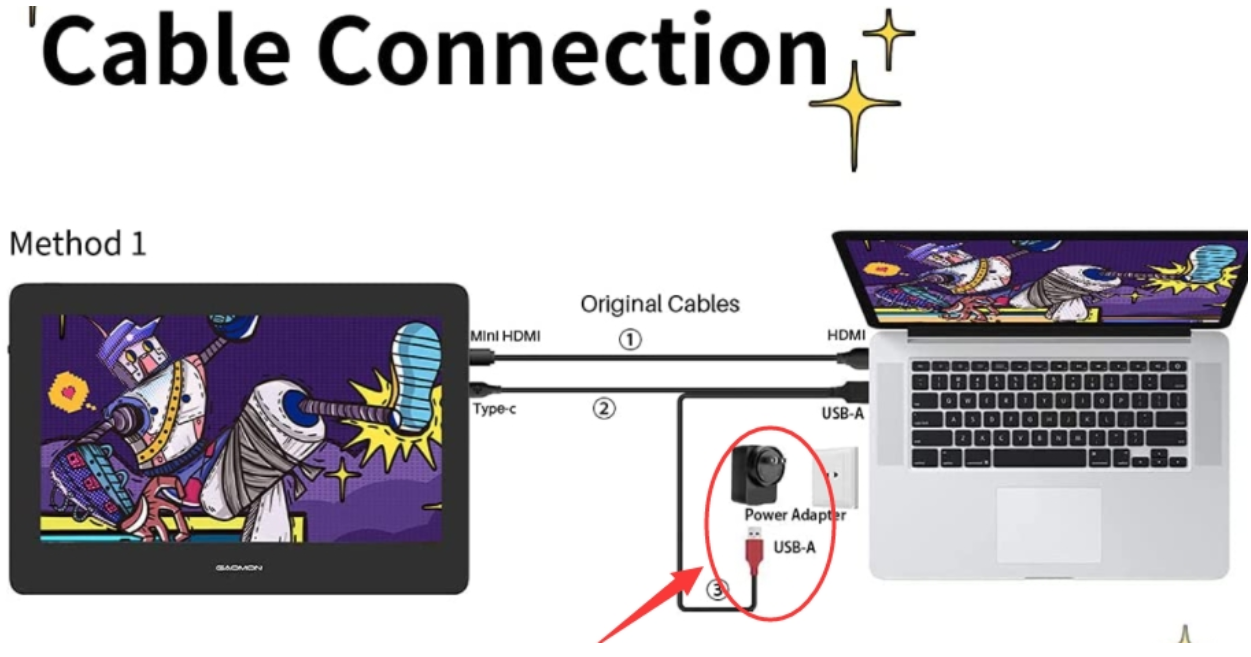
- Plug the red USB‑A connector into a power adapter to ensure the tablet receives enough power.
- If the tablet still isn't detected, continue with the steps below.
- Try a Different USB Port
- Plug the black USB‑A connector into another USB port on your computer.
- Avoid USB hubs, docking stations, or extension cables.
- Restart the Driver and Your Computer
- Close the GAOMON driver completely.
- Disconnect the cable.
- Restart your computer.
- Reconnect the tablet and reopen the driver.
- Check the Tablet's Indicator Light
- If your tablet has an indicator light:
- Light ON → The tablet is receiving power.
- Light OFF → The tablet may not be powered; recheck the red USB‑A connection to the power adapter.
- If your tablet has an indicator light:
- Test With Another Computer (Optional)
- This helps determine whether the issue is with the tablet, cable, or your computer.
- If the Issue Persists
- Please record a short video showing:
- How the cables are connected
- The black USB-A cable connected to the computer
- The red USB‑A plug connected to a power adapter
- The driver interface showing "No Device Detected"
- Any indicator lights on the tablet
- Send the video to service@gaomon.net so our support team can assist you further.
- Please record a short video showing:
Was this article helpful?
That’s Great!
Thank you for your feedback
Sorry! We couldn't be helpful
Thank you for your feedback
Feedback sent
We appreciate your effort and will try to fix the article