Pen pressure issues in Krita usually come from three areas: Krita's brush settings, Krita's tablet input settings, or the tablet driver.
Start with the general steps below (for both Windows and macOS). If you're on Windows, continue with the Windows‑specific steps afterward.
General Steps (Windows & macOS)
- Verify Brush Pressure Settings (Most Common Fix)
Some brushes have pressure disabled inside the brush engine.- Select your brush.
- Press F5 to open Brush Settings.
- Under Size, make sure Pressure is enabled.
- Under Opacity, enable Pressure if needed.
- Test your stroke again.
- Check Krita's Tablet Input API
Krita 5.2+ uses a new tablet input system. If the wrong API is selected, pressure won't work.- Go to Settings → Configure Krita → Tablet Settings.
- Under Tablet Input API, switch between:
- WinTab
- Windows Ink (macOS uses a different backend, but the setting still appears)
- Restart Krita after changing the API.
- Adjust the Pressure Curve
If pressure works but feels too light or too heavy:- Go to Settings → Configure Krita → Tablet Settings → Pressure Curve.
- Adjust the curve (many artists prefer a soft S‑curve).
- Test your brush again.
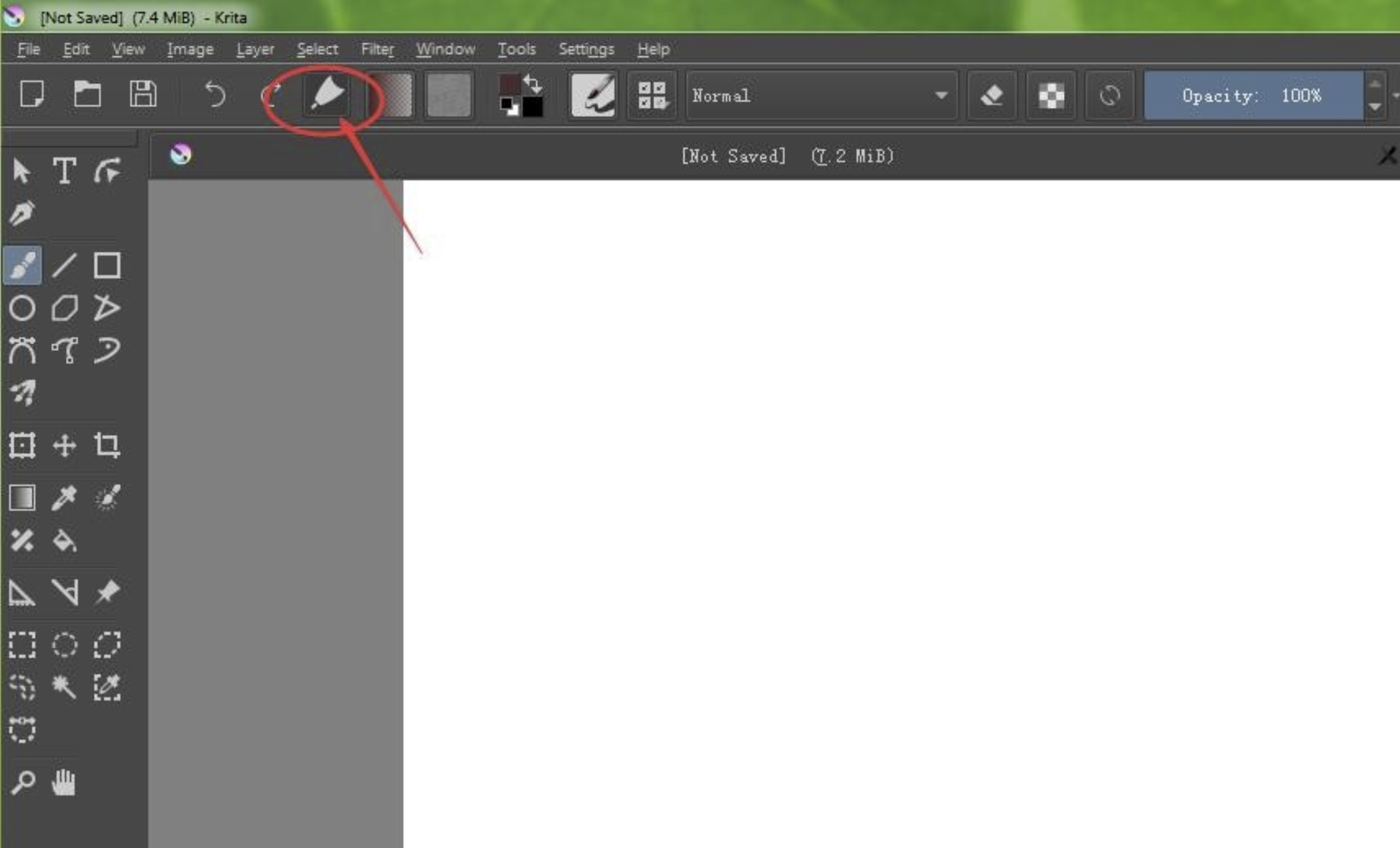
- Add the "Use Pen Pressure" Button to the Toolbar
This controls brush‑engine pressure, not tablet input — but it still matters.- Go to Settings → Configure Toolbars.
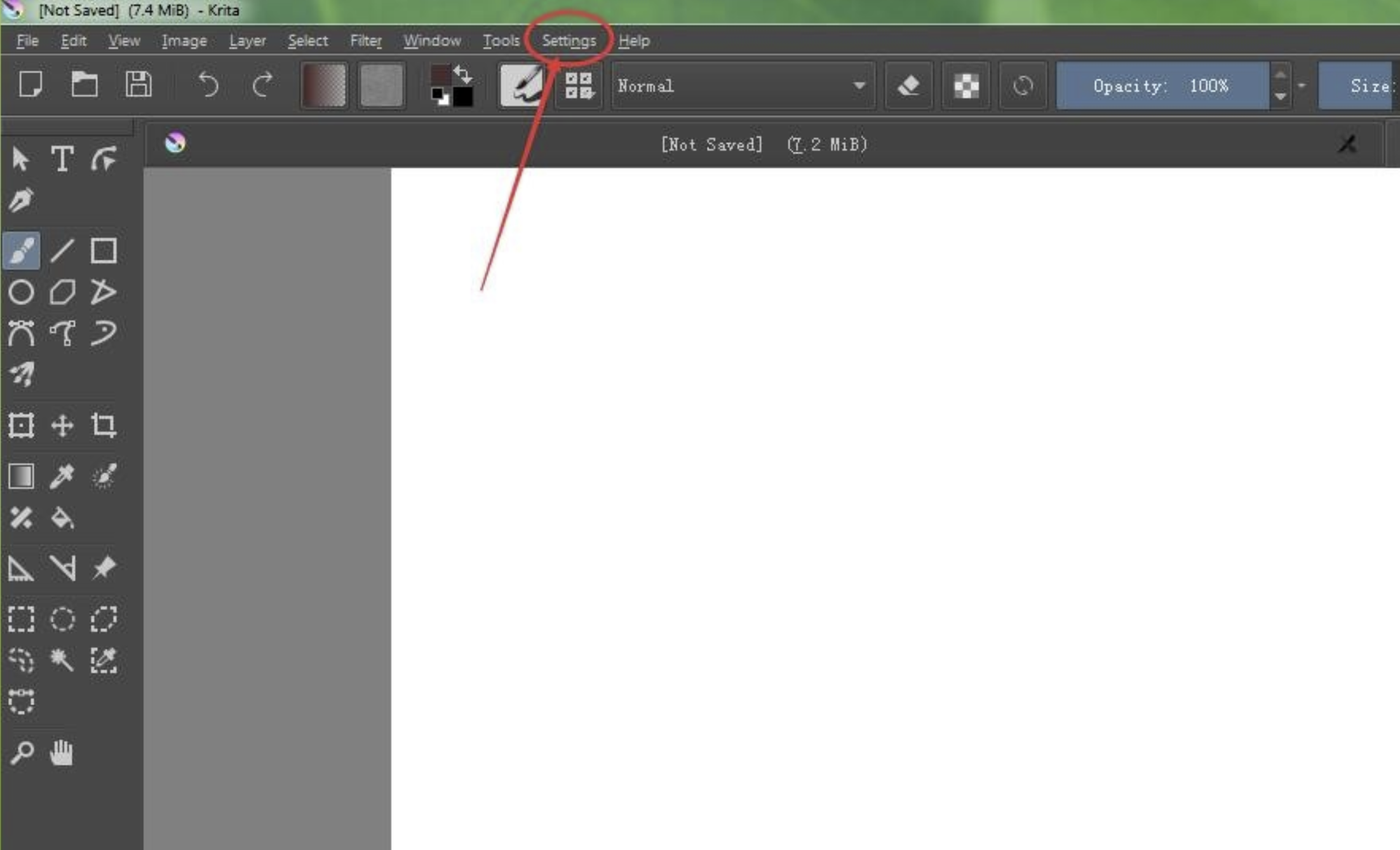
- Search for Use Pen Pressure.
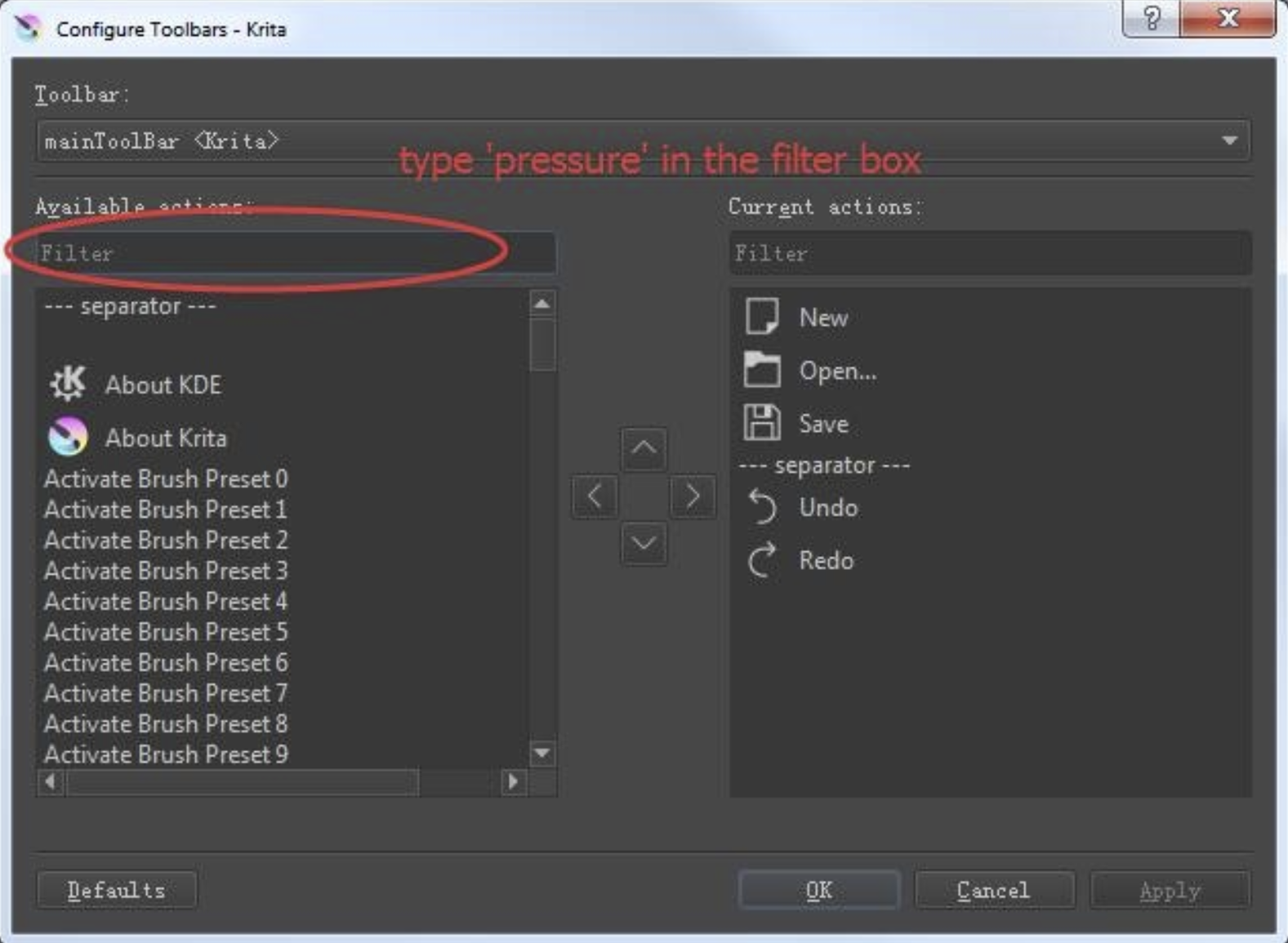
- Add it to Current actions.
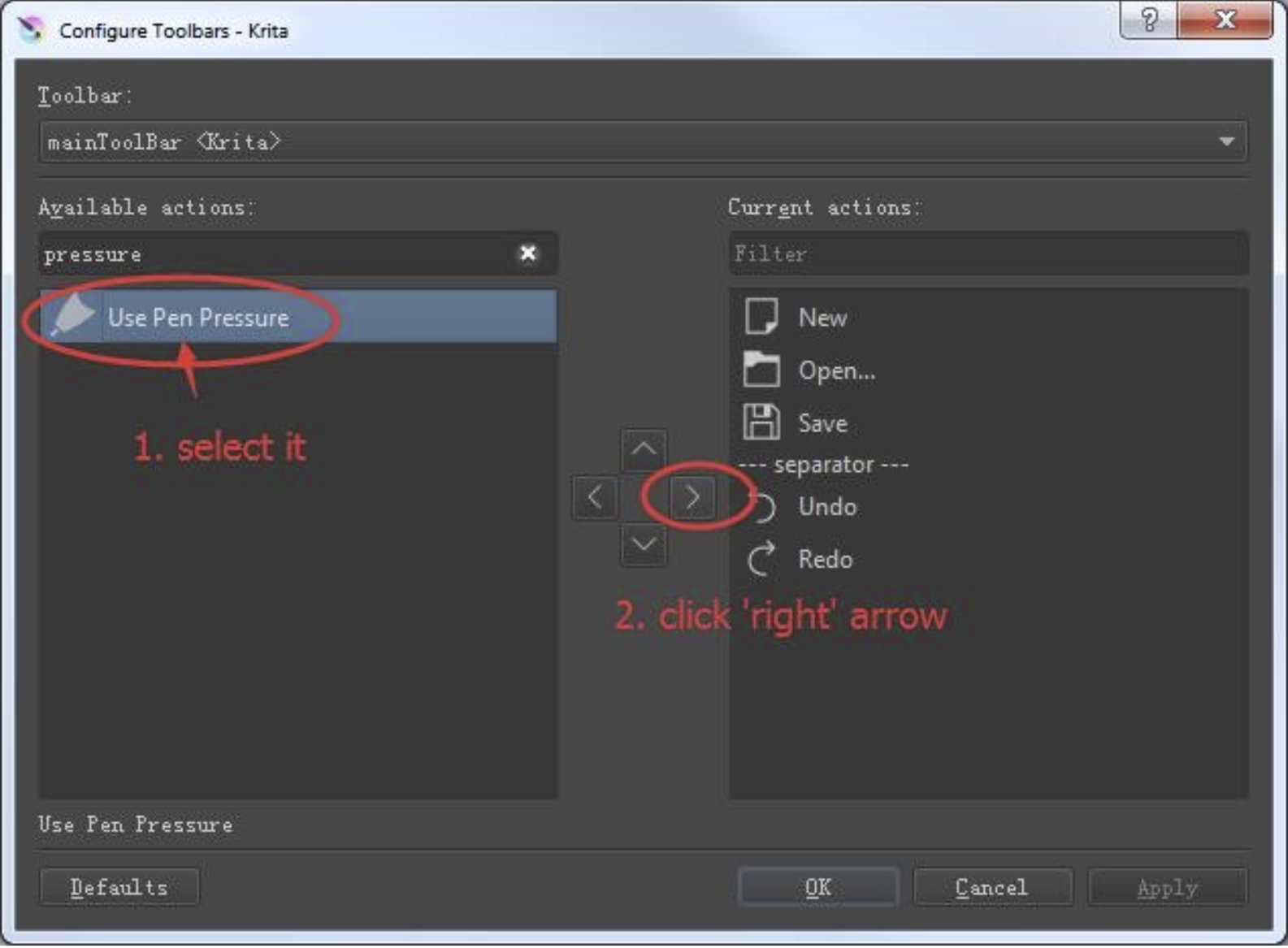
- Click Apply.
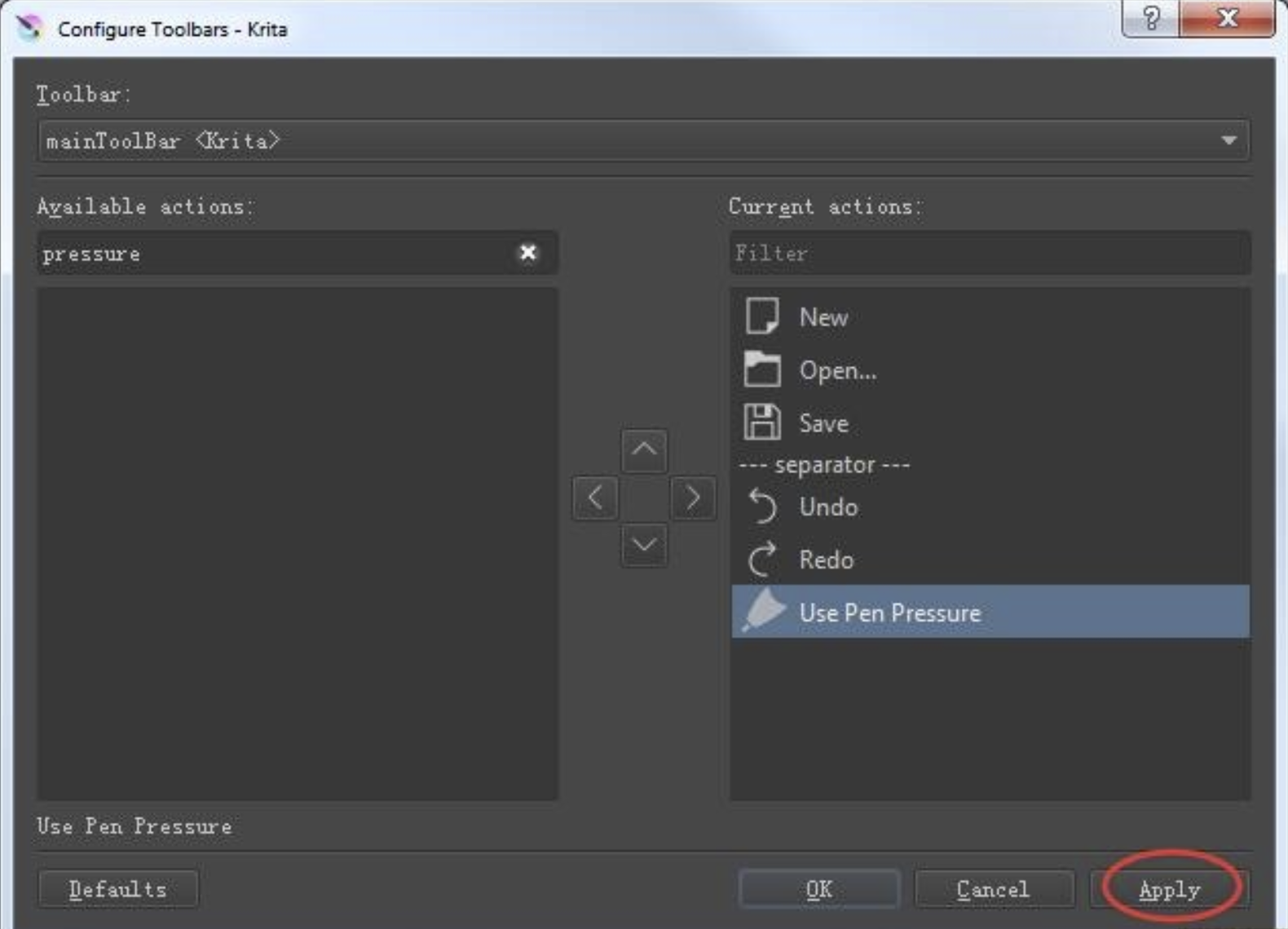
- Go to Settings → Configure Toolbars.
- Make Sure the Toolbar Is Visible
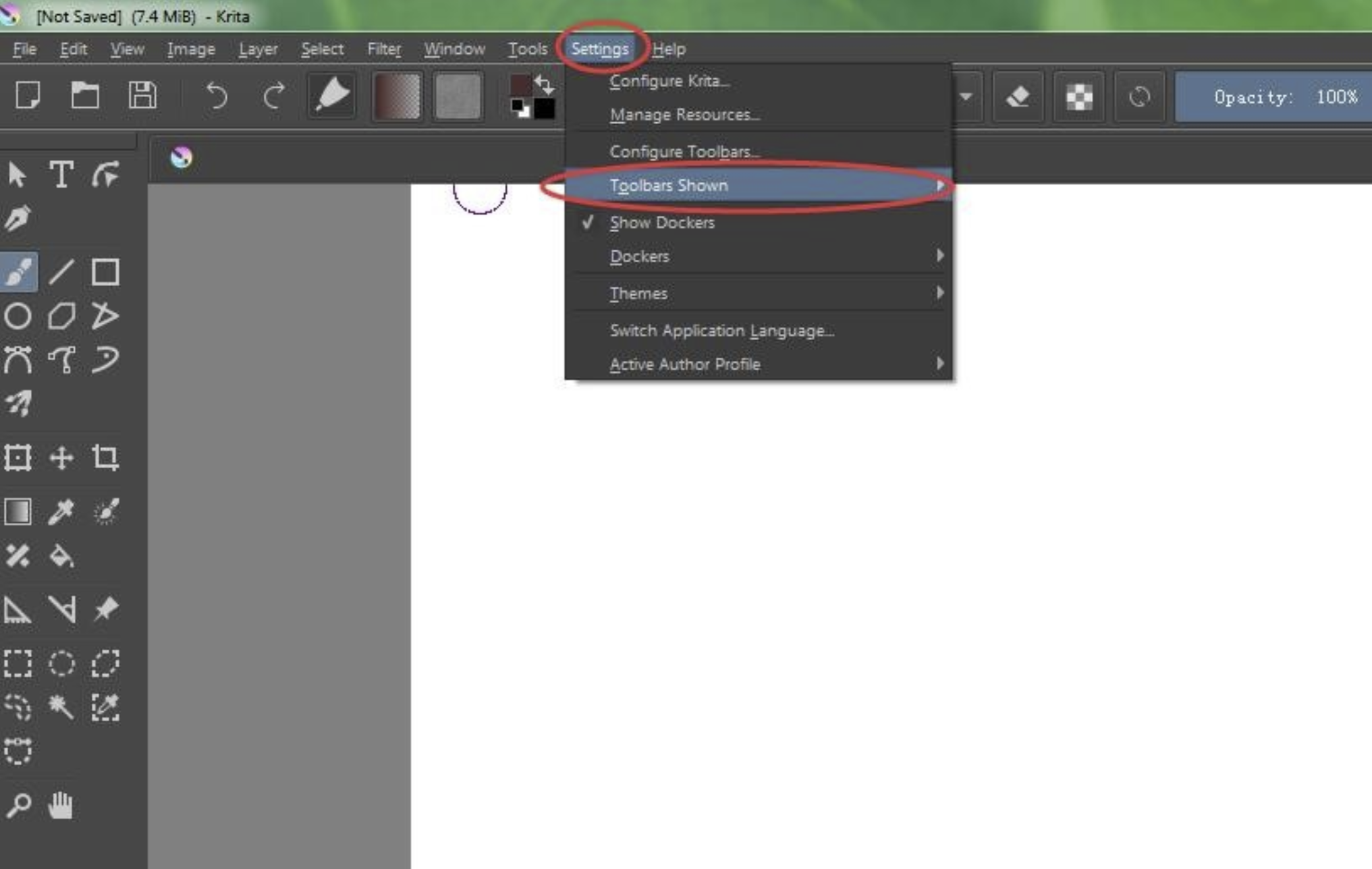
If the icon doesn't appear:- Go to Settings → Toolbars Shown.
- Enable the File toolbar.
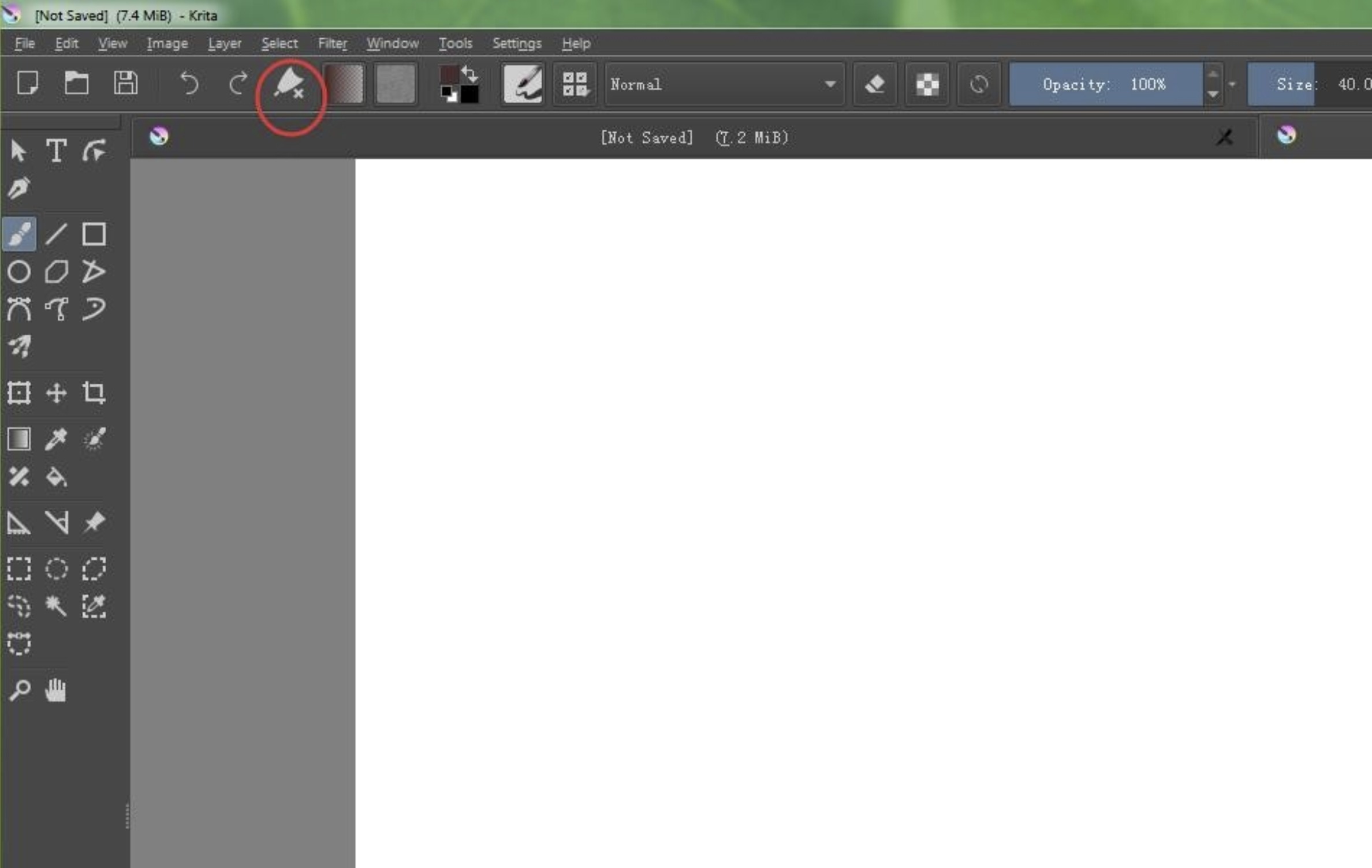
- If the icon shows an X, pressure is disabled. Click it to enable.
- Go to Settings → Toolbars Shown.
- macOS‑Only: Check System Permissions
macOS may block tablet input until permissions are granted.
Go to System Settings → Privacy & Security, then enable Krita under:- Accessibility
- Input Monitoring
Restart Krita afterward.
Additional Steps for Windows Only
- Switch Windows Ink in Your Tablet Driver
Many tablets (including GAOMON) require toggling Windows Ink in the driver.
In the GAOMON driver:- Enable Windows Ink if Krita is set to Windows Ink
- Disable Windows Ink if Krita is set to WinTab
The driver and Krita must match.
- Clean Reinstall the Tablet Driver
Windows updates often break tablet drivers. A clean reinstall fixes most pressure issues.- Disconnect your tablet.
- Uninstall the GAOMON driver.
- Restart your PC.
- Download and install the latest driver from GAOMON.
- Reconnect your tablet.
- Disable Windows "Press and Hold" (Right‑Click Gesture)
This gesture can block pressure in some apps.- Open Control Panel → Pen and Touch.
- Select Press and hold.
- Click Settings.
- Disable it.
- Check for Conflicting Drivers
If you previously installed drivers from other brands, they may interfere with the Gaomon driver. Uninstall unused drivers and restart.
Was this article helpful?
That’s Great!
Thank you for your feedback
Sorry! We couldn't be helpful
Thank you for your feedback
Feedback sent
We appreciate your effort and will try to fix the article