Overview
It's normal for color differences to appear between monitors — even between two displays of the same brand and model. Variations in panel type, calibration, and viewing angle can cause slight discrepancies. However, if the color difference is too noticeable, you can manually adjust the display settings to achieve a closer match.
Method 1: Adjust via the OSD (On‑Screen Display) Panel
Each GAOMON PD1161, PD1560, PD1561, PD1561 V2 and PD1161 V2 has an OSD panel located on the left side of the display.
OSD Button Functions
- Yellow highlight — indicates the selected option
- Menu — Enter
- Auto — Exit
- + / − — Navigate or adjust values
Steps:
- Press Menu to open the OSD panel.
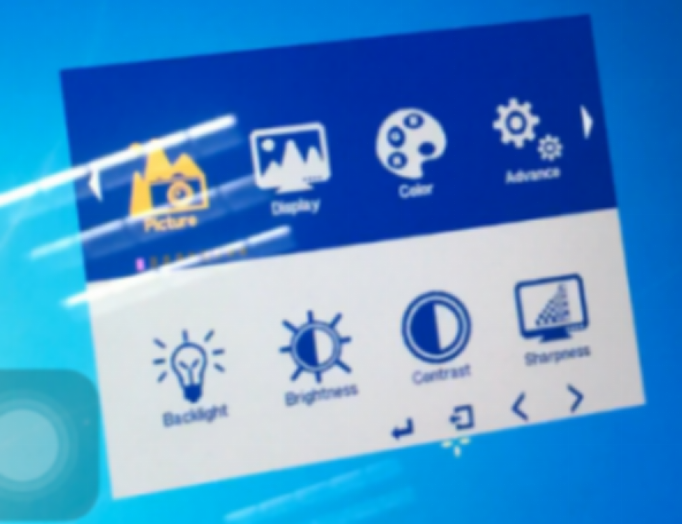
- Navigate to Color → press Enter.
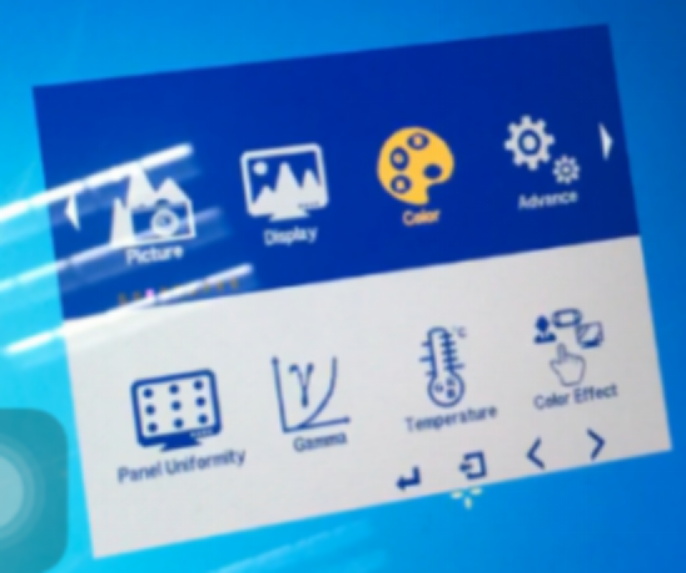
- Select Temperature → press Enter.
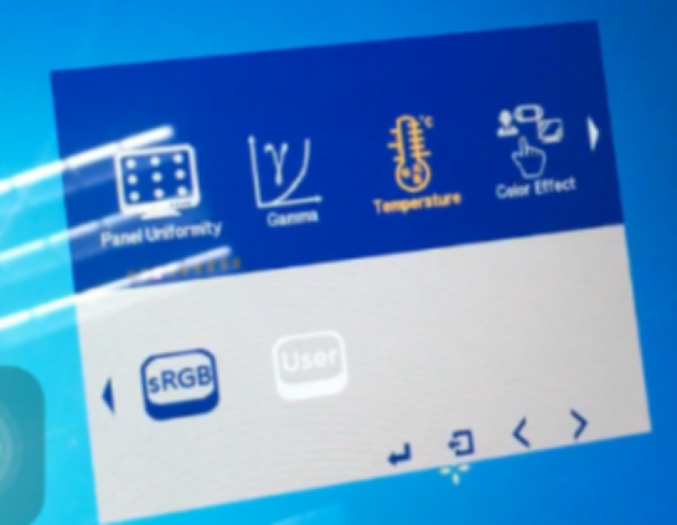
- Choose User → press Enter.
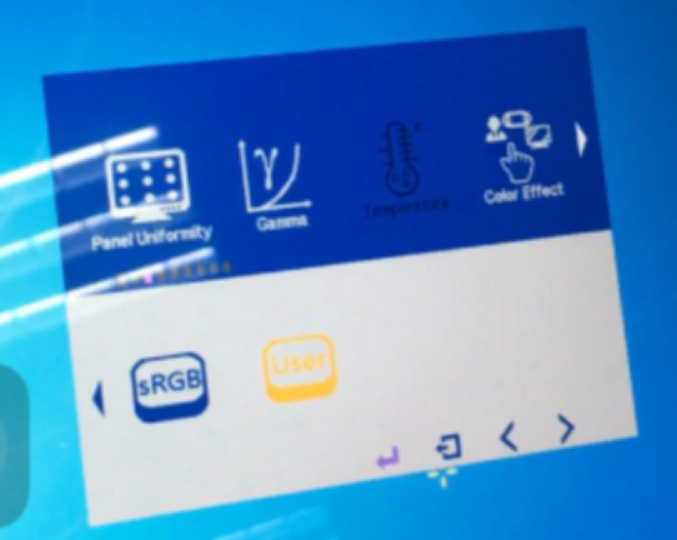
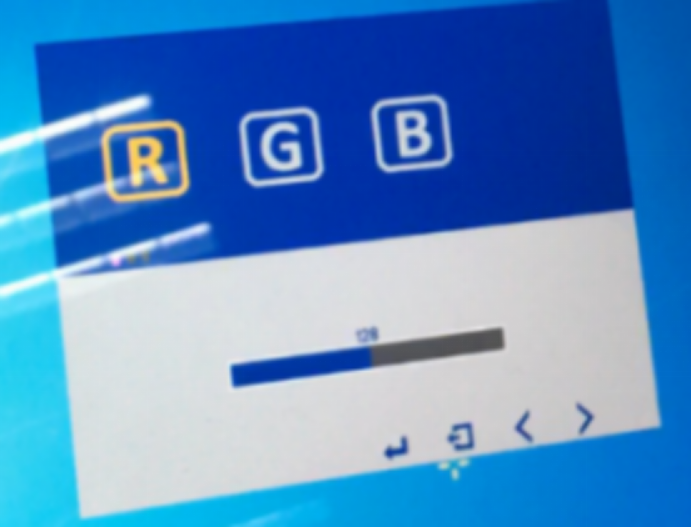
- You'll now see the RGB adjustment menu.
- Adjust Red, Green, and Blue values until the display color looks balanced.
Method 2: Adjust via Color Effect Settings
You can also fine‑tune color using the Color Effect menu.
Steps:
- Open the OSD panel.
- Go to Color → Color Effect → User.
- You'll find settings for Red, Yellow, Green, Cyan, Blue, and Magenta.
- For each color, you can modify:
- Hue — shifts the color tone
- Saturation — adjusts color intensity
Many users report that this method provides more precise control and better results for correcting color differences.
Tips for Best Results
- Compare your GAOMON display with a calibrated reference monitor if possible.
- Avoid adjusting brightness or contrast excessively — this can distort color perception.
- If you use multiple monitors, ensure they share similar color temperature settings (e.g., 6500K).
- For professional color work, consider using a hardware color calibrator.
Need More Help?
If color differences persist after adjustment, contact GAOMON Customer Support for further assistance. Provide details such as:
- Your device model (PD1161, PD1560, PD1561, PD1561 V2 or PD1161 V2)
- The issue description
- Photos showing the color difference
Was this article helpful?
That’s Great!
Thank you for your feedback
Sorry! We couldn't be helpful
Thank you for your feedback
Feedback sent
We appreciate your effort and will try to fix the article